Kanoa MES Accelerator
# Machine Setpoints Interface
**Created using:** Kanoa MES v1.14.2
**Last updated:** February 6, 2026
Download Resource
.default})
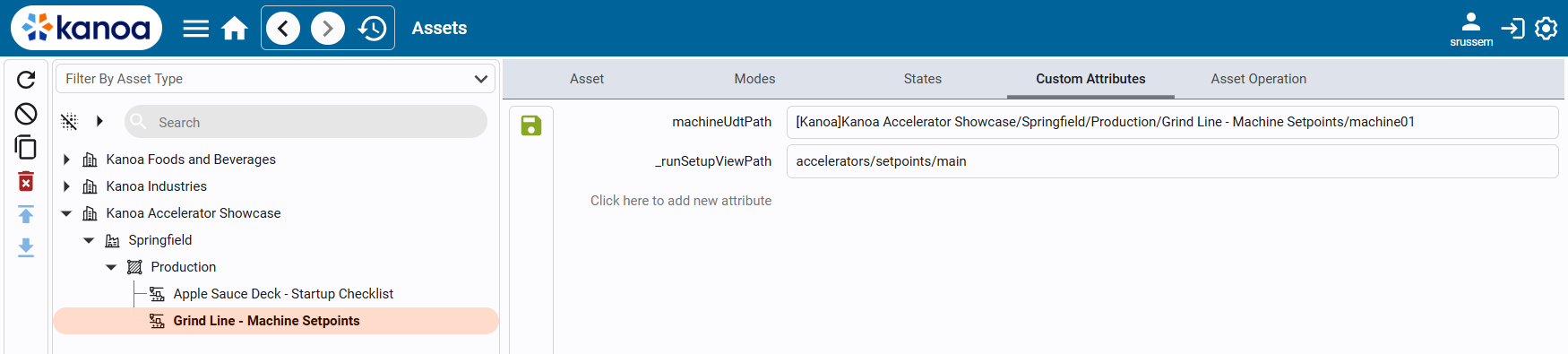 This tells the setpoints popup **which machine** it should read from and write to.
---
#### Step 3 — Configure the Asset Hook (`_runSetupViewPath`)
Configure the asset’s [`_runSetupViewPath`](https://kanoa-software.netlify.app/configuration/attributes) Custom Attribute to:
`accelerators/setpoints/main`
This built-in Kanoa hook tells the system:
> “When an operator presses Start Run, open this custom setpoints view instead of immediately starting the run.”
---
#### Step 4 — Attach Setpoint Metadata to a Work Order
Machine setpoints are stored on the order as [Production Order Metadata](https://kanoa-software.netlify.app/kanoa-ops/order-management#production-order-metadata).
The accelerator uses the metadata Name **"Machine Setpoints"**.
The value is a JSON object where keys correspond to machine tag names:
```json
{
"agitatorSpeed": 120,
"mixingTime": 15.5,
"jacketTemperature": 72,
"torqueLimit": 40,
"batchFillLevel": 0.85
}
```
You can add this metadata via script using [system.kanoa.order.addProductionOrderMetaData](https://kanoa-software.netlify.app/systemFunctions/order/addProductionOrderMetaData) or by using the included utility screen `accelerators/setpoints/addSetpointsToOrder`.
#### Step 5 — Run the Order and Commit Setpoints
This tells the setpoints popup **which machine** it should read from and write to.
---
#### Step 3 — Configure the Asset Hook (`_runSetupViewPath`)
Configure the asset’s [`_runSetupViewPath`](https://kanoa-software.netlify.app/configuration/attributes) Custom Attribute to:
`accelerators/setpoints/main`
This built-in Kanoa hook tells the system:
> “When an operator presses Start Run, open this custom setpoints view instead of immediately starting the run.”
---
#### Step 4 — Attach Setpoint Metadata to a Work Order
Machine setpoints are stored on the order as [Production Order Metadata](https://kanoa-software.netlify.app/kanoa-ops/order-management#production-order-metadata).
The accelerator uses the metadata Name **"Machine Setpoints"**.
The value is a JSON object where keys correspond to machine tag names:
```json
{
"agitatorSpeed": 120,
"mixingTime": 15.5,
"jacketTemperature": 72,
"torqueLimit": 40,
"batchFillLevel": 0.85
}
```
You can add this metadata via script using [system.kanoa.order.addProductionOrderMetaData](https://kanoa-software.netlify.app/systemFunctions/order/addProductionOrderMetaData) or by using the included utility screen `accelerators/setpoints/addSetpointsToOrder`.
#### Step 5 — Run the Order and Commit Setpoints
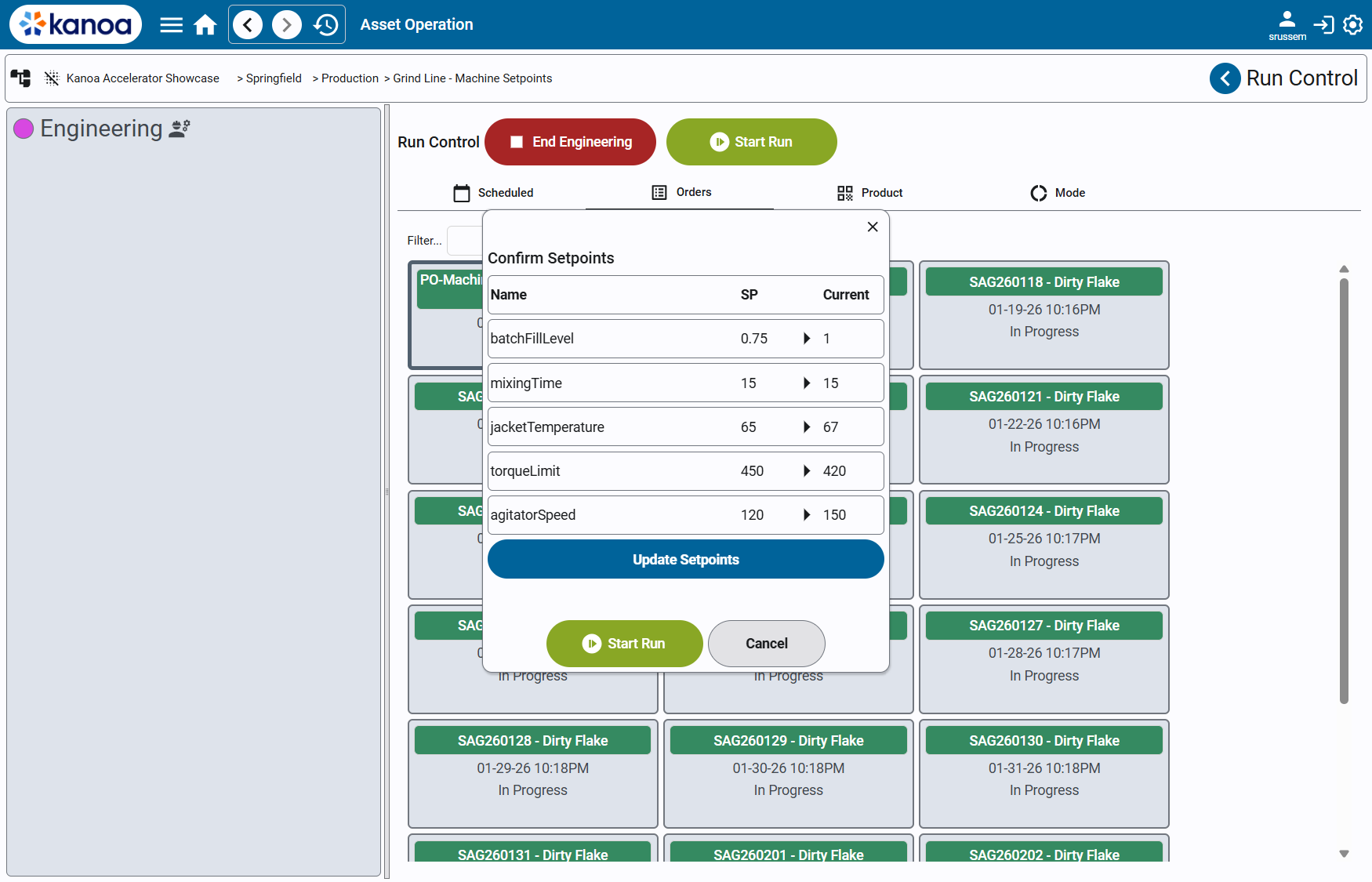 1. Open the asset’s **Run Control** screen.
2. Select a Production Order with **Machine Setpoints** metadata.
3. Click **Start Run**.
4. The Machine Setpoints popup will open instead of starting the run.
5. Review the desired vs current setpoints.
6. Click **Send Setpoints** to write values to the machine.
7. Click **Start Run** to begin production.
---
## Detailed Walkthrough
### accelerators/setpoints/addSetpointsToOrder
1. Open the asset’s **Run Control** screen.
2. Select a Production Order with **Machine Setpoints** metadata.
3. Click **Start Run**.
4. The Machine Setpoints popup will open instead of starting the run.
5. Review the desired vs current setpoints.
6. Click **Send Setpoints** to write values to the machine.
7. Click **Start Run** to begin production.
---
## Detailed Walkthrough
### accelerators/setpoints/addSetpointsToOrder
 #### Purpose
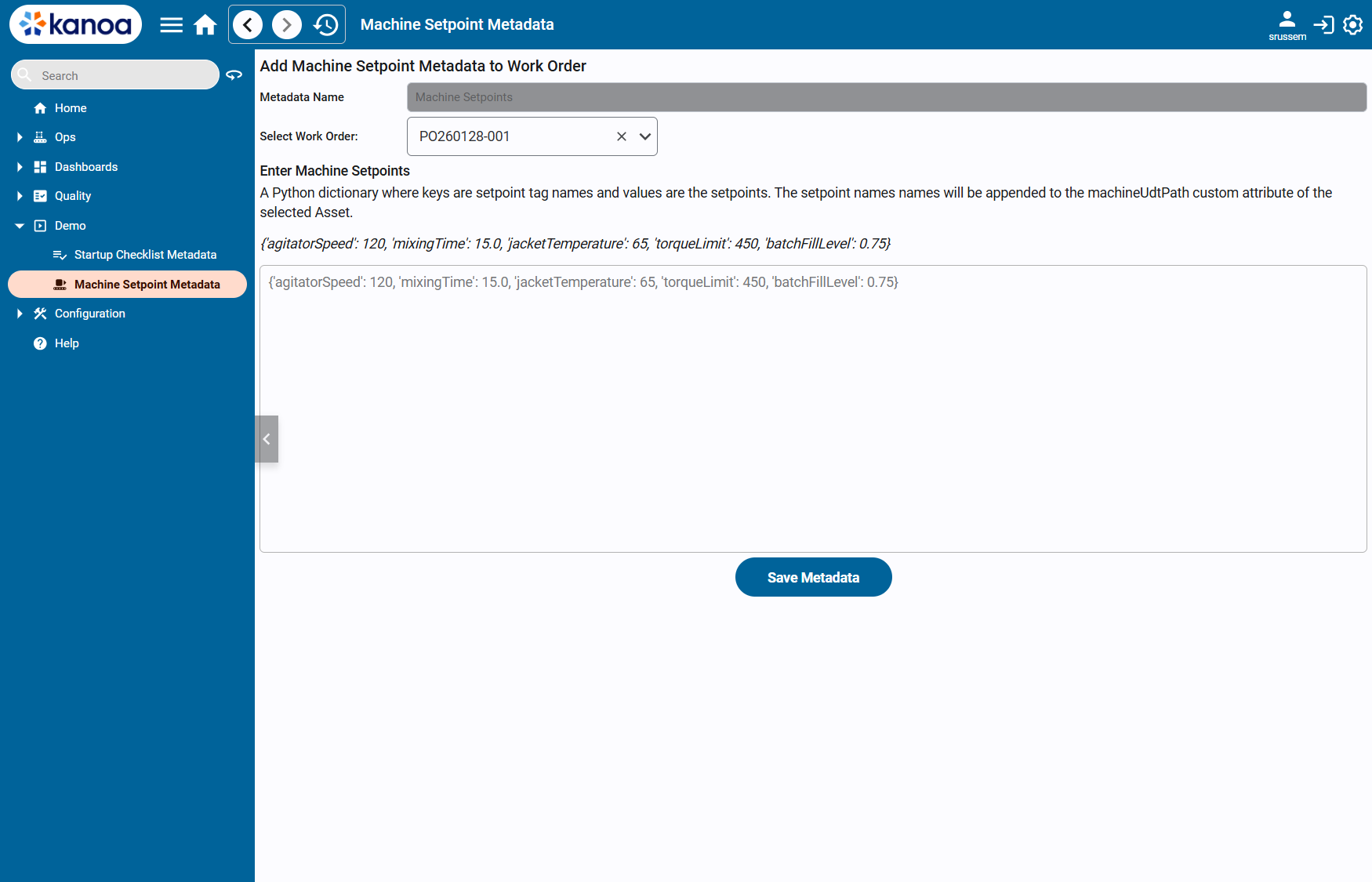
Utility screen used to quickly attach or update machine setpoints on a Production Order, primarily for demos and non-ERP environments.
#### Key Features
- Select a Production Order
- Enter setpoints as JSON
- Save metadata directly onto the order
#### Implementation Details
When **Save** is pressed, the view:
- Validates the selected work order
- Checks for existing **"Machine Setpoints"** metadata
- Adds or updates the metadata value accordingly
- Provides success or warning feedback
---
### accelerators/setpoints/main
#### Purpose
Utility screen used to quickly attach or update machine setpoints on a Production Order, primarily for demos and non-ERP environments.
#### Key Features
- Select a Production Order
- Enter setpoints as JSON
- Save metadata directly onto the order
#### Implementation Details
When **Save** is pressed, the view:
- Validates the selected work order
- Checks for existing **"Machine Setpoints"** metadata
- Adds or updates the metadata value accordingly
- Provides success or warning feedback
---
### accelerators/setpoints/main
 #### Purpose
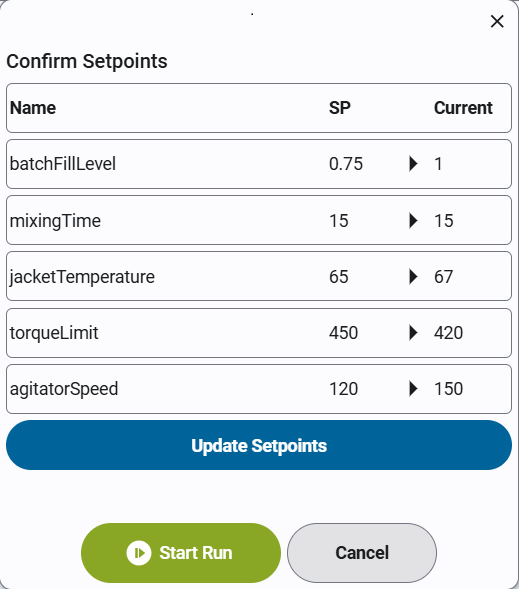
This is the primary run-start popup view launched via the asset’s `_runSetupViewPath`.
#### Responsibilities
- Resolve the target machine via `machineUdtPath`
- Load current machine setpoint values
- Load desired values from order metadata
- Display a comparison table
- Allow operators to commit setpoints
- Start the run after confirmation
#### Setpoint Loading
When opened, the view:
- Reads `workOrderId` and `assetId` from popup parameters
- Loads **"Machine Setpoints"** metadata from the order
- Reads current values from the machine UDT instance
- Builds a Flex Repeater dataset showing:
- Setpoint name
- Desired value
- Current value
#### Operator Interaction
- **Send Setpoints** writes the desired values to machine tags using Ignition tag writes.
- **Start Run** calls `system.kanoa.event.assetOperationChange()` to begin production.
- **Cancel** closes the popup without writing or starting.
---
### accelerators/setpoints/row
#### Purpose
Presentation-only row component used in the Flex Repeater.
#### Features
- Displays setpoint name, desired value, and current value
- Supports a header row for column labels
- Keeps all logic centralized in the main view
#### Binding Structure
Each row expects:
- `label`
- `setpointValue`
- `currentValue`
- `isHeader`
---
## Conclusion
### Common Use Cases
This accelerator is useful for:
- Recipe and setpoint-driven manufacturing
- Operator-confirmed machine configuration
- Reducing setup errors at run start
- Demonstrating order-to-machine integration patterns
- Building foundations for more advanced recipe management
### Expansion Opportunities
This accelerator can be extended to:
- Automatically apply setpoints without operator confirmation
- Add tolerance checks or validation rules
- Highlight mismatches between desired and current values
- Log setpoint application for auditability
- Support recipe versions or approvals
- Integrate with Kanoa Quality for specification enforcement
### Summary
The Machine Setpoints Interface Accelerator demonstrates a practical pattern for:
- Driving machine configuration from order context
- Using asset attributes to resolve machine targets
- Injecting custom logic into the run-start workflow
- Writing setpoints via Ignition tags
- Starting production using standard Kanoa operational APIs
It is a clear example of how Kanoa MES can be extended to support plant-specific workflows while remaining aligned with core platform behavior.
#### Purpose
This is the primary run-start popup view launched via the asset’s `_runSetupViewPath`.
#### Responsibilities
- Resolve the target machine via `machineUdtPath`
- Load current machine setpoint values
- Load desired values from order metadata
- Display a comparison table
- Allow operators to commit setpoints
- Start the run after confirmation
#### Setpoint Loading
When opened, the view:
- Reads `workOrderId` and `assetId` from popup parameters
- Loads **"Machine Setpoints"** metadata from the order
- Reads current values from the machine UDT instance
- Builds a Flex Repeater dataset showing:
- Setpoint name
- Desired value
- Current value
#### Operator Interaction
- **Send Setpoints** writes the desired values to machine tags using Ignition tag writes.
- **Start Run** calls `system.kanoa.event.assetOperationChange()` to begin production.
- **Cancel** closes the popup without writing or starting.
---
### accelerators/setpoints/row
#### Purpose
Presentation-only row component used in the Flex Repeater.
#### Features
- Displays setpoint name, desired value, and current value
- Supports a header row for column labels
- Keeps all logic centralized in the main view
#### Binding Structure
Each row expects:
- `label`
- `setpointValue`
- `currentValue`
- `isHeader`
---
## Conclusion
### Common Use Cases
This accelerator is useful for:
- Recipe and setpoint-driven manufacturing
- Operator-confirmed machine configuration
- Reducing setup errors at run start
- Demonstrating order-to-machine integration patterns
- Building foundations for more advanced recipe management
### Expansion Opportunities
This accelerator can be extended to:
- Automatically apply setpoints without operator confirmation
- Add tolerance checks or validation rules
- Highlight mismatches between desired and current values
- Log setpoint application for auditability
- Support recipe versions or approvals
- Integrate with Kanoa Quality for specification enforcement
### Summary
The Machine Setpoints Interface Accelerator demonstrates a practical pattern for:
- Driving machine configuration from order context
- Using asset attributes to resolve machine targets
- Injecting custom logic into the run-start workflow
- Writing setpoints via Ignition tags
- Starting production using standard Kanoa operational APIs
It is a clear example of how Kanoa MES can be extended to support plant-specific workflows while remaining aligned with core platform behavior.