# Complete a Check Sheet

A routine check, such as a cleanliness check, is a **check sheet** with a short list of questions. Each question is a
**check item**. Each time someone fills in a check sheet, Kanoa records one **check event**. This lesson shows you how to
find or add a check, fill it in on a desktop or mobile device, and submit it.

The Operator track covers the same job from the Operator Station. See
[Complete a Quality Check](../2-operator/6-quality-checks.md) for finding a check from the **Notifications** card. This
lesson covers the quality screens.

## Find a Scheduled Check

Kanoa schedules check sheets for you, based on triggers such as a production run, a mode change or a shift change. Open
them from the **Check Table** or the **Active Checks** screen.

![Check Table](https://docs.kanoa.ai/img/quality/checkTable.png)

![Active Checks](https://docs.kanoa.ai/img/quality/activeChecks.png)

1. Open **Quality → Schedule → Active Checks** or **Quality → Schedule → Check Table**.
2. Double-click a scheduled check, or select it and click the **Edit** button, to open it for entering data.

{/*
TODO: Confirm on a gateway what the Active Checks screen filters on (selected asset, status, date range).
*/}

A check that hasn't been started moves through these statuses on its own: **Coming Due**, **Due**, **Over Due** and
**Missed**. A check that is **Missed** was not started in time, and shows on compliance reports.

## Add a Check Yourself

You can also start a check that nothing has scheduled, such as a routine cleanliness check.

1. Click **Add Check**.
2. If the check sheet needs an asset and an item, Kanoa asks which asset and which item you're checking. Choose them.
3. Open the new check.

![Add Check](https://docs.kanoa.ai/img/quality/addCheck.png)

A check you add by hand is **Due** as soon as you add it. The **Add Check** list shows only released, enabled check sheets.
It leaves out **Auto** check sheets, whose values are captured from tags. Tick **Include Auto Checks** if you need one.

## Fill In the Check

![Check sheet](https://docs.kanoa.ai/img/quality/quality-checks-check-sheet.png)

1. Enter a value for the selected check. For a pick list, such as *Clean / Dirty*, tap the button. For a number, use the
   keypad.
2. After each value, the next check is selected for you.
3. Use the clear icon to remove a value you entered by mistake.
4. Click the blue **i** icon on a check to read its instructions.
5. Add a comment to a single check item if it needs one, or a general comment for the whole check sheet.

A progress bar at the top shows how much you've done. A check is white or empty until you enter it. After that its color
shows whether it is good or bad against its limits. It is gray if the check has no limits.

Check entry is by pop-up value entry or by keyboard. Click the keypad icon at the upper right to switch between them.

## Submit the Check

1. If any check failed (red background), add a comment. A check sheet with a failure can't be submitted without one.
2. Submit the check sheet.

Each check sheet decides whether it needs a **sign-off**. If it doesn't, a submitted check goes straight to **Approved**.
If it does, it waits as **Submitted** until someone with the **Approve Checks** function approves it.

You can cancel a check at any time before you submit it.

:::info
Entering checks needs the **Enter Checks** security function.
:::

## Complete a Check on Mobile

<div className="row">
<div className="col col--6">

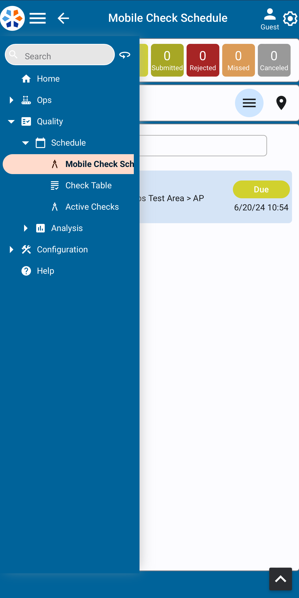
The same checks work on a phone or tablet.

1. Open **Mobile Check Schedule** from the left menu.
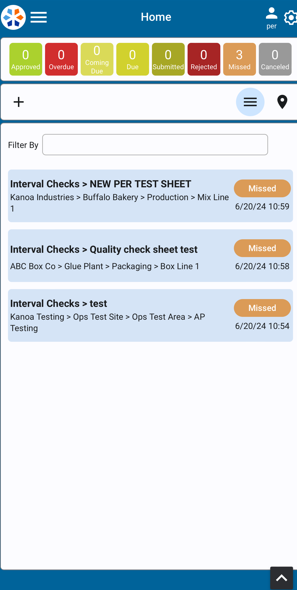
2. To add a check, click the add icon (**+**) at the upper left. Select an asset and an item, then click **Add**.
3. Open the check and fill it in as you would on a desktop.

On mobile you can also take a photo or video with a check, and record where the check was entered on a map using GPS.

</div>
<div className="col col--6">
<div style={{display: 'flex', gap: '12px', alignItems: 'flex-start'}}>
<img src="https://docs.kanoa.ai/img/quality/mobileCheckMenu.png" alt="Mobile Check Schedule in the menu" style={{width: '50%'}} />
<img src="https://docs.kanoa.ai/img/quality/mobileActiveCheck.png" alt="Checks on the mobile check schedule" style={{width: '50%'}} />
</div>
</div>
</div>

::embed-section{src="../../kanoa-quality/entering-checks.md#enter-check-data" collapsed="true" summary="Reference Materials: Enter Check Data - Entry controls, colors, comments and mobile options."}

## Check Your Understanding

1. A check sheet is Missed. What does that mean?
2. You enter a value that makes a check turn red. What must you do before you can submit?
3. Where do you open the checks on a phone?
<details>
<summary>Answers</summary>

1. It wasn't started before its Over Due and Grace time ran out.
2. Add a comment. A check sheet with a failed check can't be submitted without one.
3. **Mobile Check Schedule**, from the left menu.

</details>
