Operator Startup Checklist
Created using: Kanoa MES v1.14.2
Last updated: February 6, 2026
Download Resource
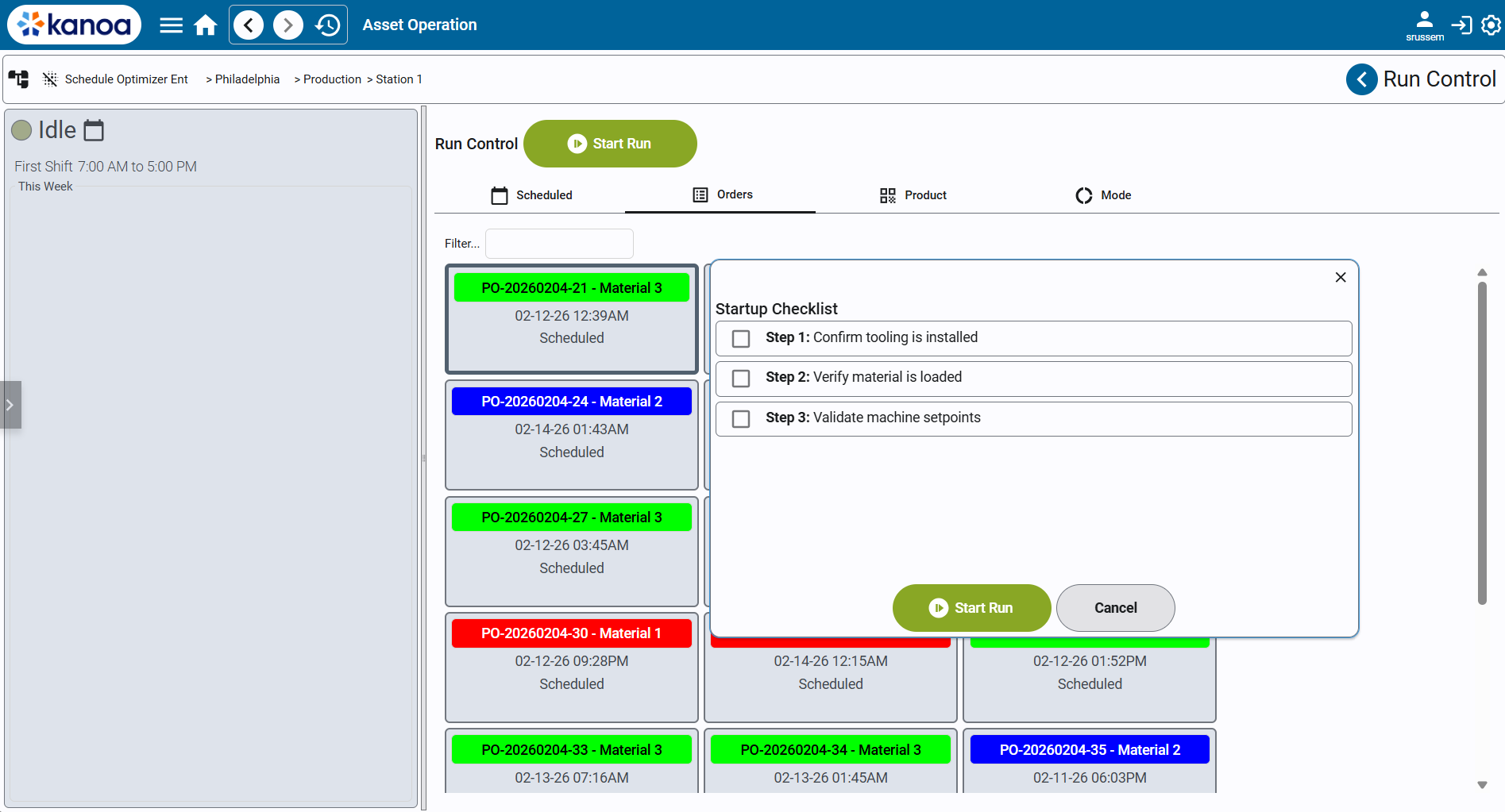
Overview
The Operator Startup Checklist Accelerator is a lightweight implementation pattern for enforcing required setup and verification steps before an operator can begin a production run.
In many manufacturing environments, operators must confirm key startup actions such as:
- Verifying tooling and fixtures
- Confirming material load and labeling
- Checking machine readiness and safety conditions
- Completing quality or compliance steps before production begins
This accelerator demonstrates how to implement a startup checklist workflow using:
- Production Order Metadata
- Custom Perspective views
- A built-in Kanoa run-start hook (
_runSetupViewPath) - Standard Kanoa operational APIs for starting runs
The result is a simple but powerful extension that can be reused across many implementations.
How It Works
This solution enables you to:
| Feature | Design |
|---|---|
| Attach a checklist of startup instructions to a specific work order | By adding that checklist as work order metadata named "Startup Checklist" |
| Display those checklist items to operators at run start | By using an asset's _runSetupViewPath Custom Attribute to open a custom pop-up when an operator presses Start Run on an asset |
| Require completion of all checklist steps before production begins | By only enabling the custom pop-up's Start Run button when all checklist items are checked |
| Start the run through standard Kanoa asset operation logic | By calling system.kanoa.event.assetOperationChange() when the custom pop-up's Start Run button is pressed |
Kanoa MES Features Used
Implementation & Configuration
Included Resources
This accelerator package contains three Perspective views:
| View | Description |
|---|---|
accelerators/startupChecklist/addChecklistToOrder | Utility screen to quickly attach checklist to an order as Production Order Metadata |
accelerators/startupChecklist/main | Run-start popup view (configured via an asset's _runSetupViewPath) |
accelerators/startupChecklist/row | Individual checklist item component used in the main view's repeater |
Implementation
Step 1 — Import the Views
Import the provided Ignition Perspective views into your project:
accelerators/startupChecklist/addChecklistToOrderaccelerators/startupChecklist/mainaccelerators/startupChecklist/row
These contain all required scripting and bindings for the accelerator.
You can put these files in a different path if needed. You’ll need to adjust the source target for the Flex Repeater in the main view to point to the proper row view.
Step 2 — Configure the Asset Hook (_runSetupViewPath)
To intercept the standard run-start workflow, configure the _runSetupViewPath Asset Custom Attribute on a given asset via the Asset Configuration screen:

This is a built-in extensibility hook in Kanoa MES that tells Kanoa:
"When an operator presses Start Run, open this custom view instead of immediately starting the run."
Step 3 — Attach Checklist Metadata to a Work Order
Startup checklist instructions are stored on the order as Production Order Metadata.
The accelerator uses the metadata Name "Startup Checklist".
The value is a JSON-encoded list of Markdown strings, for example:
[
  "**Step 1:** Confirm tooling is installed",
  "**Step 2:** Verify material is loaded",
  "**Step 3:** Validate machine setpoints"
]
You can do this via script using system.kanoa.order.addProductionOrderMetaData or use the provided utility screen accelerators/startupChecklist/addChecklistToOrder.
Step 4 — Run the Order on the Asset and complete the Checklist
Now that you have a Production Order with the checklist metadata and an asset that is configured to use our custom checklist pop-up as its run setup view, we can see this in action:
- Open the Asset's Run Control screen.
- Go to the Orders tab and select the Production Order that you added a checklist to.
- Click the Start Run button.
- Instead of the run starting, you should see the Checklist pop-up. The pop-up's Start Run button will be disabled until all checklist items are complete. Check all checklist items. Start the run.
Detailed Walkthrough
accelerators/startupChecklist/addChecklistToOrder
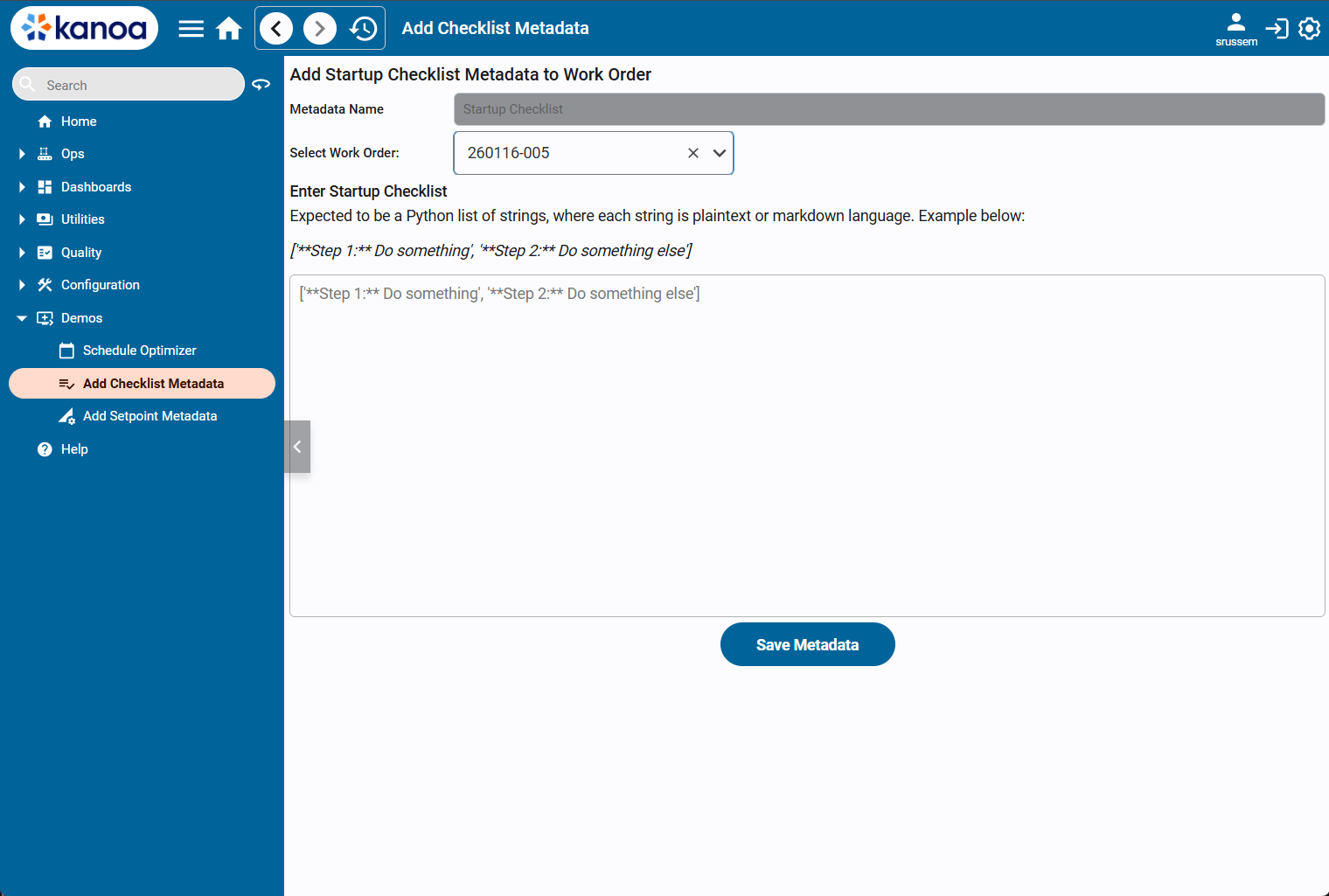
Purpose
This is a utility screen used to quickly attach checklist metadata to a work order for testing, demos, or non-ERP environments.
Key Features
- Select a Production Order that is Released or Scheduled
- Enter checklist instructions as a Python list of markdown strings
- Save metadata directly onto the order
Implementation Details
When the Save button is pressed, the view:
- Validates the selected work order
- Checks whether metadata already exists
- Adds or updates the
"Startup Checklist"metadata value using
This provides a fast way to populate checklist requirements during implementation.
accelerators/startupChecklist/main
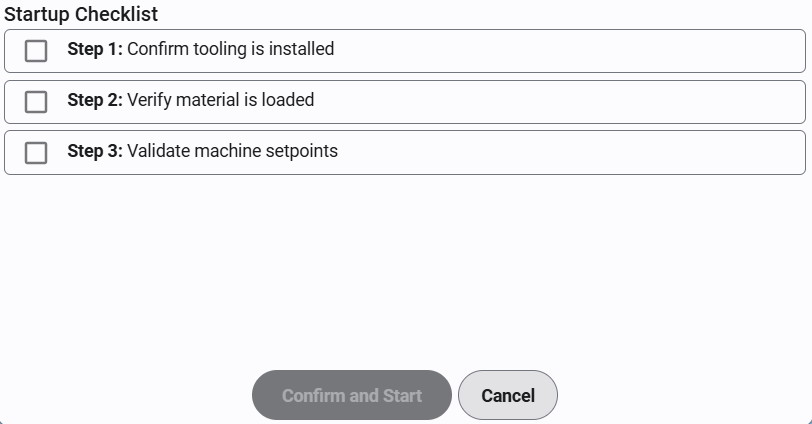
Purpose
This is the primary checklist popup view launched at run start.
It is assigned to the asset via the _runSetupViewPath Custom Attribute.
Responsibilities
This view handles the complete workflow:
- Load checklist instructions from work order metadata
- Display checklist items in a Flex Repeater
- Validate completion
- Start the run only after confirmation
Checklist Loading
When opened, the view reads:
workOrderIdfrom the popup parameters"Startup Checklist"(hard-coded) metadata from the order
The metadata value is decoded using:
system.util.jsonDecode(...)
The results are then mapped into the "row" View in a Flex Repeater.
Operator Interaction
Operators check off each checklist item.
The Start button remains disabled until all items are complete.
Validation is performed by iterating through all instance statuses.
Starting the Run
Once confirmed, the view starts the production run using system.kanoa.event.assetOperationChange()
This ensures the run begins through standard Kanoa operational logic, even though startup was redirected into a custom workflow.
accelerators/startupChecklist/row
Purpose
This is the reusable checklist row component displayed inside the Flex Repeater.
Features
- Checkbox completion state
- Markdown-rendered instruction text
- Visual styling when complete
Binding Structure
Each row expects:
value.markdown→ instruction textvalue.status→ completion boolean
Because the binding is bidirectional, row updates flow back to the main view automatically.
Conclusion
Common Use Cases
This accelerator is useful for:
- Operator setup verification
- Safety and compliance enforcement
- Standardized run startup procedures
- Reducing startup mistakes and downtime
- Industry-specific pre-run requirements (food, aerospace, regulated manufacturing)
Expansion Opportunities
This accelerator is intentionally simple, but can be extended easily:
-
Add conditional checklist items based on asset type or product
-
Include other startup steps directly in the run start pop-up, like machine setups
-
Use the same method to display other relevant metadata to the operator before starting a run
-
Leverage Kanoa Quality to manage the startup checklist
- Valuable if you need to check against specifications or tolerances
- Useful if you need more detailed logging and reporting of startup data
Summary
The Operator Startup Checklist Accelerator demonstrates a practical pattern for:
- Driving operator workflows from order metadata
- Injecting custom run-start behavior using
runSetupViewPath - Enforcing startup compliance with minimal scripting
- Providing reusable Perspective screens for integrators
This is a high-value example of how Kanoa MES can be extended quickly while staying aligned with core platform behavior.