KanoaMES v1.11
Release Date - 7/12/25
Implementation Guidance
This release package has been tested against Ignition 8.1.47.
The minimum required version of Ignition is 8.1.33
- kanoaMES_1_11_39.modl
- ApexCharts-signed 1.0.17.modl
- BIJC_Calendar_Component_v1.8.1.modl
Note...
- We have set itemId in the mes.workOrder to NOT NULL. A work order record is invalid if it doesn't contain an itemId. If the module update fails as Hawthorn attempts to set this constraint, go into the database and either delete any workorders that has null itemIds, or set them to a valid itemId.
Summary
Our latest release 1.11 brings more features and a ton of fixes and improvements to all aspects of the KanoaMES product. In summary, we have added...
- Performance Reason Coding - Analyze the reasons your assets ran slowly
- Generate serialized numbers - Create templates that determine how serialized numbers are generated
- Add custom attributes to lots
- Track lot location on mobile assets - assetTransportId
- User configuration of Asset Operation screen
- Search for production order scheduled events
- Import and export dashboard widgets
- Improved Downtime Analysis only include events that occur during production
Performance States
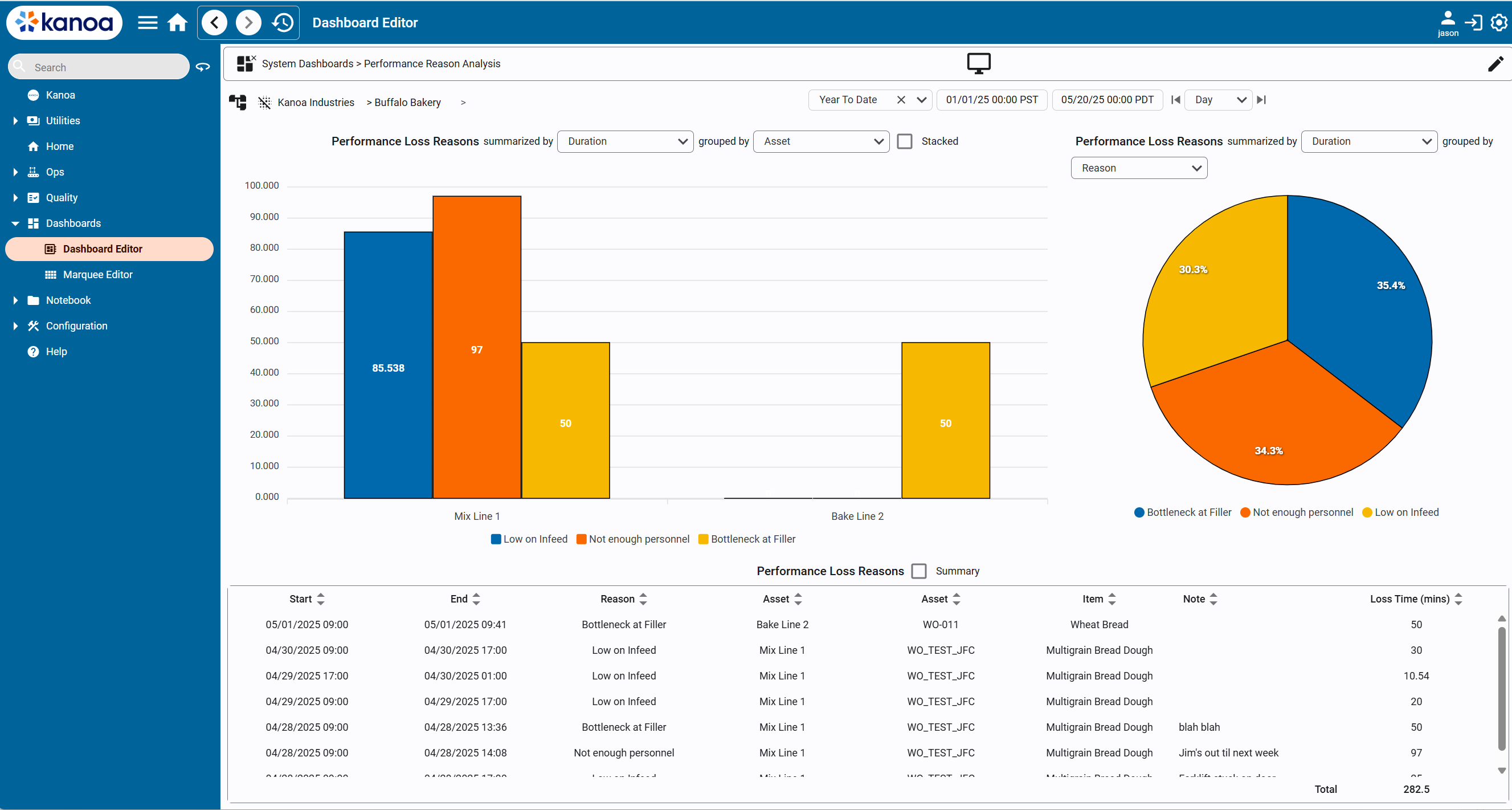
We've added Performance Reason Coding that allows speed loss to be coded and categorized. This addition means that you now have a way to codify all the different reasons that can affect an assets' OEE. We call it the trifecta!
- Downtime Reasons for Availability
- Item States and Scrap Reasons for OEE Quality
- Performance Reasons for OEE Performance
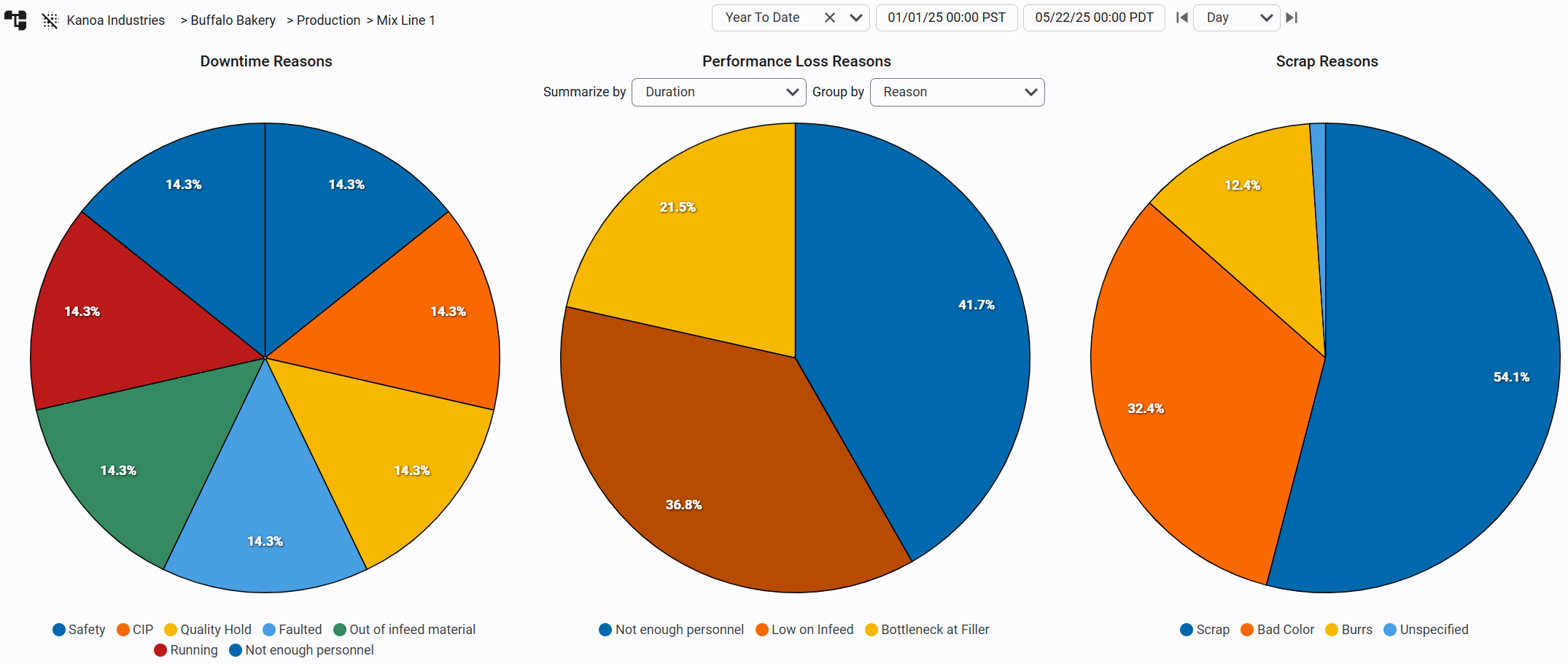
Performance States can be grouped into performance reason state classes and then linked to assets and items, so only those reasons valid for an asset/item combo are available for operator selection.
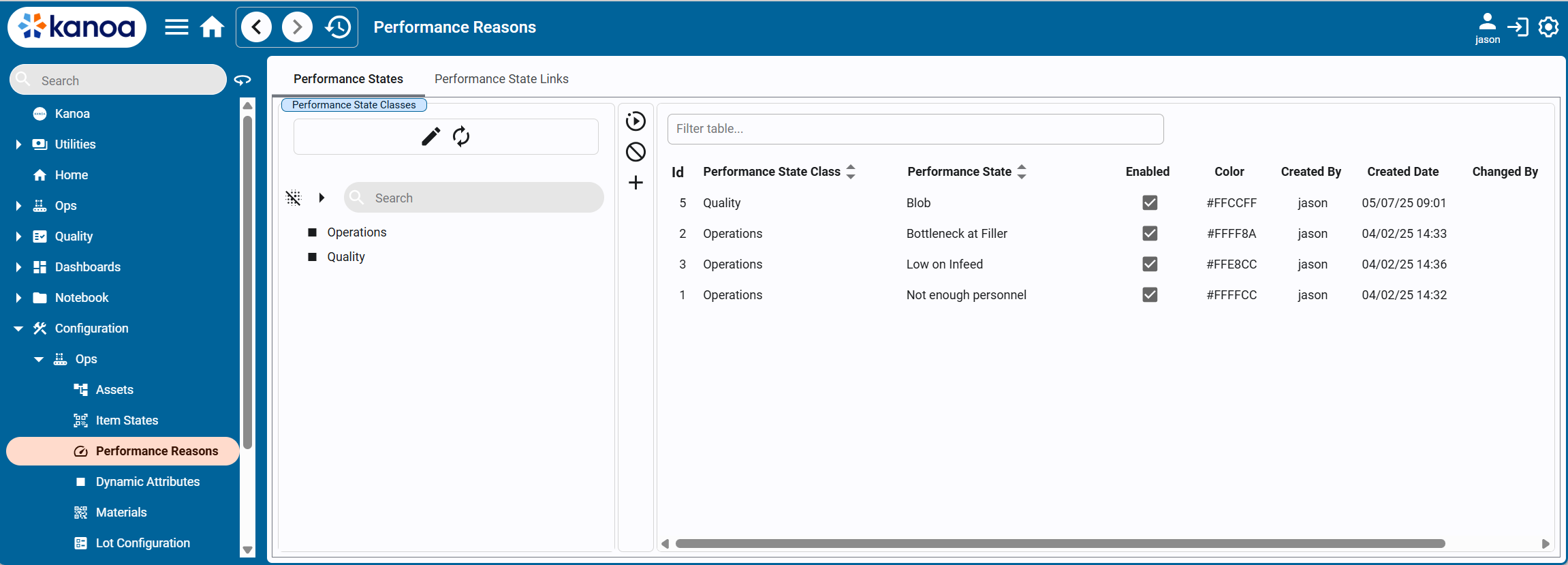
Performance Events can be added via the Performance Event editor.
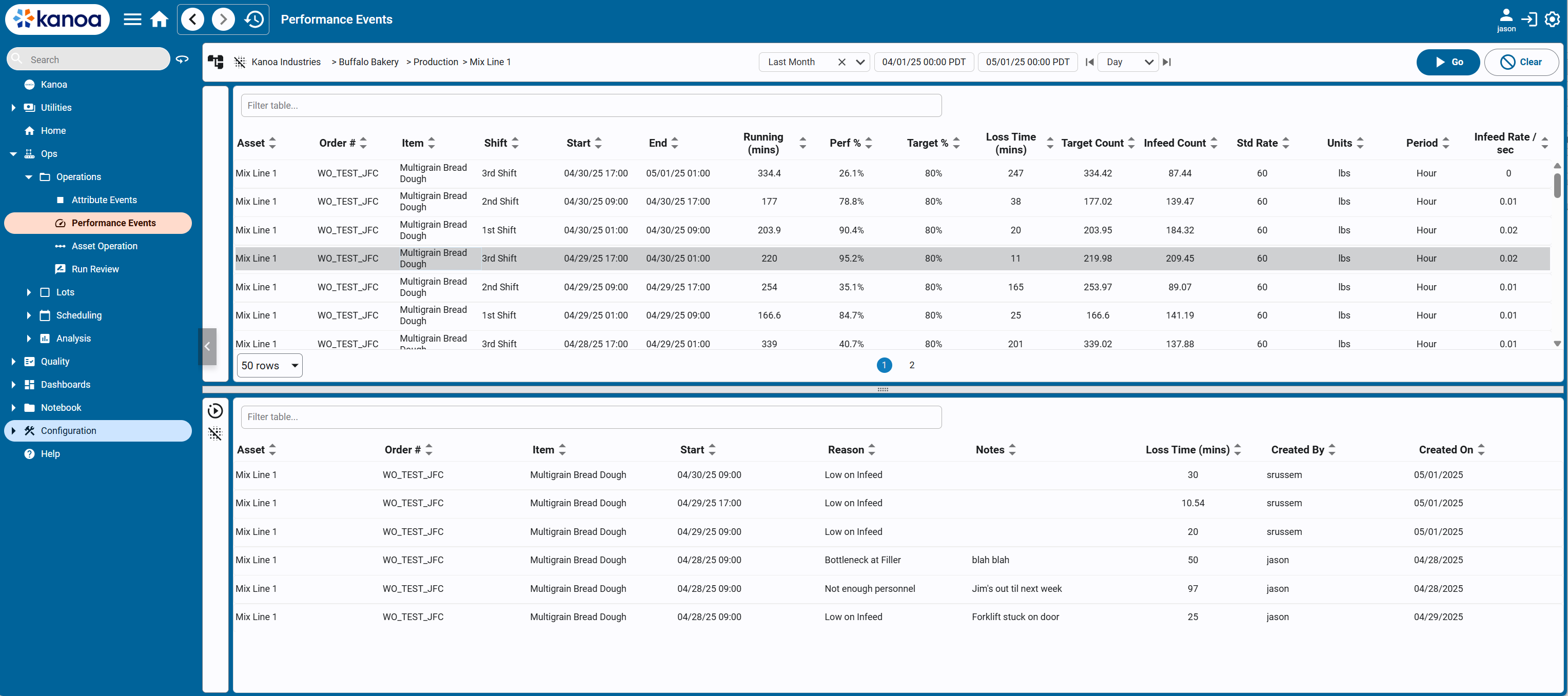
We have created three new widgets that you can use to create a dashboard to display Speed Loss analytics.
- kanoa/core/dbp/widgets/analytics/performanceReasonBarChart
- kanoa/core/dbp/widgets/analytics/performanceReasonPieChart
- kanoa/core/dbp/widgets/analytics/performanceReasonTable
Downtime Analysis
We have refactored our asset state event analysis calls to only return downtime events that occur during production runs. Although most of our analysis screens only called for downtime data during production times, it was possible to go the downtime analysis screen and select a period that include non production time and all downtime state events during that time frame would be returned which caused some confusion.
So we have created the following new functions....
- system.kanoa.event.getAssetStateEvents(). Replaces getDowntimeData() and getStateEvents() functions which have been deprecated.
- system.kanoa.event.getAssetStateEventsSummary(). Replaces getDowntimeDataSummary() and getStateEventSummary() functions which have been deprecated.
- system.kanoa.event.getAssetStateEventsByShift(). Replaces getDowntimeDataByShift() which has been deprecated.
- system.kanoa.event.getAssetStateEventsByShiftSummary(). Replaces getDowntimeDataByShiftSummary() which has been deprecated.
- system.kanoa.event.getAssetStateEventsByInterval(). Replaces getDowntimeDataByInterval() which has been deprecated.
- system.kanoa.event.getAssetStateEventsByCategory(). Replaces getDowntimeDataByCategory() which has been deprecated.
All our analysis views have been modified to call the new functions. Any custom screens you have created that call the deprecated functions will still work and they in turn have been modified to also only return downtime during production events.
New Lot Features
Serialized Numbers
We've added 5 new system functions that allow you to define a serialized template to then start generating serial numbers against.
system.kanoa.serial.addSerialNumber() allows you to specify a prefix, suffix, zfill and starting value for a serialized template name.
Example...
serialInfo = {'serialName': 'lpn', 'prefix': 'KAN', 'zfill': 6, 'suffix': '-A'}
userId = system.kanoa.security.getIDPUserId({'userName': 'SYSTEM'})
serialId, msg = system.kanoa.serial.addSerialNumber(serialInfo, userId)
Once a template has been created, you can now call system.kanoa.serial.getNextSerialNumber(serialId, userId) to generate the next unique serialNumber. Other functions added are system.kanoa.serial.deleteSerialNumber(), system.kanoa.serial.getSerialNumbers() and system.kanoa.serial.updateSerialField().
Lot Attributes We've added the ability to add attributes to a lot.
New Lot Attribute functions are system.kanoa.lot.getLotAttributes(), addLotAttribute(), updateLotAttribute(), and deleteLotAttribute().
Attributes of a lot can now be viewed in a lot Attribute table on Trace Graph screen.
assetTransportId
Lot events can now be associated with mobile assets. Simply create your mobile assets in the asset configuration screen and add to the lotEvent using the 'assetTransportId' keyword. Not only can you tell where in your facility a lot is, you can also tell which tray, rack or truck it is on.
Asset Operator Screen Configuration
We have added a new tab to asset configuration that will allow a user to select the navigable items, custom left and right panel and dashboards to be shown to an operator on the Asset Operation screen all in one place.
Info panels and Ops panels have been moved to their own folders to be able to provide a dropdown list of available panels.
- kanoa/mes/asset/operation/infoPanel
- kanoa/mes/asset/operation/opsPanel
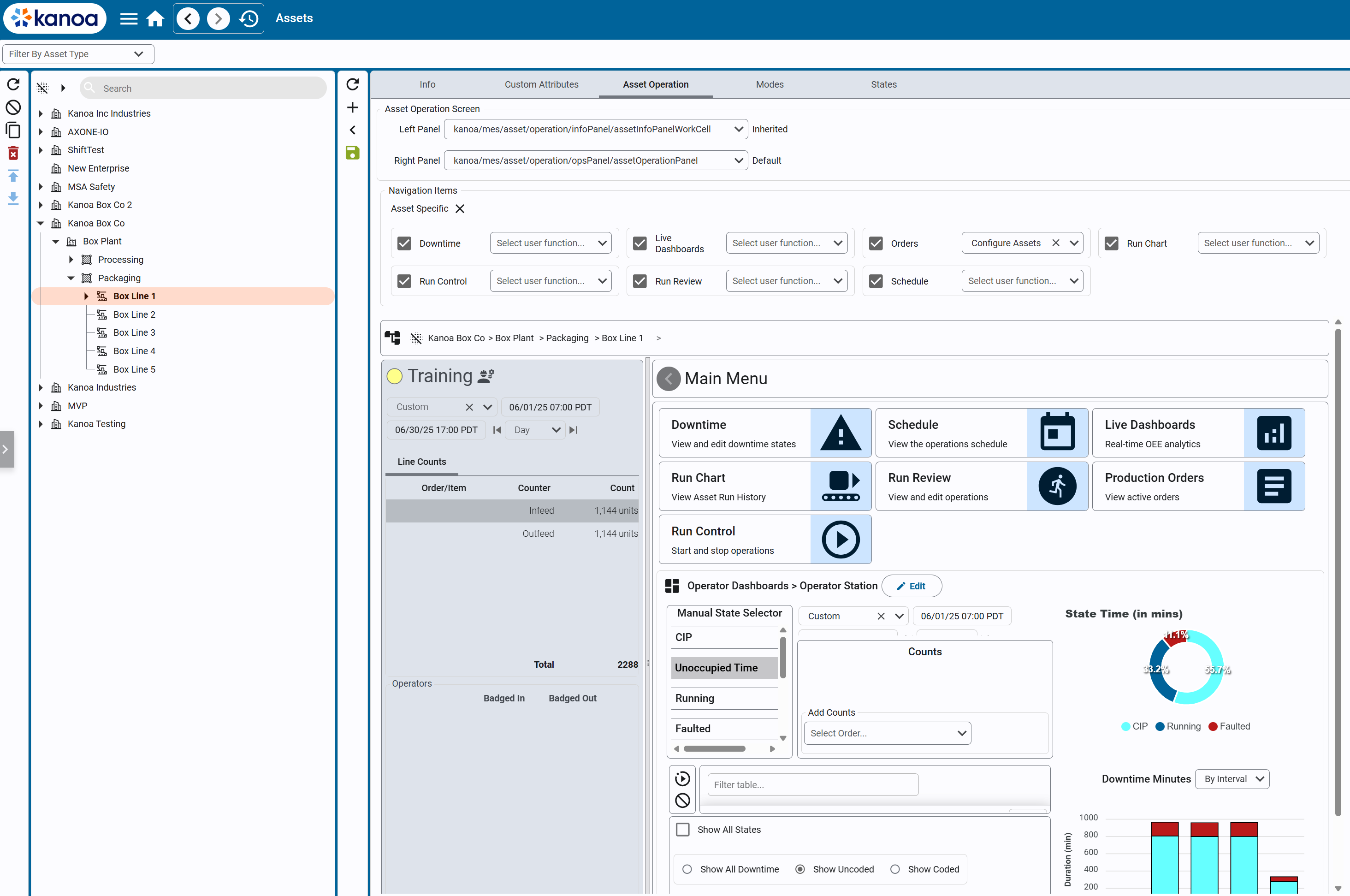
To create custom panels, simply add your own to these folders in the kanoaMES project or your runnable project that inherits from kanoaAPP.
To add custom navItems to the navigation selection view, a client will override the following view in the kanoaMES or runnable project that inherits from kanoaAPP...
- kanoa/mes/config/assetOperation/navItems and add elements to defaultNavItems
- kanoa/mes/asset/operation/navigation/navSelector and add elements to defaultNavItems
- kanoa/mes/asset/operation/navigation/navSelector and add elements to navItems. This will need to set any specific viewParams for each added view
New Schedule Features
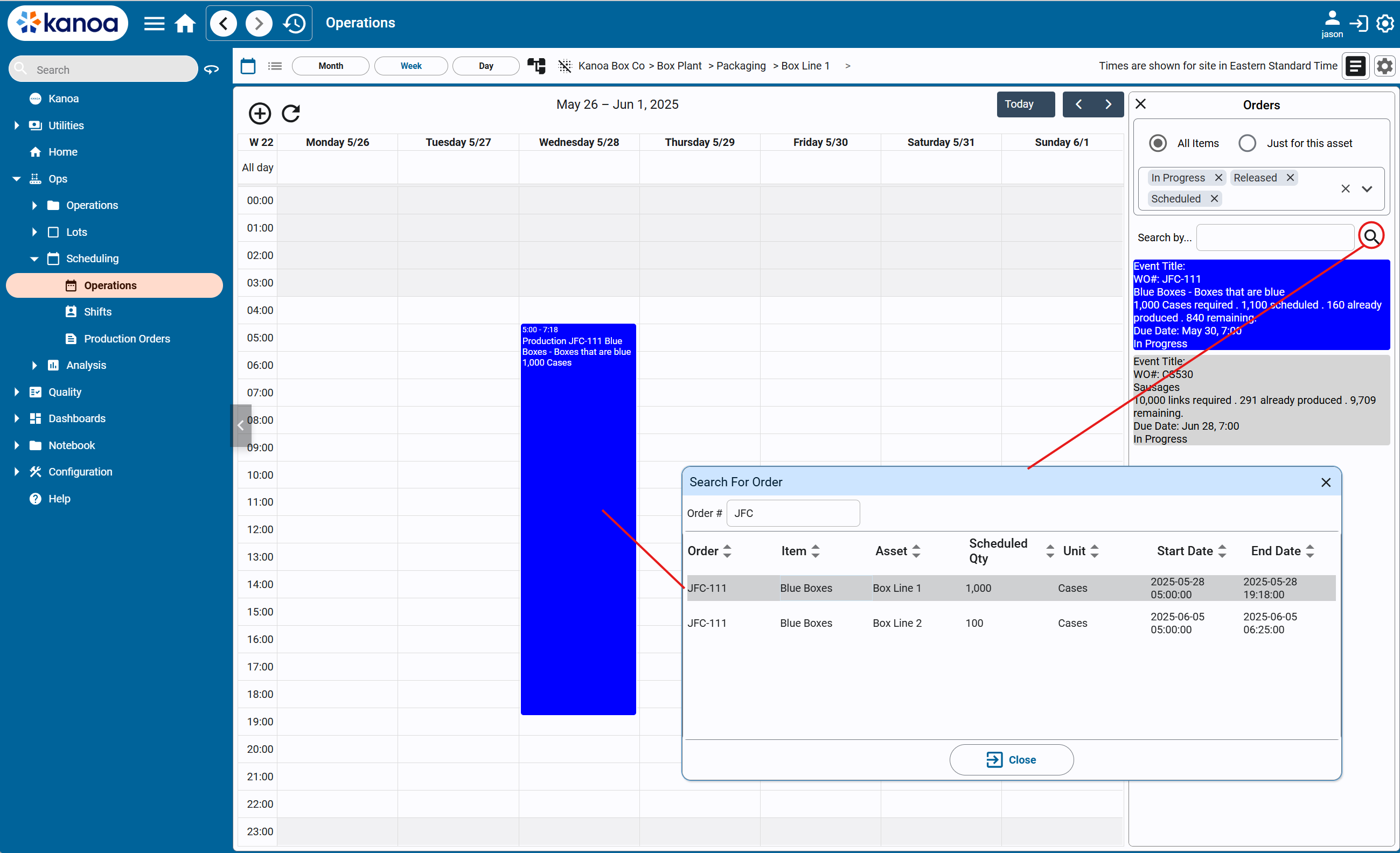
Production Order Event search
You can now search for scheduled events by production order in both the operations scheduler and in the Order screen.
Adjust Schedule Rate based on shift crew size
It is now possible to have the schedule duration of an order calculated based on crew size scheduled for a shift.
To enable this functionality..
- 'Shift Adherence' and 'Intelligent Scheduling' must be disabled
- Configure an asset attribute called '_adjustScheduleRateBasedOnCrewSize' and set to 1. This can be set at any level of the asset hierarchy
- Order is dragged onto schedule
Order Custom Schedule Rate
It has always been possible to have an order received ERP to contain rate information regarding the expected (standard) rate and schedule rate, and the asset-item rate will be stored. In v1.11.19, we extend this to provide a mechanism for storing a custom schedule rate / standard rate that only applies to the production order and that is used when an order to dragged onto the scheduler. This provides a way of having an order that has specific configuration information regarding the production of an item.
How it works...
When an order from ERP is processed, simply add the custom rate information as a workOrderMetaData field called 'orderScheduleRateInfo' against the order.
orderScheduleRateInfo = {
							'scheduleRate': 45,
							'standardRate': 60,
							'itemPeriodName': 'Hour',
							'infeedUnits': 'LB'
						}

orderMetaDataInfo = {
							'workOrderId': 1,
							'metaDataName': 'orderScheduleRateInfo',
							'metaDataValue': system.util.jsonEncode(orderScheduleRateInfo)
						}

userId = system.kanoa.security.getIDPUserId({'userName': 'SYSTEM'})
workOrderMetaDataId = system.kanoa.order.addProductionOrderMetaData(orderMetaDataInfo, userId)
print workOrderMetaDataId
>>> 10
When the order is dragged onto the calendar, we now check to see the order has a workOrderMetaData field called 'orderScheduleRateInfo' and will use that information, other it will use the item-asset rate information.
New Dashboard Features
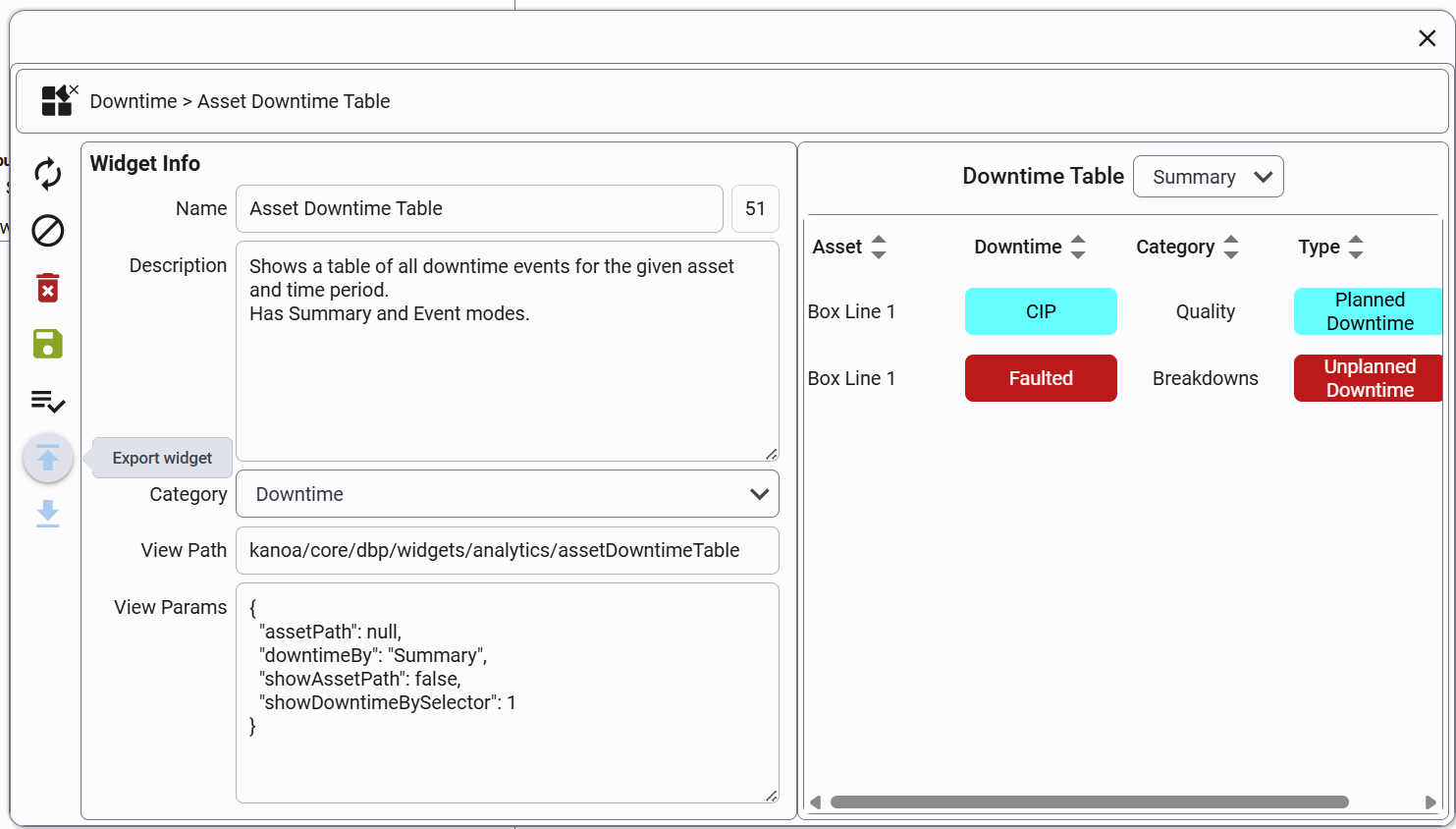
You can now export and import widgets as well as dashboards. Go to the widget editor under dashboards and export away.
Change Log
User Security
- Add 'Show disabled' to user table.
- userSource selections are wrong and cannot select default. This has been fixed.
- Cannot set user as gateway admin. This is because the enabled binding was set to false due to the userSource name. This has been fixed.
Scheduling
- Default date in schedule Event Viewer is February. This is fixed.
- Found issue with calculating 'start' and end fields when DB is not set to UTC. This has been fixed.
- Recurring schedule selection 'Set' button is disabled. This has been fixed.
- Inherited shifts differ on weekly, monthly, and daily views. This has been fixed.
- Add itemDescription to order eventSelector
Material Management
- 'Show Item Attributes' is now back on the Item Configuration screen. It was removed due to performance issues but is now back and significantly faster.
Lot Management
- Add 'Export button on Lot Manager to export lots to excel.
- Added assetTransportId to lotEvent table to be able to track mobile equipment that a lot is placed on.
- Updated lot trace graph to show asset transport.
Asset Management
- Added current shift info to asset operation info panel.
- Exporting a big asset tree now shows progress indicator.
Bug fixes
- Breadcrumb asset selector show duplicate names. This is fixed.
- Item State Link page does not update automatically after adding new Item States. This is fixed.
- Deleting an item state did not remove it from item state table. This is fixed.
- Disabled item states show up as enabled in "edit" mode. This is fixed.
- Only show downtime on analysis pages that occurs during Production modes. Added new function called getAssetStateEvents() that replaces getDowntimeData and getStateData().
- Importing assets sets new states that do not exist in the target system into an asset group. This is fixed.
- Asset duplication does not maintain cell hierarchy. This is fixed.
- Run Chart does not properly show Scheduled Events. This is fixed.
- CurrentShift in date selector does not auto-refresh. This is fixed.
- Date selector doesn't work if persistent is set to false. This is fixed.
- Date selector incorrect for "last week" & "last 24 hours". This is fixed.
- assetGroupName does not comes across with asset export/import. This is fixed.
- Date was not set on startup of assetOperation screen, causing any widgets dependent on the session values t not show data. This is fixed.
Dashboard & Widgets
- Made downtimeEditor widget more configurable. Added displayOptions to the view params. displayOptions are
{'minDuration', 'sortOrder': {'field': 'startDate', 'order': desc'}, 'showState': 'showAll'}. sortOrder field options are 'startDate' or 'duration' showStates options are 'showAll', 'showDTCoded', 'showDTUncoded' - Changed the flexContainer properties for the assetLevelHeader view to improve the visual clarity when you have cells under an asset. Set the state icon in assetOEEState to be a 30px square.
- Added import and export widget feature
Database Schema Changes
Updated
- [mes].lotEvent to add assetTransportId and FK's
- [mes].[vwLotEvent] to return operationAssetId, operationAssetName and operationAssetPath and assetTransportId
- [mes].[vwLotOperationEvent] to return assetName and assetPath
- [mes].[fnGetWOCount] to get product order actual production counts from Line set order and also counterEvent workOrderId. Also only returns outfeed counts for 'line' assets.
- [mes].[spGetAssetProductionEvents] and [mes].[spGetAssetProductionEventsByShift] to add with (NOLOCK)
- [mes].[vwAsset] to return a tagPath for all assets not just OEE_Enabled assets.
- [mes].[vwScheduleBlock] to correctly calculate 'start' and end fields when DB is not set to UTC.
- [mes].[vwWorkOrder] to fix schedQty calculation. Also made itemId not null.
Added
- [mes].[serialNumbers]
- [mes].[vwSerialNumbers]
- [mes].[performanceEvent]
- [mes].[performanceState]
- [mes].[performanceStateClass]
- [mes].[performanceStateLink]
- [mes].[vwPerformanceEvent]
- [mes].[vwPerformanceState]
- [mes].[vwPerformanceStateClass]
- [mes].[vwPerformanceStateLink]
- [mes].[spGetAssetProductionEvents]
- [mes].[spGetAssetProductionEventsByShift]
- [mes].[spGetAssetProductionEventSummary]
- [mes].[spGetAssetStateEvents]
- [mes].[spGetAssetStateEventSummary]
- [mes].[spGetAssetStateEventByShift]
- [mes].[spGetAssetStateEventByCategory]
- [mes].[spGetAssetStateEventByShiftSummary]
- [mes].[spGetAssetStateEventsByInterval]
Deprecated
- [mes].[spGetDowntimeData]
- [mes].[spGetDowntimeDataByCategory]
- [mes].[spGetDowntimeDataByInterval]
- [mes].[spGetDowntimeDataByShift]
- [mes].[spGetStateData]
Projects
** KANOA_SCRIPTS **
- Added 'Upload New State Events' View. This shows how to import historical stateEvents directly to the db.
** kanoaAPP **
- Added 'performanceReasonBarChart', 'performanceReasonPieChart' and 'performanceReasonTable' to kanoa/core/dbp/widgets/analytics views.
- Added 'performanceStateClassEditor', 'performanceStateConfiguration' and 'performanceStateEditor' to kanoa/mes/config/performanceStates views.
- Updated 'lotTrace', 'lotOperationEventInfo', 'lotEvents' in kanoa/mes/lots views. Updated 'kanoa/mes/lots/lotPanel/lotEvents'. Change is to handle new assetTransportId field.
- Updated 'kanoa/core/templates/selectors/dateSelector' view to add displayOption 'persistent' to view params. Useful when you have two dateSelector on the same view and you want them to not interact.
- Updated kanoa/scheduler/operations and kanoa/scheduler/shifts to fix 'Default date in schedule Event Viewer is February'.
- Updated kanoa/core/dbp/widgets/analytics/assetOEEBarChart. This widget got broken. hourTimestamp became hourTimeStamp and oee is no longer returned
- Updated kanoa/mes/asset/downtime/downtimeTable to use new getAssetStateEvents() function. Downtime viewer was not working correctly for 'This Week' date range.
- Updated kanoa/mes/asset/downtime/downtimeTable, kanoa/core/dbp/widgets/analytics/assetDowntimeTable, kanoa/mes/analytics/downtimeApex, kanoa/core/dbp/widgets/inputs/downtimeEditor kanoa/mes/analytics/embedded/assetChart, kanoa/core/dbp/widgets/analytics/topDowntimeBy, kanoa/core/dbp/widgets/analytics/assetDowntimeBarChart, kanoa/mes/analytics/widgets/assetDowntimeBarChart
- to use new getAssetStateEvents() function.
- Updated kanoa/mes/config/itemStates/itemStateConfiguration to fix issue with deleting an item state did not remove it from item state table.
- Updated kanoa/mes/analytics/runChart/equipmentSchedule to properly show Scheduled Events.
- Updated kanoa/scheduler/embedded/recurringOptions to fix issue with set button being disabled.
- Updated kanoa/mes/asset/runReview/runTable to support runs containing multiple production orders.
- Updated kanoa/mes/asset/operation/runControl so it can be used as a widget. Also made it more mobile responsive.
- kanoa/mes/analytics/runChart/main is now using sortOrder for assets
System Functions
Added
- system.kanoa.event.getAssetStateEvents(). This function replaces getDowntimeData() and getStateEvents() functions which have been deprecated.
- system.kanoa.event.getAssetStateEventsSummary(). This function replaces getDowntimeDataSummary() and getStateEventSummary() functions which have been deprecated.
- system.kanoa.event.getAssetStateEventsByShift(). This function replaces getDowntimeDataByShift() which has been deprecated.
- system.kanoa.event.getAssetStateEventsByShiftSummary(). This function replaces getDowntimeDataByShiftSummary() which has been deprecated.
- system.kanoa.event.getAssetStateEventsByInterval(). This function replaces getDowntimeDataByInterval() which has been deprecated.
- system.kanoa.event.getAssetStateEventsByCategory(). This function replaces getDowntimeDataByCategory() which has been deprecated.
- system.kanoa.item.checkItemClassPath(). When a new item is received from ERP, this function will check if the itemClassPath exists and if not, creates it.
- system.kanoa.event.updateCounterEvent().
- system.kanoa.event.getPerformanceEvents()
- system.kanoa.event.addPerformanceEvent()
- system.kanoa.event.updatePerformanceEvent()
- system.kanoa.event.deletePerformanceEvent()
- system.kanoa.serial
- system.kanoa.performanceState
- system.kanoa.utilities.getDictionaryValue()
- system.kanoa.lot.getLotAttributes()
- system.kanoa.lot.addLotAttribute()
- system.kanoa.lot.updateLotAttribute()
- system.kanoa.lot.deleteLotAttribute()
- system.kanoa.dashboard.exportWidget()
- system.kanoa.dashboard.importWidget()
- system.kanoa.utilities.getDictionaryValue()
Updated
- system.kanoa.asset.getCounterType() to handle enabled column value when it is null.
- system.kanoa.asset.getAssets() to add assetName and assetGroupName being passed as a parameters.
- system.kanoa.attribute.getAttributeEvents() to accept two new parameters 'strictDates' and 'hasValue'.
- system.kanoa.item.addItemAttribute() to return itemAttrId if attribute already exists.
- system.kanoa.order.getProductionOrderMetaData() to handle a null workorderId.
- system.kanoa.order.getProductionOrders() to remove dueDate is null as it was slowing performance.
- system.kanoa.shift.getShiftCalendarEvents() to ensure inherited shifts are returned correctly for periods other a week.
- system.kanoa.shift.getCurrentShift() to use GETDATE() to check for current shift.
- system.kanoa.shift.updateShiftEvents() to correct 'No Shift' defines offset when database is not in UTC.
- system.kanoa.event.addCounterEvent() to handle optional parameters.
- system.kanoa.asset.unlinkAssetState(). Not all return paths were returning a tuple.
- system.kanoa.asset.enableAssetStateLink(). Now returns a tuple.
- system.kanoa.asset.exportAsset() to replace local copy.
- system.kanoa.asset.updateMode(). getKey was set to 1, changed to 0 for # of records modified.
- system.kanoa.asset.unlinkAssetMode(). Not all return paths were returning a tuple.
- system.kanoa.asset.setAssetModeCode(). Switched to getKey=0 to return # of records modified.
- system.kanoa.asset.updateStateCategory(). Modified return tuple.
- system.kanoa.asset.updateStateField(). Updated getKey=0.
- system.kanoa.asset.deleteStateCategory(). Modified return tuple.
- system.kanoa.attribute.getAttributes(). Parameterized attributePath to handle special chars.
- system.kanoa.asset.getClosestAncestorAttribute(). Check for null assetPath and assetAttrName.
- system.kanoa.event.getModeEvents(). Allow just the startDate to be passed to see if a modeEvent exists at this time and also tStamp to return modeEvent at this time.
- system.kanoa.security.addUser(). Removed casting of int on user.id
- system.kanoa.lot.getLotEvents(). Added operationAssetPath, operationAssetGroupName and operationAssetName params and return values
- system.kanoa.lot.getLotsForLotOperationEvent(), getLotOperationEvent(), addLotOperationEvent(), updateLotOperationEvent(), deleteLotOperationEvent() and executeLotOperation() . to support assetTransportId and to handle execution when we can't create a lotId due to missing field.
- system.kanoa.order.getProductionOrders(). Added itemDescription field
- system.kanoa.event.getAssetProductionEvents() and system.kanoa.event.getAssetProductionEventsByShift() both now return itemDescription()
Intellisense
- Corrected system.kanoa.security.getIDPUserId().
- Corrected system.kanoa.event.addStateEvent().
- Corrected system.kanoa.security.addUser().
- Corrected system.kanoa.asset.addAsset().
Tags
- Add new generalCounterUDT. It's a UDT that you can drop into a line tag folder and configure it to add other 'general' counts.
Version Updates
1.11.19
- system.kanoa.lot.updateLotAttribute() returns tuple for all return paths
- system.kanoa.event.getPerformanceEvents() no longer returns duplicate records
- system.kanoa.asset.getAssetAttributes() includes parameters and return values for assetName and assetGroupName
- Asset export button is no longer displayed if no asset is selected
- Fixed issue where updateShiftEvents() was creating 'No Shift Defined' events with a duration of 0 seconds
- Added ability for orders to store a custom scheduleRate / standardRate and have be used when an order is scheduled.
- system.kanoa.shift.getShiftCalendarEvents() and system.kanoa.schedule.getCalendarsEvents() tzOffsets parameter is now optional
- Added system.kanoa.event.getAssetPerformanceEventsByShift()
1.11.20
- Pointed system.kanoa.event.getDowntimeDataSummary() and getDowntimeDataByInterval() to the new stored procedures.
- Update Production Orders view to use the assetPath to filter orders based on items that can run on an asset. Also added 'showActive' that show orders that are 'Released' , 'Scheduled' or 'In Progress'.
1.11.22
- Fixed typo in getModeEvents() intellisense.
- Enabling/disabling a user's gateway admin status is now independent, and separate from the rest of a user's editing. Only gateway admins can configure this checkbox for other users. system.kanoa.security.setGatewayAdmin() has been refactored to use updateUserField() function.
- Updated intellisense and docs for system.kanoa.asset.addAssetAttribute().
- Disabling a navigation menu item now prevents child navigation items from showing up in the navigation panel.
- Added security to assetOperation screen config dropdowns.
- Updated Work Order view as folks found it confusing. Selecting an asset Path now filters orders by items that can run on the selected asset instead of filtering for assets specifically associated with a production order. Other change is that by default, view is set to 'Show active', which ignores the date range selector and show any order in a 'Released', 'Scheduled' or 'In Progress' state.
- system.kanoa.lot.addLotOperationEvent() was not in the help documentation. This has been added.
- Module update no longer over-writes standard ignition themes and fonts.
- Added help information to the 'Edit User' popup explaining how to link assets with roles.
- Added 'Crew Size schedule impact' popup to operations scheduling. This popup details how the scheduled event duration was calculated when an order is dropped onto the calendar. This is only shown when 'userCrewSize' is enabled and 'Shift Time Only' and 'Intelligent Scheduling' are disabled.
- Fixed system.kanoa.event.getDowntimeDataByInterval() and getDowntimeDataSummary().
- Updated documentation for system.kanoa.order.getWorkOrderMetaData().
- Added ability to select multiple lots in the lot manager and delete them.
- Now display detailed error message when trying to delete an order that is linked to lots or production events.
- Lot dropdown wasn't populating when editing a lotEvent in the inputLotEventEditor view. It does now.
- Assets aren't switching back to Idle after scheduled production. checkAssetSchedule timer script was disabled. RunControl 'End' button was not setting the modeSource to 'schedule'.
- Order due date is defaulting to 7:00 in the operations schedule calendar. This is fixed.
1.11.23 - 6/29/25
- Stored procedure spGetAssetPerformanceEventByShift wasn't returning any data. Ths is fixed.
- Updated Run Control view to make it more mobile responsive.
- Update OEE Widget to correctly display when there are multiple runs during a selected interval.
- Added check to prevent Hawthorn from updating if an earlier version of the kanoaMES module is installed over a newer version. The module will still install, but none of the files or database changes will be performed.
- system.kanoa.asset.getAssets() didn't always return the correct when 'assetName' was passed as a parameter. This has been fixed.
- Fixed an issue with Lot Tracing when a lot visits the same asset twice. A new node in the trace graph will now be created for each instance.
- Removed code checking in system.kanoa.lot.executeLotOperation() for duplicate asset-lot pairings, as that is now being handled by lot.createTraceGraph
- Added 'loading' bar and ability to filter lots by transport and order in Lot Manager.
- Lot operations show up twice in lot Operation editor. This is fixed.
- The inputlotEventEditor in the lot Manager is not sending the assetId of the selected lotEvent, so we are not subtracting that value from the lot. This is fixed.
- Users without permissions and guest can export data from materials, production orders and can add Performance Reason Codes. This is fixed.
- Fixed error being thrown by addWorkOrder() in the operations schedule view. Not all return paths from getEndDateBasedOnCrewSize were returning a tuple.
1.11.24 - 7/1/25
- Users associated with specific assets can still see all assets. This is fixed.
- Live Dashboards are not displaying data This has been fixed.
- New config page 'Timers' has been added (Configuration\Application\Timers). Tag timers can now be viewed and enabled / disabled from the application.
1.11.25 - 7/2/25
- OEE Bar Chart not handling multiple runs during an interval. This has been fixed.
- Database table function fnGetOEEMetrics() is not accounting for planned downtime events. This is fixed.
- Hawthorn didn't correctly update from installs with 1.11.20. This is fixed.
1.11.26 - 7/8/25
- Fixed [mes].[spGetAssetStateEventByShiftSummary]. Values were hardcoded in the changeset. It broke the downtime by shift in the Downtime report.
- Added parameter lotIds to system.kanoa.lot.getLotAttributes() to take in a list of lotIds.
- Added system.kanoa.lot.updateLotField()
- Allow lot attributes from all lots in a trace to now be shown in the Lot Attributes view.
- system.kanoa.lot.getLotActivity() now call a stored procedure rather than the view to improve performance.
- assetCardCompact view has been modified to use new OEEDial widget.
1.11.27 - 7/12/25
- The Lot Table view now has the lot trace and the ability to edit lot attributes all built into it.
- Added new logger functions system.kanoa.logger
- Added auto sizing to the breadcrumb that adjusts the dropdown width based on the number of chars.
- Added new security function for editing lots.
- Updated runControl eventSelector to prevent it from firing multiple queries against scheduled workorders.
- Added Lot Qty Bar Chart Widget.
- Added Debug screen. You can now turn debuggers on and off through the application.
- Added tStamp to Lot operation event editor in the Lot Table view.
- Updates to stored procedures mes.spGetAssetProductionEvents() and mes.spGetWorkOrders() to improve performance
1.11.28 - 7/15/25
- Updated system.kanoa.date.getClientOffsetMinsFromGateway() to use IANA to SQL timezone dictionary.
- Added system.kanoa.date.getIANATimeZoneToSQLDict().
- Updated kanoa/core/dbp/widgets/analytics/assetPieChart to add workorder or item or mode to label name.
- Modified kanoa/mes/asset/operation/runControl view to use message handlers instead of session properties. It was occasionally resetting the selected assetPath.
1.11.29 - 7/16/25
- Updated mes.fnGetAssetStateEvents() and stored procedure spGetAssetStateEventSummary() to improve performance and also return the assetStateName (cell).
- Updated widgets kanoa/core/dbp/widgets/analytics/assetDowntimeTable and kanoa/core/dbp/widgets/analytics/topDowntimeBy to show assetStateName (cell) and to prevent them querying the database when no asset was selected.
- Added security to the manualStateSelector widget.
1.11.30 - 7/26/25
- Deleting lots in lot Manager doesn't update the table. This is fixed.
- OEEBarChart widget causes getAssets() function to be called repeatedly. This is fixed.
- OEE analysis screen showed odd blocks for certain datasets. OEE Analysis screen now uses kanoa/core/dbp/widgets/analytics/assetOEEBarChart view. Old view has been renamed to kanoa/mes/analytics/oeeBarChart_deprecated.
- Duplicate roles displayed in user configuration screen. Issue was caused by a user having duplicate role names in multiple userSources. This is fixed.
- Cannot export data from downtimeApex view. This is fixed.
- add new function system.kanoa.asset.populateAssetHierarchy().
- We now support usernames with apostrophes such as d'Artagnan.
- Update spGetOEEDataSummary() to use same logic as spGetAssetProductionEvents and cross apply with fnGetOEEMetrics().
- Save button is now disabled on Production details if count value hasn't been entered.
- Can no longer import dashboards if not logged in.
- Couldn't import dashboards if a widgetLink had a null dashboard id. This is fixed.
- Downtime table now has view parameter options that allow it to be setup based on client preference. "options":
{"sortDateAsc": true, "showDurationSecs": false, "minDurationMins": 5, ""showAllStates": false} - Downtime table didn't filter correctly on startup. This is fixed.
- Fixed duplicate rows in downtime table.
- Only show Current run or current Shift in date selector if an OEE_Enabled asset is selected.
- Improved performance of the system.kanoa.asset.getAssets() function when passing in a wildcard for assetPath.
- Improved performance of Run Review screen for the Event Row display.
- Fix for getTimeZoneOffMins() error.
Asset Changes
The changes to assets is worthy of its own section.
New Asset Database Schema
The system.kanoa.asset.getAssets() function is called throughout the application and queries against the mes.vwAssets db view, which is also joined to in a multitude of other db views and stored procedures. vwAssets builds out the assetPath by use of recursive common table expression joined to the vwAssetTypes which in turn build out the assetTypePath by use of recursive common table expression. To improve the execution plan, we have created a materialized table called mes.assetHierarchy_MAT which is built by the stored procedure spPopulateAssetHierarchy. vwAssets now simply does an index scan of this materialized table. We prided ourselves on the application being fast and responsive, the upside of this change is that the application should remain fast and responsive, even as you add more clients, assets and historical data.
We also reduced the number of calls required when a userId is passed into the getAssets() function.
Database Concurrency
As more and more users, analytics screens, dashboards, marquees, kiosks are added, the MES Gateway and its SQL Server needs to serve out more data. We now recommend switching on READ COMMITTED SNAPSHOT ISOLATION (RCSI).
Why Enable It? Avoid Reader/Writer Blocking
- In default mode, a SELECT can block or be blocked by an UPDATE, INSERT, or DELETE.
- With RCSI, readers get a consistent snapshot without locking the table. Reduce Deadlocks
- Because RCSI avoids shared locks, there's much less lock contention, and fewer deadlocks in high-concurrency environments. Improves Read Scalability
- Excellent for reporting queries, dashboards, APIs, or UIs that only need committed data and can tolerate a slight delay in seeing updates.
To enable RCSI...
SELECT is_read_committed_snapshot_on
FROM sys.databases
WHERE name = 'kanoaCoreQA';

--USE master;
--GO

--ALTER DATABASE kanoaCore...
--SET SINGLE_USER WITH ROLLBACK IMMEDIATE;
--GO

--ALTER DATABASE kanoaCore...
--SET READ_COMMITTED_SNAPSHOT ON;
--GO

--ALTER DATABASE kanoaCore...
--SET MULTI_USER;
--GO
1.11.31 - 7/27/25
- Created materialized mes.itemClass table to improve execution plan for all queries.
- Added progress bar to trace graph
- Refactored getPreviousModeEvent() to improve performance
- Updated system.kanoa.lot.getLotEvents() to check for empty lotOperationEventIdList param
1.11.32 - 7/31/25
- Added display of checksheet documents to Check Sheet entry view.
- getPreviousModeEvents() have been modified to improve performance.
- All tag timers now reside in the kanoa/timer tag folder and use the new tagTimer UDT.
- Hawthorn module installer now suspends and restarts tag timer functions during install. This can speed up installation and prevent exceptions being thrown in the gateway logs during the installation process.
If you have overridden or custom views that still have references to [Kanoa]mes/eventSchedule, they will ned to be modified to point to [Kanoa]kanoa/timers/getActiveOrdersTimer and [Kanoa]kanoa/timers/getActiveAssetScheduleTimer.
1.11.33 - 7/31/25
- Work Order Actual Qty was returning counts not associated to a production run. This has been fixed.
- assetTransportName param didn't work as a filter in the Lot table. This is fixed.
- Added WITH RECOMPILE to stored procedure spGetLotActivity() to improve its performance
- Asset Selector on Operations Scheduler doesn't open the pop up. This is fixed.
- Updated shift.getShiftCalendarEvents() and schedule.getCalendarEvents() to fix mis-match of datetime and sqlTimestamp datatypes.
- Check Sheet import didn't import calculation checks. This is fixed.
- Brasilia time zone error. This is fixed.
- Production Order counts increasing without an asset running production on that order. This is fixed.
1.11.34 - 8/4/25
- Intellisense has been updated to new format for assets, config, logger, operator and attribute functions.
- Asset Group assignments are not saving when updating an asset. This is fixed.
- Lot event assetTransportId can now be edited via the lot Manager.
- assetTransport names are now sorted in the Lot Manager correctly when names are integers.
- Asset Tree now sorts assetNames that are integers correctly.
- Asset Type editor parent label wasn't updating. This is fixed.
- Asset can no longer be saved with a null name. This was only possible through the script function. This has been fixed.
- Unable to delete asset with long path name. This is fixed.
- Updated system.kanoa.utilities.convertDatasetToDict() to allow list of strings to be passed for keyCol.
- Lot nodes are now centered in Trace.
1.11.35 - 8/11/25
- Duplicate asset loses hierarchy. This is fixed.
- lotOperationEvent records are now deleted when a lot is deleted.
- Added application configuration page. Application 'environment' setting has been added to allow defining a gateway as 'development', 'qa', or 'production'.
- An application configured as 'production' will prevent the deletion of assets that have production data.
- Immediately check schedule when 'end' button is pressed in Run Control screen.
- Show Schedule time in site time zone on Run Control event selector.
- Added a feature to link document urls to a check sheet to display SOPs to folks taking checks.
- Added Check Sheet State filtering to Quality Active Checks view.
- Fixed error that prevented production orders showing up in Operation scheduling screen.
- Pointed system.kanoa.qds.event.updateClientScheduleChange() to new tag timer.
- getUserAssetRoles() was not returning any assets for a gatewayAdmin when checking for a specific function. This is fixed.
- Fixed downtimeTable view params.
- Added debugDashboards tag.
1.11.36 - 8/14/25
- Installer failed on a clean install on changeset core:4. This is fixed.
- system.kana.config.saveConfig() had a typo in the description field. This is fixed.
- itemStateClass table has been materialized to improve performance on querying of vwCounterEvents.
- system.kanoa.asset.getUserAssets() didn't return assets for a gatewayAdmin when a function parameter was passed. This is fixed.
- Added WITH RECOMIPLE keyword to spGetAssetProductionEvents() stored procedure. Performance Improvement.
- Import widget failed if widget category did not exist in target application. This is fixed.
- Added Notification widget that notifies user of uncoded downtime events and quality checks coming due, due, overdue or missed.
- Added operator selectable option to assetStateLinks. Downtime reasons can now be filtered between plc codes and states that are valid for an operator to select.
1.11.37 - 8/22/25
- Current downtime event coding disappears if a new state event is received while still in a downtime state. This is fixed.
- Added order status coloring to scheduled operations.
- Breadcrumb doesn't work with datasets with no sortOrder. This is fixed.
- Help links broken in Check Item Editor. This is fixed.
- Cannot link asset States. This is fixed.
- Updates to Downtime Analysis report (downtimeApex).
- system.kanoa.utilities.getContrastingColors() now supports vars i.e. '--kcBlue-20'
- Date functions intellisense has been updated.
- DevOps functions intellisense has been updated.
- Need to fix showUncoded when -1 is set for downtime table view params. This is fixed.
- Updates to downtime table. Display options were not being passed to downtime table widget. Have set default options. Show All Downtime was not being set correctly. Now combine state and statetype into one column. Much faster formatting of table.
- Multiple Calculated Checks Not Updating. This is fixed.
- Specification Area displaying strangely when check name in table row is selected. This is fixed.
- Check Sheet Picklist now allows for multi-select option.
- Added more room for calculated check formula spacing.
- Add regex validation option to check sheet string fields.
1.11.38 - 8/27/25
- Validate view parameters button in dashboard widget editor didn't always work if entered dictionary was mal-formed. This is fixed.
- Duplicate Assets now increments the copied asset name rather than adding a date string.
- Can't change order of assets by dragging and dropping. This is fixed.
- Asset Live Dashboard only shows downtime states in the state pie for availability. We now show all states.
- lotStateReasonLinks were not created successfully when importing or duplicating assets. This is fixed.
- deleteAssets() now return # of records modified rather than a success flag.
- Fixed issue with Hawthorn on a clean install.
- system.kanoa.asset.addAsset() and updateAsset() now returns a tuple.
1.11.39 - 8/29/25
- Added order status coloring to scheduled operations.
- Intelligent Order scheduling not factoring in package count. This is fixed.
- Fixed issue with system.kanoa.asset.importAssets() when an asset has an assetGroup but the state didn't have an assetStateGroup
- system.kanoa.asset.linkAssetStates() fails for existing links. This is fixed.