Lot Configuration
In this section, we're going to do all the configuration necessary to be able to trace the end-to-end process of receiving raw materials and performing the various operations to turn them into finished goods.
Generating Unique Lot Names (Serialization)
Reference Materials: Serialization
A serialization is a template for generating unique, sequential names such as WCP0000000001. Kanoa uses serializations to name lots in Kanoa Trace and to name generated maintenance work orders, using the maintenanceWorkOrder serialization. You can also generate serial numbers in your own scripts with the system.kanoa.serial functions.
Each serialization combines a prefix, a counter padded with leading zeros, and a suffix:
| Prefix | Zfill | Suffix | Counter | Serial number |
|---|---|---|---|---|
WCP | 10 | 1 | WCP0000000001 | |
KAN | 6 | -A | 2 | KAN000002-A |
| 57 | 57 |
Viewing Serializations
Serializations are managed on the Serialization configuration page (Configuration → Ops → Serialization by default).
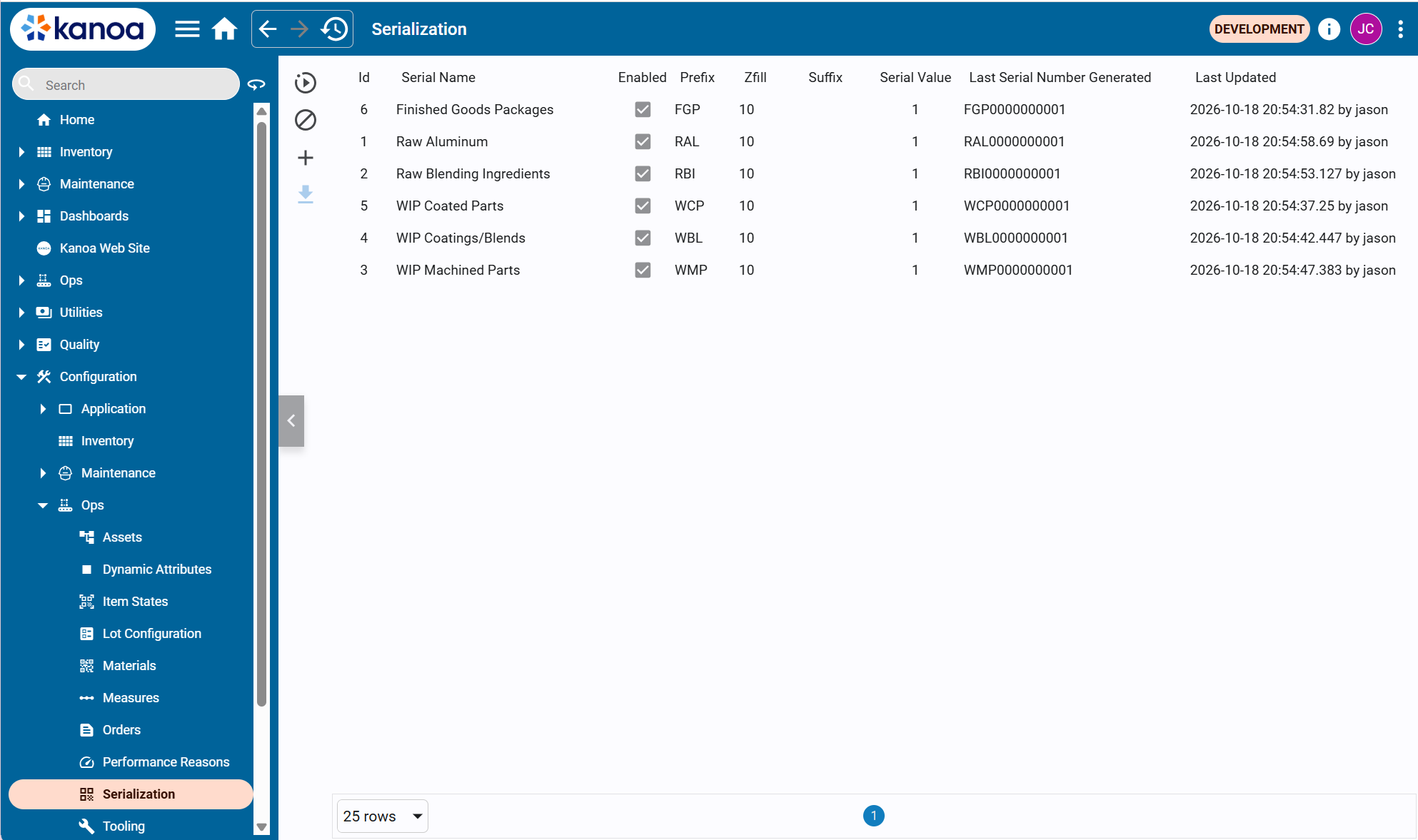
| Column | Description |
|---|---|
| Id | The serialId, used by the system.kanoa.serial functions |
| Serial Name | Unique name of the serialization |
| Enabled | Whether the serialization is available for use |
| Prefix | Text added before the number |
| Zfill | Total number of digits; the number is padded with leading zeros |
| Suffix | Text added after the number |
| Serial Value | The current counter value |
| Last Serial Number Generated | The current counter value formatted with the prefix, zfill and suffix |
| Last Updated | When the serialization last changed, and by whom |
Use the buttons on the left to refresh the table, clear it, and add a serialization. Select one or more rows to edit, delete or export them. Exported serializations are saved as a JSON file that can be imported on another gateway.
Creating and Editing Serializations
Click the  button to add a serialization, or select a row and edit it, to open the serialization editor.
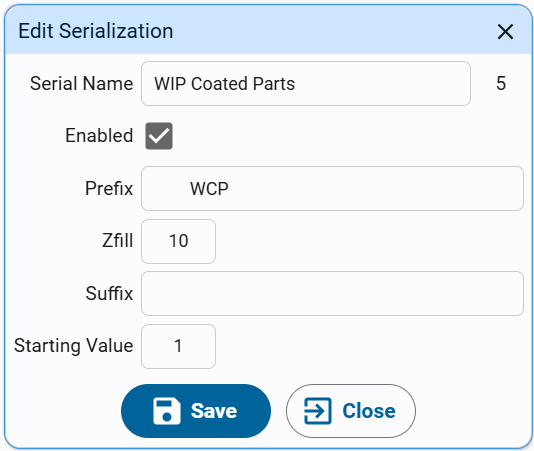
| Setting | Description |
|---|---|
| Serial Name | Unique name of the serialization. The serialId appears on the right once it's saved |
| Enabled | Makes the serialization available for use |
| Prefix | Optional text added before the number, e.g. WCP |
| Zfill | Optional total number of digits. If left empty, no zeros are added |
| Suffix | Optional text added after the number, e.g. -A |
| Starting Value | Sets the counter. Each new serial number adds 1 to the counter before it's formatted |
Click Save to save the serialization.
The counter is incremented before each serial number is generated, so the first serial number is one higher than the Starting Value. To start at ...0001, set the Starting Value to 0. Changing the Starting Value on an existing serialization resets its counter, which can produce duplicate names if you set it lower than numbers already used.
Generating Serial Numbers in Scripts
Use system.kanoa.serial.getNextSerialNumber() to increment the counter and return the next serial number.
userId = system.kanoa.security.getIDPUserId({'userName': 'SYSTEM'})
serialId = system.kanoa.utilities.getFieldValue('serialId', system.kanoa.serial.getSerialNumbers({'serialName': 'WIP Coated Parts'}))
serialNo, msg = system.kanoa.serial.getNextSerialNumber(serialId, userId)
print serialNo, msg
>>>WCP0000000002 None
The other serial functions add, update and delete serializations.
We're going to need a method for generating unique lot names. In actual implementation that may comes from ERP or another system, but we also provide a method for generating them.
Serialization definitions generate lot names. Each one has a name, a prefix, and a number of digits, so RAL with 10 digits gives RAL0000000001, RAL0000000002 and so on. One definition per stage makes a lot's name tell you what it is.
Navigate to Configuration → Ops → Serialization and create the following:
| Name | Prefix | Zfill |
|---|---|---|
Raw Aluminum | RAL | 10 |
Raw Blending Ingredients | RBI | 10 |
WIP Machined Parts | WMP | 10 |
WIP Coatings/Blends | WBL | 10 |
WIP Coated Parts | WCP | 10 |
Finished Goods Packages | FGP | 10 |
Use these names exactly; the lessons and check scripts that follow look them up by name.
Skip ahead and import the serializations already made for you on the Configuration → Ops → Serialization page.
serializations-export.json
Add New Assets to CoreForge
As material is received, inspected, machined, coated etc., We're going to want a place to store these lots before and after they have been operated on. We're also going to be mixing blends, so we'll create those assets too.
- Navigate to Configuration → Ops → Assets.
- Under
CoreForge\Philadelphia, add an asset namedStorageof typeStorage Location. - Under
Storage, add two storage locations calledReceivingandShipping, and a storage bin calledBins. - Under
CoreForge\Philadelphia, add an asset namedMixingof typeArea. - Under
Mixing, add a line calledMixer 1, OEE Enable it and make its Process TypeBatch. - Under
CoreForge\Philadelphia\Finishing, add a line calledAuto Pack 1, OEE Enable it and make its Process TypeDiscrete. - If you didn't take Quality Training, add a line called
QA StationunderCoreForge\Philadelphia\Finishingtoo. Leave OEE disabled.
Skip ahead and import the storage locations already made for you on the Configuration → Ops → Assets page.
trace-assets.json
Create Mobile Transportation Assets
Machined and coated parts travel between Machining, Coating, the QA Station and packing in reusable parts totes. A tote moves, so it isn't a location. A lot is in a location and on a tote. Totes are mobile assets, assets whose asset type has Mobile ticked. Mobile assets are offered as the Transport of a lot event, so you can ask what's on a tote, or which tote a lot is on, wherever the tote is.
- Navigate to Configuration → Ops → Assets and select any asset.
- Click the edit button next to Asset Type to open the asset type editor.
- In the asset type tree, select
areaand click Add. Name the new typeTote, tick Mobile, choose an icon, and click Save. - Under
CoreForge\Philadelphia, add an asset namedTotesof typeArea. It's where the totes are kept in the asset tree, not a place lots go. - Under
Totes, add three assets of typeTote:Tote 01,Tote 02andTote 03.
The trace-assets.json download above includes the Tote type and the totes.
Create Coating Raw Materials
A couple of new raw materials are needed for the coatings, so import them here.
- Download
items-coat.json: theSTD-COATandPRM-COATraw materials inCoreForge\RM. - Navigate to Configuration → Ops → Items and import
items-coat.json.
Configure The Lot Operations
Reference Materials: Lot Operations configuration
Lot Operations

You can create any type of Lot Operation you want. Each operation can be defined to 'Allow Input Lots' and/or 'Allow Output Lots'. For example, a 'Receive' operation to a warehouse would only involve output lots, in that the operation would receive a lot of material. A 'Transfer' operation would consume from an 'input lot' and add to an 'output lot'.
An operation can be enabled or disabled. Only enabled operations can be selected in user screens.
An operation can be set to a distinct color which is used in the Trace Chart.
The Adjust operation is reserved by the system: the Lot Editor records quantity corrections with it. You can change its color, but it can't be deleted, renamed or disabled, and its 'Allow Input Lots' and 'Allow Output Lots' settings can't be changed.
Raw materials have operations performed upon them that eventually turn them into finished goods. We're going to create those lot operations here.
-
Navigate to Configuration → Ops → Lot Configuration and create the following lot operations:
Operation Allow Input Lots Allow Output Lots BlendYes Yes CoatYes Yes InspectYes Yes MachineYes Yes PackYes Yes ShipYes No
The Adjust lot operation is already there. Leave it as it is: the Lot Editor uses it to correct a lot's quantity, so it's reserved. You can change its color, but not delete, rename or disable it.
The Lot Manager screen lets you execute any operation at any asset, on any item. Linking an operation to the assets where it happens and the items that go in and come out narrows the choices to the ones that make sense: Lot Manager then only offers Mixer 1 for a Blend, and only the coating ingredients as its inputs. Linking an area, such as Machining, allows every asset in it. Linking an item class, such as WIP\Coated, allows every item in it. Links only narrow the choices on screens; they aren't database rules, so a script can still run an operation anywhere.
-
Navigate to Configuration → Ops → Lot Configuration.
-
For each operation in the table below, select it in the lot operations table, then:
- On the Asset Links tab, select its assets in the tree and click Link, the chain-link icon next to the tree.
- On the Item Links tab, select its input items or item classes in the tree and click Link as input, the icon with an arrow before the chain link. Then select its outputs and click Link as output, the icon with the arrow after the chain link.
The link buttons are icons without text; hover over one to see its name.
Assets are under
CoreForge\Philadelphia, and items and item classes underCoreForge.Operation Assets Inputs Outputs ReceiveStorageRMMachineMachiningRM\AL2024,RM\AL6061,RM\AL7075WIP\MachinedBlendMixing\Mixer 1RM\STD-COAT,RM\PRM-COATWIP\CoatingsCoatCoatingWIP\Machined,WIP\CoatingsWIP\CoatedInspectFinishing\QA StationWIP\CoatedWIP\CoatedPackFinishing\Auto Pack 1,Finishing\Manual Pack 1WIP\CoatedFGShipStorage\ShippingFG -
Leave
TransferandScrapunlinked. They happen almost anywhere, to almost anything.
Receive is linked to the Storage area, so material can only be received into the storage locations and bins under it, and to the RM class, so only raw materials are received. Machine links the three aluminum items rather than the RM class, because RM also holds the coating ingredients.
Skip ahead and import the lot operations, with their asset and item links, on the Configuration → Ops → Lot Configuration page. Import it after the Trace assets and coating items, because links to assets or items that don't exist yet are skipped.
lot-operations.json
Define Lot States And Reasons
Every lot event records a lot state, the condition of the material: OK, Hold or Scrap to start with. A lot state reason says why, such as Missing COA for a hold. Linking a reason to an asset offers it only where it applies, and to the assets under it; a reason that isn't linked to any asset is offered everywhere.
Reference Materials: Lot States
Lot States
Click on the Lot State tab to edit Lot States.

Lot States can be added and edited on this screen. If a Lot State has been used by a lot operation, it cannot be deleted and should be disabled instead.
Reference Materials: Lot State Reasons
Lot State Reasons
Click on the Lot State Reason tab to edit Lot State Reasons.

Each Lot State can have multiple reasons associated with it. For example, 'Bad Color' or 'Burrs' may be linked to the Lot State 'Scrap'. This provides a way of capturing from operators the reasons why a lot of material has been scrapped.
Lot State Reasons can then be associated with specific assets, to filter the possible list of lot state reasons for, says, lots exiting an oven versus an extruder.
-
Navigate to Configuration → Ops → Lot Configuration and open the Lot States tab.
-
Under Lot States, click Add and add a
Reworkstate for material that goes back for another pass. -
Under Lot State Reasons, add these reasons:
Reason Lot state Linked to Missing COAHoldStorage\ReceivingAwaiting lab resultsHoldFinishing\QA StationFailed visual inspectionScrapFinishing\QA StationCoating defectScrapCoatingDamaged in handlingScrapRecoatReworkFinishing\QA Station -
Link each reason to its asset: select the reason, select the asset in the Assets tree, and click Link, the chain-link icon. Assets are under
CoreForge\Philadelphia. LeaveDamaged in handlingunlinked, so it can be chosen anywhere.
Skip ahead and import the lot states and reasons already made for you on the Configuration → Ops → Lot Configuration Lot States tab.
lot-states-and-reasons.json
Copy this script into the Ignition Designer Script Console (Tools → Script Console) and run it. It checks the six lot operations, their input and output settings and their asset and item links, the coating items, the Rework state and the six lot state reasons with their asset links, the six serializations with their names, prefixes and digits, the Storage asset with its Receiving, Shipping and Bins locations, the Mixing area with Mixer 1, Finishing\Auto Pack 1 and Finishing\QA Station, the three mobile parts totes and that Lot Manager offers them as a Transport, Mixer 1 and Auto Pack 1 must be OEE Enabled, Mixer 1 with Process Type batch and Auto Pack 1 with discrete. Each check prints PASS or FAIL with what to fix. It doesn't change anything.
Show the check script
# Kanoa Trace Training - check "Lot Configuration"
#
# Run in the Ignition Designer Script Console (Tools > Script Console), in the
# project that inherits KANOA_SCRIPTS. It only reads; it changes nothing.
# Every check prints PASS or FAIL with what to fix, then a summary.

OPERATIONS = [
	# name, allow input lots, allow output lots
	('Blend',   True, True),
	('Coat',    True, True),
	('Inspect', True, True),
	('Machine', True, True),
	('Pack',    True, True),
	('Ship',    True, False),
]
SERIALIZATIONS = [
	('Raw Aluminum',             'RAL'),
	('Raw Blending Ingredients', 'RBI'),
	('WIP Machined Parts',       'WMP'),
	('WIP Coatings/Blends',      'WBL'),
	('WIP Coated Parts',         'WCP'),
	('Finished Goods Packages',  'FGP'),
]
DIGITS = 10
ASSETS = [
	# path, asset type
	('CoreForge\\Philadelphia\\Storage',              'Storage Location'),
	('CoreForge\\Philadelphia\\Storage\\Receiving',   'Storage Location'),
	('CoreForge\\Philadelphia\\Storage\\Shipping',    'Storage Location'),
	('CoreForge\\Philadelphia\\Storage\\Bins',        'Storage Bin'),
	('CoreForge\\Philadelphia\\Mixing',               'area'),
	('CoreForge\\Philadelphia\\Mixing\\Mixer 1',      'line'),
	('CoreForge\\Philadelphia\\Finishing\\Auto Pack 1', 'line'),
	('CoreForge\\Philadelphia\\Finishing\\QA Station',  'line'),
	('CoreForge\\Philadelphia\\Totes',                'area'),
]
# The parts totes: mobile assets, offered as a lot event's transport
TOTES = ['CoreForge\\Philadelphia\\Totes\\Tote %02d' % n for n in (1, 2, 3)]
LINES = [
	# path, process type; both track OEE
	('CoreForge\\Philadelphia\\Mixing\\Mixer 1',         'batch'),
	('CoreForge\\Philadelphia\\Finishing\\Auto Pack 1',  'discrete'),
]
COATING_ITEMS = ['STD-COAT', 'PRM-COAT']
# operation, assets under CoreForge\Philadelphia, then the input and output
# items or item classes under CoreForge
LINKS = [
	('Receive', ['Storage'], [], ['RM']),
	('Machine', ['Machining'], ['RM\\AL2024', 'RM\\AL6061', 'RM\\AL7075'], ['WIP\\Machined']),
	('Blend',   ['Mixing\\Mixer 1'], ['RM\\STD-COAT', 'RM\\PRM-COAT'], ['WIP\\Coatings']),
	('Coat',    ['Coating'], ['WIP\\Machined', 'WIP\\Coatings'], ['WIP\\Coated']),
	('Inspect', ['Finishing\\QA Station'], ['WIP\\Coated'], ['WIP\\Coated']),
	('Pack',    ['Finishing\\Auto Pack 1', 'Finishing\\Manual Pack 1'], ['WIP\\Coated'], ['FG']),
	('Ship',    ['Storage\\Shipping'], ['FG'], []),
]
LOT_STATES = ['OK', 'Hold', 'Scrap', 'Rework']
# reason, lot state, the asset under CoreForge\Philadelphia it's linked to (None: not linked)
REASONS = [
	('Missing COA',              'Hold',   'Storage\\Receiving'),
	('Awaiting lab results',     'Hold',   'Finishing\\QA Station'),
	('Failed visual inspection', 'Scrap',  'Finishing\\QA Station'),
	('Coating defect',           'Scrap',  'Coating'),
	('Damaged in handling',      'Scrap',  None),
	('Recoat',                   'Rework', 'Finishing\\QA Station'),
]

results = []

def check(ok, what, fix=None):
	results.append(bool(ok))
	if ok:
		print 'PASS  %s' % what
	else:
		print 'FAIL  %s' % what
		if fix:
			print '      -> %s' % fix

def note(what):
	print 'NOTE  %s' % what

def field(row, *names):
	for n in names:
		if n in row and row[n] is not None:
			return row[n]
	return None

def text(v):
	return '' if v is None else unicode(v).strip()

def key(v):
	return ' '.join(text(v).lower().split())

def truthy(v):
	return str(v).lower() in ('true', '1', 'yes')

def num(v):
	try:
		return float(v)
	except:
		return None

def rows(data):
	# Kanoa returns a dataset, a list of dictionaries, or None
	if data is None:
		return []
	if hasattr(data, 'getRowCount'):
		cols = list(data.getColumnNames())
		return [dict((c, data.getValueAt(i, c)) for c in cols) for i in range(data.getRowCount())]
	return [dict(r) for r in data]

def find(items, nameField, name):
	"""The row named exactly name, or else one that only differs in case or spacing."""
	exact = [r for r in items if text(field(r, nameField)) == name]
	close = [r for r in items if key(field(r, nameField)) == key(name)]
	return (exact or [None])[0], (close or [None])[0]

def yesNo(v):
	return 'Yes' if v else 'No'

print '=' * 70
print 'Kanoa Trace Training - Lot Configuration check'
print '=' * 70

# 1. Lot operations
print '\n-- Lot operations'
operations = rows(system.kanoa.lot.getLotOperations({}))
for name, allowIn, allowOut in OPERATIONS:
	op, close = find(operations, 'lotOperationName', name)
	if op is None:
		if close is not None:
			fix = "Found '%s'. Rename it to '%s' exactly." % (text(field(close, 'lotOperationName')), name)
		else:
			fix = "Create '%s' in Configuration > Ops > Lot Configuration, or import lot-operations.json." % name
		check(False, 'Lot operation %s exists' % name, fix)
		continue
	check(True, 'Lot operation %s exists' % name)
	check(truthy(field(op, 'enabled')), '%s is enabled' % name, 'Open %s and select Enabled.' % name)
	actualIn = truthy(field(op, 'allowInputLots'))
	actualOut = truthy(field(op, 'allowOutputLots'))
	check(actualIn == allowIn and actualOut == allowOut,
		'%s allows input lots: %s, output lots: %s' % (name, yesNo(allowIn), yesNo(allowOut)),
		"It's input %s, output %s. Open %s and set Allow Input Lots to %s and Allow Output Lots to %s." %
			(yesNo(actualIn), yesNo(actualOut), name, yesNo(allowIn), yesNo(allowOut)))

# 2. Serializations
print '\n-- Serializations'
serials = rows(system.kanoa.serial.getSerialNumbers({}))
for name, prefix in SERIALIZATIONS:
	s, close = find(serials, 'serialName', name)
	if s is None:
		if close is not None:
			fix = "Found '%s'. Rename it to '%s' exactly; the later lessons and scripts look it up by name." % (text(field(close, 'serialName')), name)
		else:
			fix = "Create '%s' in Configuration > Ops > Serialization, or import serializations-export.json." % name
		check(False, 'Serialization %s exists' % name, fix)
		continue
	check(True, 'Serialization %s exists' % name)
	check(truthy(field(s, 'enabled')), '%s is enabled' % name, 'Open %s and select Enabled.' % name)
	rawPrefix = field(s, 'prefix')
	rawPrefix = '' if rawPrefix is None else unicode(rawPrefix)
	if rawPrefix != prefix and rawPrefix.strip() == prefix:
		check(False, '%s prefix is %s' % (name, prefix),
			"The prefix has spaces or a tab around it (%r), so lot names would too. Retype the prefix as '%s'." % (rawPrefix, prefix))
	else:
		check(rawPrefix == prefix, '%s prefix is %s' % (name, prefix),
			"It's '%s'. Set the prefix to '%s'." % (rawPrefix, prefix))
	zfill = num(field(s, 'zfill'))
	check(zfill == DIGITS, '%s has %d digits' % (name, DIGITS),
		"Zfill is %s. Set Zfill to %d." % (text(field(s, 'zfill')) or 'blank', DIGITS))
	suffix = text(field(s, 'suffix'))
	if suffix:
		note("%s has the suffix '%s'. The lesson doesn't use one." % (name, suffix))

# 3. Storage and mixing assets
print '\n-- Trace assets'
assets = rows(system.kanoa.asset.getAssets({}))
byPath = dict((text(field(a, 'assetPath', 'path')), a) for a in assets)
for path, assetType in ASSETS:
	name = path.split('\\')[-1]
	a = byPath.get(path)
	if a is None:
		elsewhere = [p for p in byPath if key(p.split('\\')[-1]) == key(name)]
		if elsewhere:
			fix = "Found '%s' at %s. Move it under %s, or rename it to match exactly." % (name, ', '.join(elsewhere), '\\'.join(path.split('\\')[:-1]))
		else:
			fix = "Add '%s' under %s in Configuration > Ops > Assets, or import trace-assets.json." % (name, '\\'.join(path.split('\\')[:-1]))
		check(False, '%s exists' % path, fix)
		continue
	check(True, '%s exists' % path)
	actualType = text(field(a, 'assetTypeName'))
	check(key(actualType) == key(assetType), '%s type is %s' % (name, assetType),
		"It's '%s'. Open %s and set its type to %s." % (actualType or 'blank', name, assetType))
	check(truthy(field(a, 'enabled')), '%s is enabled' % name, 'Open %s and select Enabled.' % name)

# The lines track OEE with the right process type
for path, processType in LINES:
	name = path.split('\\')[-1]
	line = byPath.get(path)
	if line is None:
		continue
	oee = truthy(field(line, 'oeeEnabled', 'oeeEnable'))
	check(oee, '%s is OEE Enabled' % name, 'Open %s, select OEE Enabled and save.' % name)
	process = text(field(line, 'processTypeName')).lower()
	check(process == processType, '%s process type is %s' % (name, processType),
		"It's '%s'. Open %s, set Process Type to %s and save." % (process or 'blank', name, processType))
	# OEE-enabled assets get an assetOEE instance (Line) in their tag folder in the Kanoa provider
	tagPath = text(field(line, 'tagPath'))
	if tagPath and oee:
		check(system.tag.exists(tagPath + '/Line'), '%s has its OEE tags (%s/Line)' % (name, tagPath),
			'Kanoa creates them when OEE Enabled is switched on. Open %s, turn OEE Enabled off and save, '
			'then turn it on and save. Check the Kanoa tag provider is running.' % name)

# The totes are mobile, so they're offered as transports
for path in TOTES:
	name = path.split('\\')[-1]
	a = byPath.get(path)
	if a is None:
		check(False, '%s exists' % path, "Add '%s' of type Tote under CoreForge\\Philadelphia\\Totes, or import trace-assets.json." % name)
		continue
	check(True, '%s exists' % path)
	check(key(field(a, 'assetTypeName')) == 'tote', '%s type is Tote' % name,
		"It's '%s'. Open %s and set its type to Tote." % (text(field(a, 'assetTypeName')) or 'blank', name))
	check(truthy(field(a, 'mobile')), '%s is mobile, so it can be a transport' % name,
		'Open the asset type editor, select Tote, tick Mobile and save.')
	check(truthy(field(a, 'enabled')), '%s is enabled' % name, 'Open %s and select Enabled.' % name)

# Lot Manager's Transport dropdown lists the enabled mobile assets: the same query
transportPaths = set(key(field(t, 'assetPath', 'path')) for t in rows(system.kanoa.asset.getAssets({'enabled': True, 'mobile': True})))
for path in TOTES:
	name = path.split('\\')[-1]
	check(key(path) in transportPaths, '%s is offered as a Transport in Lot Manager' % name,
		'Make sure %s exists and is enabled, and that its type (Tote) has Mobile ticked.' % name)

# 4. The coating items
print '\n-- Coating items'
itemNames = set(key(field(i, 'itemName')) for i in rows(system.kanoa.item.getItems({})))
for name in COATING_ITEMS:
	check(key(name) in itemNames, 'Item %s exists' % name, 'Import items-coat.json in Configuration > Ops > Items.')

# 5. Asset and item links
print '\n-- Operation links'
assetLinks = [l for l in rows(system.kanoa.lot.getLotOperationAssetLinks({})) if truthy(field(l, 'linkEnabled'))]
itemLinks = [l for l in rows(system.kanoa.lot.getLotOperationItemLinks({})) if truthy(field(l, 'linkEnabled'))]
for opName, linkAssets, inputs, outputs in LINKS:
	mine = [l for l in assetLinks if key(field(l, 'lotOperationName')) == key(opName)]
	have = set(key(field(l, 'assetPath')) for l in mine)
	missing = [a for a in linkAssets if key('CoreForge\\Philadelphia\\' + a) not in have]
	check(not missing, '%s is linked to %s' % (opName, ', '.join(linkAssets)),
		'On the Asset Links tab, select %s, then %s, and click Link.' % (opName, ', '.join(missing)))
	for source, expected in (('input', inputs), ('output', outputs)):
		if not expected:
			continue
		mine = [l for l in itemLinks if key(field(l, 'lotOperationName')) == key(opName) and key(field(l, 'itemSourceName')) == source]
		have = set(key(field(l, 'itemPath') or field(l, 'itemClassPath')) for l in mine)
		missing = [i for i in expected if key('CoreForge\\' + i) not in have]
		check(not missing, '%s %ss are %s' % (opName, source, ', '.join(expected)),
			'On the Item Links tab, select %s, then %s, and click Link as %s.' % (opName, ', '.join(missing), source))

# 6. Lot states and reasons
print '\n-- Lot states and reasons'
states = dict((key(field(st, 'lotStateName')), st) for st in rows(system.kanoa.lot.getLotStates({})))
for name in LOT_STATES:
	st = states.get(key(name))
	check(st is not None and truthy(field(st, 'enabled')), 'Lot state %s exists and is enabled' % name,
		'Add the %s state on the Lot States tab of Configuration > Ops > Lot Configuration.' % name)
reasons = rows(system.kanoa.lot.getLotStateReasons({}))
links = [l for l in rows(system.kanoa.lot.getAssetLotStateReasons({})) if truthy(field(l, 'linkEnabled'))]
for name, stateName, asset in REASONS:
	r, close = find(reasons, 'lotStateReasonName', name)
	if r is None:
		check(False, 'Reason %s exists' % name,
			("Found '%s'. Rename it to '%s'." % (text(field(close, 'lotStateReasonName')), name)) if close is not None else
			'Add it under Lot State Reasons, for the %s state.' % stateName)
		continue
	check(key(field(r, 'lotStateName')) == key(stateName), 'Reason %s is for the %s state' % (name, stateName),
		"It's for '%s'. Edit it and choose %s." % (text(field(r, 'lotStateName')) or 'no state', stateName))
	linked = [text(field(l, 'assetPath')) for l in links if field(l, 'lotStateReasonId') == field(r, 'lotStateReasonId')]
	if asset is None:
		check(not linked, '%s is not linked to an asset, so it applies everywhere' % name,
			'Unlink it from %s.' % ', '.join(linked))
	else:
		check(key('CoreForge\\Philadelphia\\' + asset) in [key(a) for a in linked], '%s is linked to %s' % (name, asset),
			'Select %s, select %s in the Assets tree and click Link.' % (name, asset))

passed = results.count(True)
print '\n' + '=' * 70
print 'Result: %d of %d checks passed' % (passed, len(results))
if passed == len(results):
	print 'All good. Lot configuration is complete.'
else:
	print 'Fix the FAIL items above, then run this again.'
print '=' * 70