Administrator
As an administrator, you keep Kanoa MES up to date once it is running. You add people and decide what their roles allow, look after the asset model, keep the downtime and scrap reasons tidy, add new products, and decide what the menu and screens look like for your users. These lessons walk through those tasks in the Kanoa screens. None of them needs the Ignition Designer.
| Lesson | What you'll learn | Time |
|---|---|---|
| Users and Roles | Understand built-in and custom roles, add a user, give them roles on the right assets, and remove someone who has left | 10 min |
| Configure Assets | Add, edit, move and duplicate assets, and find each part of an asset's setup | 15 min |
| Reason Codes and Lookups | Add or retire downtime and scrap reasons | 10 min |
| Items and Parts | Add a new item with its rate on an asset, and a part for the parts catalog | 15 min |
| Navigation | Add a page to the menu and choose who sees it | 10 min |
| Languages | Switch your language, choose the installed languages and check translations | 10 min |
Most of what you change here is shared. A reason you retire disappears for every operator, and a user you remove can't sign in. On a production system, every change is real. Try the steps on a training system first, or read along.
Turn Kanoa Modules On or Off
The Kanoa license has attributes for the Kanoa suite, such as Trace, Quality, Maintenance and Inventory. In a licensed production system you'll likely want to hide the parts you haven't licensed.
- Open Configuration → Application → Settings.
- In the Kanoa Module section, turn the toggles Enable Kanoa Trace, Enable Kanoa Quality, Enable Kanoa Maintenance and Enable Kanoa Inventory on or off.
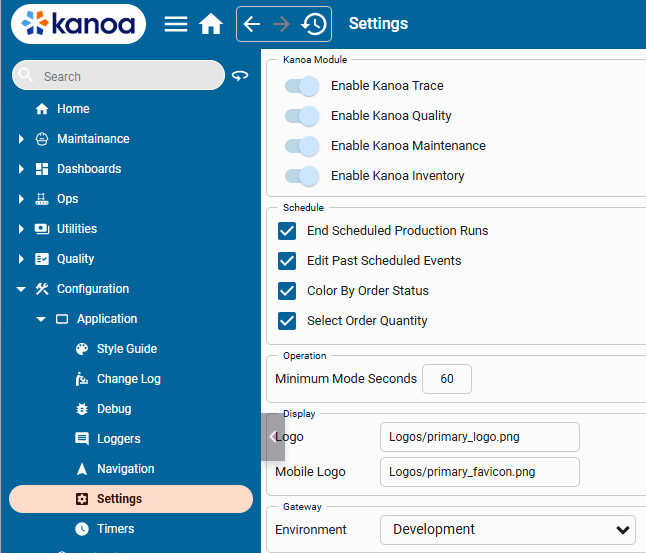
Turning one off removes it from the navigation and from the license checker.
Reference Materials: Applying a License - How the license turns Kanoa features on and off.
The kanoaMES module is fully functional without a license and works on the same two hour trial license as Ignition. When you're ready to license the module, you can request a 6 or 8 character key license depending on whether you're on using a container or physical server. If given a 8-character license key, an activation token will be required as well.
The Licensing page can be found at Config -> System -> Licensing on Ignition 8.1, and Platform -> System -> Licensing for Ignition 8.3.
- Look for "Activate new license" or "Activate a License" button, depending on which version of Ignition you're on.
- In the License Key field, enter the license key. If given a 8 character license, you will also need to have your activation token ready. Paste in the information as prompted.
The license should now be active and Kanoa MES will show as activated on the modules page.
The kanoaMES license contains license attributes that turns on and off various MES features such as ops, trace, quality, cmms, inventory.
You can have kanoaOPS licensed, but trace, quality etc. will only work in trial mode. An icon on the header provides an indication that unlicensed kanoa features are inactive due to trial expiration.

For licensed production systems, you'll likely want to hide unlicensed parts of the Kanoa Suite and this can be achieved by disabling those parts under Application\Settings.
Disabling those license attributes, removes them from the navigation and the license checker.
Kanoa decides what you can do from your user's security functions. Each lesson names the function its task needs, such as Configure Security or Configure Items. If a button is missing for you, ask a Gateway Admin to check your role.