Trace Fundamentals
Reference Materials: Managing Lots
Managing Lots
Lot Management consists of a lot schema, lot functions and a pre-built user interface (views and components).
In essence, there are several objects...
- Lot Operation - This is any operation that touches a lot such as receiving, transferring, splitting etc. We provide some basic operations out of the box, but you can create any operations you need.
- Lot - This is the Lot itself. It describes the material and units for this lot.
- Lot Event - The lot event is the input to or output from a lot operation. It contains the quantity in or out, the lot state, and where it came from or went to.

Lot Operations
We provide the following operations for you...
- Adjust - Corrects a lot's quantity where it is: an increase is an output, a decrease an input. Used by the Lot Editor, and reserved by the system
- Process - Consumes input lots and creates or adds to output lots
- Receive - Creates or adds to output lots only
- Scrap - Consumes from input lots only
- Split - Consumes from input lots and creates or adds to output lots
- Transfer - Consumes from input lots and creates or adds to output lots
Lot Operations and Lot States are configurable. See Lot Configuration for more details.
Executing Lot Operations
The Lot Manager screen (Ops → Lots → Lot Manager) shows the location and state of all lots. Filter the table by asset, date, item, lot, source, transport or order, and select Active to hide lots with no remaining quantity. Lot Operations can be executed from this screen, however, it is primarily intended to demonstrate how lot operations can be executed and it is expected that custom operator screens would be created using this screen as an example.
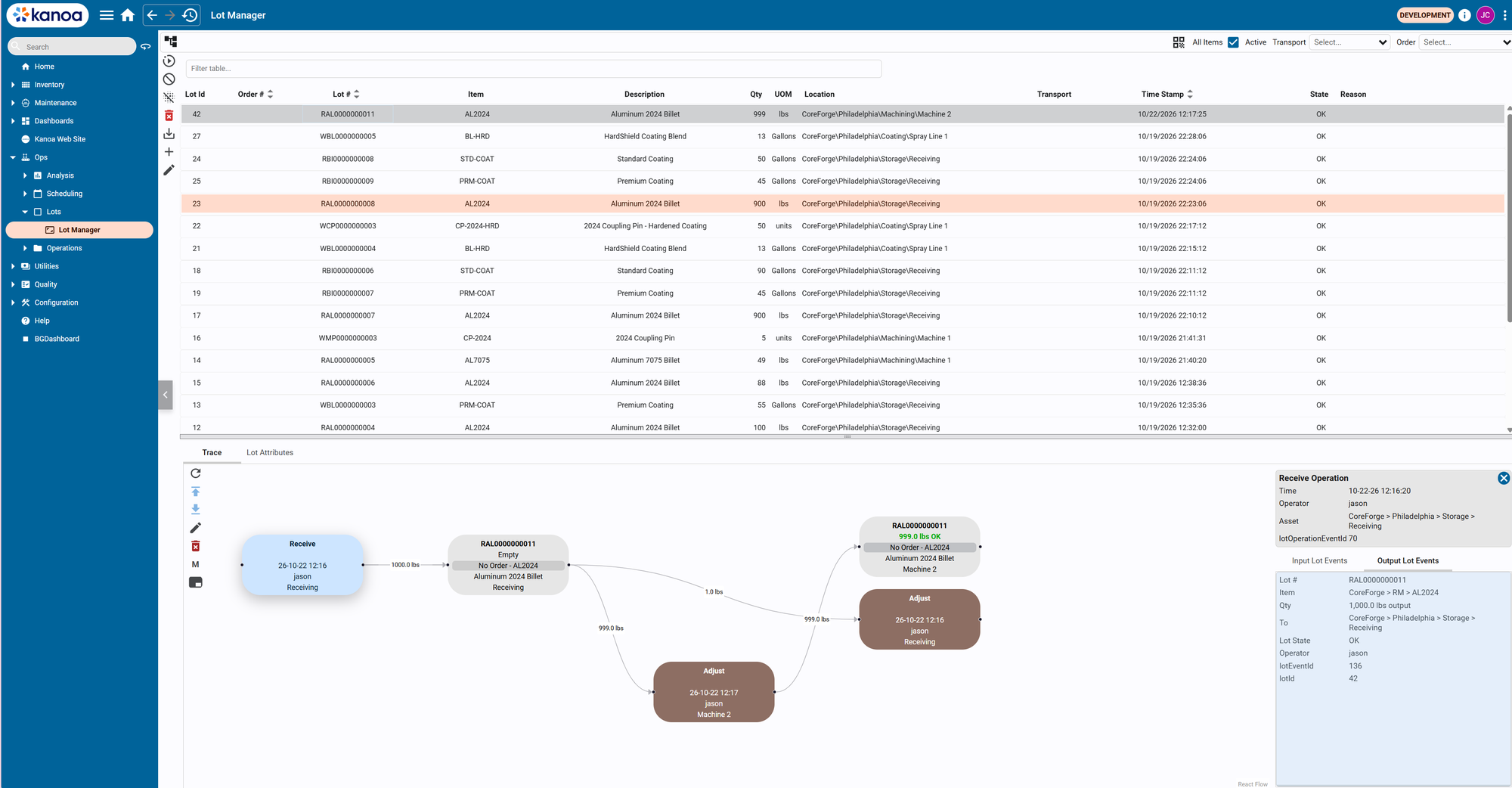
Select a lot to show its Trace and Lot Attributes tabs below the table. With no lot selected, the table fills the screen.
Adding a lot operation
Click Add Lot Operation (+) to open the Add A Lot Operation popup. When a lot is selected, it's filled in as the first input lot.
-
Choose the Operation and its Asset. Leave Use current time checked, or clear it to enter the Time Stamp. Enter an Order # if the operation belongs to an order.
-
On the Input Lots tab, choose a Lot and its Qty, then click Add input. Choosing a lot fills in its available quantity. Only lots with quantity are listed.
-
On the Output Lots tab, choose what the output is:
- Same lot as the input lot - the input lot continues at the operation's asset, for example after a Transfer.
- New lot - choose the Item and a Serialization to name the lot, or type its name.
- No output - the operation only consumes its inputs.
Enter the Qty, Transport, Lot State, Reason and Comment, then click Add output.
-
Click Execute. You can then add another input or output to the same operation, or click Done.
The tabs follow the operation: Receive has no Input Lots tab, and Scrap has no Output Lots tab. Select a row in either table to load it into the form below it, change it, and click the button again to update it. Select rows and click Remove to take them off the list.
Editing a lot
Click Edit Lot to change the selected lot's name, item and units. The Stock box shows where the lot is and how much is there:
- A new Qty is recorded as an Adjust lot operation at that location, with the Comment you enter.
- A new Location is recorded as a Transfer of the lot's quantity to it.
Both are lot operations, so corrections show up in the lot's trace instead of rewriting its history.
Lot Traceability
The Kanoa Node Chart component provides a way to visually trace all the operations, lots and events associated with a lot. In Lot Manager, select a lot and open the Trace tab below the table.

To correct an operation, click its node in the trace and click Edit. The operation opens in the Edit Lot Operation popup, where you can change its time stamp, order, input lots and output lots and click Save, or click Delete to remove it.
Lot Attributes
Lot attributes record facts about one lot that its lot events don't, such as the supplier's lot number, a heat number, an expiry date or a test result. Each attribute is a name and a text value, and a lot can have any number of them.
In Lot Manager, select a lot and open the Lot Attributes tab below the table. Add Lot Attribute, Edit Lot Attribute and Delete Lot Attribute need the Configure Lots permission. The Lot Attribute list offers every name already used on a lot; type a new name to add one. Double-click a row to see its whole value.
Attributes aren't copied to a lot operation's output lots. Check Show Full Lot Attributes to list the attributes of every lot linked to the selected lot, for example a supplier lot number from the shipped package.
Scripts use getLotAttributes, addLotAttribute, updateLotAttribute and deleteLotAttribute.
Kanoa Trace is built on four objects:
| Object | What it is | Example |
|---|---|---|
| Lot operation | A configured type of operation | Transfer, Machine, Ship |
| Lot operation event | One time an operation was carried out; groups its inputs and outputs | Transferring 100 lbs to Machine 1 at 9:05 |
| Lot | The identity of a quantity of material: just an ID, a name, an item and a unit | RAL0000000001, AL2024, lbs |
| Lot event | A lot taking part in an operation event as an input or an output, with a quantity, asset, state and time | Input: 100 lbs of RAL0000000001 at Receiving |
A lot doesn't store its quantity, location or state. When Lot Manager shows "RAL0000000001, 900 lbs, Receiving, OK", it's adding up that lot's events. Current inventory is a view of the event history, which is also what makes tracing possible.
Inputs remove material from somewhere; outputs add it somewhere. That covers every pattern you'll build:
| Pattern | Inputs → outputs | Example |
|---|---|---|
| Transfer | A lot → the same lot at a new location | Receiving → Machine 1 |
| Transformation | One or more lots → a new lot | Aluminum → machined pins |
| Multi-input | Several lots → one lot | Two ingredients → one blend |
| Split | One lot → several lots | Inspected parts → passed and scrap |
A backward trace follows outputs back to their inputs ("what went into this package?"). A forward trace follows inputs to their outputs ("where did this aluminum go?"). Lot Manager's Trace tab draws both directions in one graph.
Next you will:
- Lot Configuration: configure the lot operations, lot naming, assets, lot states and transports the CoreForge flow needs.
- Execute the Trace: run the complete flow in Lot Manager, from receiving to shipping, then check inventory and trace the lots back to their raw materials and forward to the shipment.
- Important Lot Functions: the functions behind every lot screen, and a script that builds the same trace.