Release and Revise
Inspectors can only run a Released check sheet. Once it is released, you can't edit it directly. You change it through a revision. This protects your data, because every completed check records which version was used.
Releasing a check sheet, and releasing a revision, changes what everyone sees. Check your changes first. On a production system, they are real.
Releasing and revising needs the Configure Quality security function.
Know the Version States
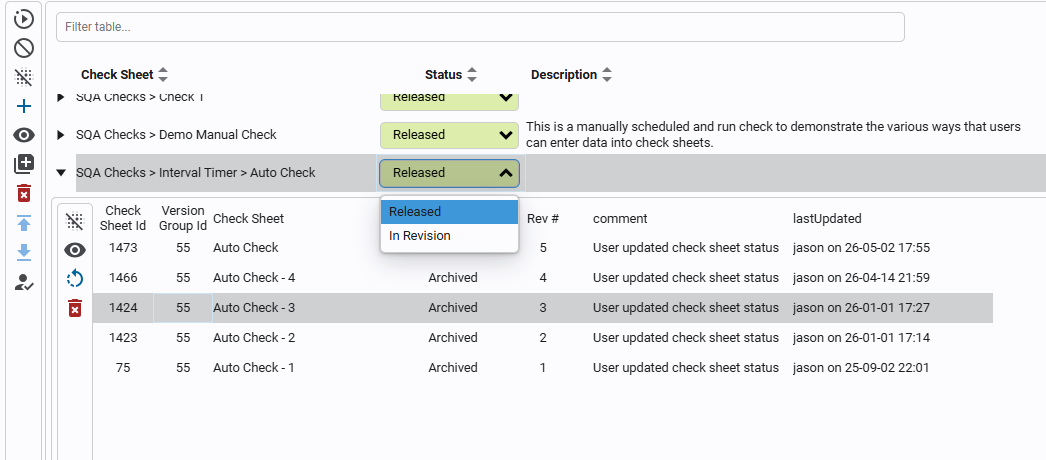
Each check sheet has a status in the check sheet table.
| State | What it means |
|---|---|
| Draft | A new check sheet that hasn't been released. It's version 1. |
| Released | The version inspectors use. There is one released version at a time. |
| In Revision | A copy of the released version that you're editing. It's disabled, so inspectors don't see it. |
| Archived | A version that a newer release replaced. It's kept with its events. |
Release a Check Sheet
- Open Configuration → Quality → Check Sheets.
- Check the new sheet's status is Draft.
- Change its status to Released.
Open the sheet again. You can no longer change its items.
Revise a Released Check Sheet
You need a revision for any change, including triggers, not only check items.
- In Check Sheets, change the status from Released to In Revision.
- Open the revision and make your changes.
- Save, close the editor, and change the status back to Released.
While the sheet is In Revision, everyone, including Gateway Admins, can only start the released version. Inspectors keep working as normal until you release.
What a Revision Does
- When you set In Revision, Kanoa copies the released sheet to a new check sheet named "name - In Revision" with the next version number. You edit the copy.
- When you release it, the old version is archived and renamed with its version number. The revision becomes Released, is enabled and gets the original name back.
- Check sheets that used any version as their re-test sheet now use the new release.
Checks that inspectors add after you release use the new version. Each version is its own check sheet. A check you already took keeps the version it was taken on, so you can always tell which version an inspector filled in. Reports and SPC include the checks of every version.
Go Back to an Earlier Version
Click the arrow at the far left of a check sheet's row to show its earlier versions. You can view each one and revert to it. Reverting sets that version back to In Revision as the newest version. Release it to put it back in use.
Reference Materials: Check Sheet Version Control - States, revisions and reverting.
Check Sheet Version Control
In the table, we can see that each check sheet has a status column.
A released check sheet can't be edited directly. To change one, set its status from Released to In Revision, make the changes, then set it back to Released. Operators keep using the released version until the revision is released.
If you click the arrow on the far left of a check sheet's row, its previous versions are shown. You can view each one, and revert the check sheet to a previous version.
Version states
| State | What it means |
|---|---|
| Draft | A new check sheet that hasn't been released yet. It's version 1. |
| Released | The version operators use. A check sheet has one released version at a time. |
| In Revision | A copy of the released version being edited. It's disabled, so operators don't see it. |
| Archived | A version that a newer release replaced. It's kept, with its events, and can be reverted to. |
What a revision does
- Released to In Revision: the released check sheet is copied to a new check sheet named "<name> - In Revision", with the next version number. The copy is what you edit; the released version stays in use.
- In Revision to Released:
- the old released version is archived and renamed "<name> - <its version number>";
- the revision is released, enabled and renamed back to "<name>";
- check sheets that used any version of it as their re-test sheet now use the new release.
- Reverting to an archived version sets it back to In Revision as the newest version, named "<name> ver<its old number> - In Revision". Release it to put it back in use.
Because a revision is a copy, each version is its own check sheet with its own chkShtId. An event taken on a check sheet keeps the chkShtId of the version that was used, so you can always tell which version an operator filled in.
The check sheet ids
| Id | What it identifies | Changes |
|---|---|---|
chkShtId | One version of a check sheet. | Every revision gets a new one. |
masterChkShtId | The current released version: its chkShtId. Every version of the check sheet points at it. | Each time a revision is released, it moves to the new release. |
chkShtVersionGroupId | The check sheet across all its versions. | Never. |
Reports, SPC and the quality analysis functions take a masterChkShtId and include the events of every version of the check sheet.
Referring to a check sheet from your own views and scripts
Because masterChkShtId moves on each release, a view, dashboard or script that stores one stops finding the check sheet after its next revision is released. Store the chkShtVersionGroupId instead, and look up the current masterChkShtId from it when you need one:
groupId = 12	# stored once; it never changes
sheets = system.kanoa.quality.sheet.getSheets({'chkShtVersionGroupId': groupId, 'chkShtVersionStateName': 'Released'})
masterChkShtId = sheets.getValueAt(0, 'masterChkShtId') if sheets.getRowCount() else None
# then, for example
data = system.kanoa.quality.analysis.getContinuousChartData(masterChkShtId, chkItemPath, startDate, endDate)
To find the chkShtVersionGroupId of a check sheet you already refer to by chkShtId or masterChkShtId, look it up in its version history:
history = system.kanoa.quality.sheet.getSheetVersionHistory({'chkShtId': chkShtId})
groupId = history.getValueAt(0, 'chkShtVersionGroupId') if history.getRowCount() else None
chkShtVersionGroupId is returned by getSheets, getSheetsByAsset and getSheetVersionHistory. getSheets and getSheetVersionHistory can filter by it.
Views and scripts that refer to a check sheet by a stored id need care after a release. That is Developer Training.
Check Your Understanding
- What status does a new check sheet have?
- Can inspectors use a check sheet while you revise it?
- What happens to the old version when you release a revision?
Answers
- Draft.
- Yes. They keep using the released version until you release the revision.
- It is archived, renamed with its version number and kept with its events.