Managing Users
In this section, you will configure Kanoa's security model with different users, roles, and permissions, so the system can support different types of users such as operators, supervisors, engineers, and administrators.
Reference Materials: Users - Learn how Kanoa manages users.
Ignition provides a wealth of user security management choices, giving you the option of managing users within the Ignition application, through Active Directory or through an Identity Provider. KanoaMES extends this security model to allow the management of users and their roles on an asset by asset basis.
Kanoa's security implementation manages user permissions through asset-role associations.
It may support user management, such as user creation, editing, and deleting only with an internal user source. Any other type of user authentication, such as an AD User Source, or an Identity Provider, will need to be managed externally. The security table by default, will populate with users that are in each of the gateway's user sources. Users stored in an Identity Provider will not show up initially. Kanoa's security implementation stores user data in parallel. For each user in the gateway's user sources, our database also stores a record for that user. A user's database record is initialized either upon their first login or when another user edits their information.
Users can also be created through the security table. Creating a user through the security table will create a new user in the gateway's 'default' user source, and also initialize a record for them in the database. Users may have their basic information edited, such as their first and last name. This will update their record in the database, but note that only users in the 'default' user source will have their information updated in both places. Users in any type of other user sources, or an identity provider will need to have their information updated externally. All users may have their asset-role associations configured. Users that are a part of the 'default' user source may also be deleted. Deleting a user through the security table will delete them both in the 'default' user source, and delete their record in the database. Users not in the 'default' user source will have their database record deleted, but will still need to be deleted externally at their corresponding user source/identity provider.
Gateway Admin
KanoaMES supports multi-enterprise asset hierarchies on the same gateway server. Because of this we provide a reserved 'Gateway Admin' role that provides 'administrator' level rights for all enterprises. The Gateway Admin is the only user who can make another user an 'Administrator' for one or more enterprises. The 'administrator' can then manage the access and roles users have within that enterprise. Users with the 'Gateway Admin' role have full access to the application, being able to view all users in the security table, and being able to perform any action in any view, with any assets.
The first user to log into a freshly installed Kanoa MES application automatically receives Gateway Admin rights, and only Gateway Admins can grant Gateway Admin rights to other users.
Ignition Authentication vs Kanoa Authorization
Kanoa security builds on top of Ignition security:
- Ignition authenticates the user Confirms the user is who they say they are, using Ignition internal user sources, Active Directory, or Identity Providers.
- Kanoa authorizes the user Determines what the authenticated user can do inside Kanoa, applying permissions based on user, role, and asset.
Kanoa extends Ignition's security model by managing user roles on an asset-by-asset basis.
Security Roles and Functions
Kanoa roles are configured with specific permissions, called functions in the documentation. Functions determine whether users can perform certain actions in the MES application. Provided functions include:
The core structure is:
- Roles are created.
- Permissions (functions) are assigned to roles.
- Users are assigned roles.
- Role assignments are scoped to assets.
A user can have a role for one part of the plant but not another. For example, a user can be an operator for Manual Pack 1 but not have operator permissions for Machine 1 or a user can have permissions for an entire area or site.
Asset level security lets Kanoa scale across multiple lines, areas, sites, and enterprises while keeping users from accessing or modifying data outside their responsibility. A user at Site A shouldn't necessarily be able to operate or edit data for Site B; a packaging operator may not need access to machining assets; a supervisor may need broader access across an area or site. The Kanoa documentation specifically notes that a user can be assigned a role along with a list of assets where that role is valid.
User Roles & Functions
Our security model allows for custom roles to be created and functions enabled for that role. A function is a reserved term that is used throughout the MES application to determine if a user has rights to perform these functions. In this table, roles are linked to functions. A role has access to a function as indicated by the checkmark. New roles can be created by clicking the + button. Once a role has been created, functions associated with that role can be set by setting the checkbox in the table.
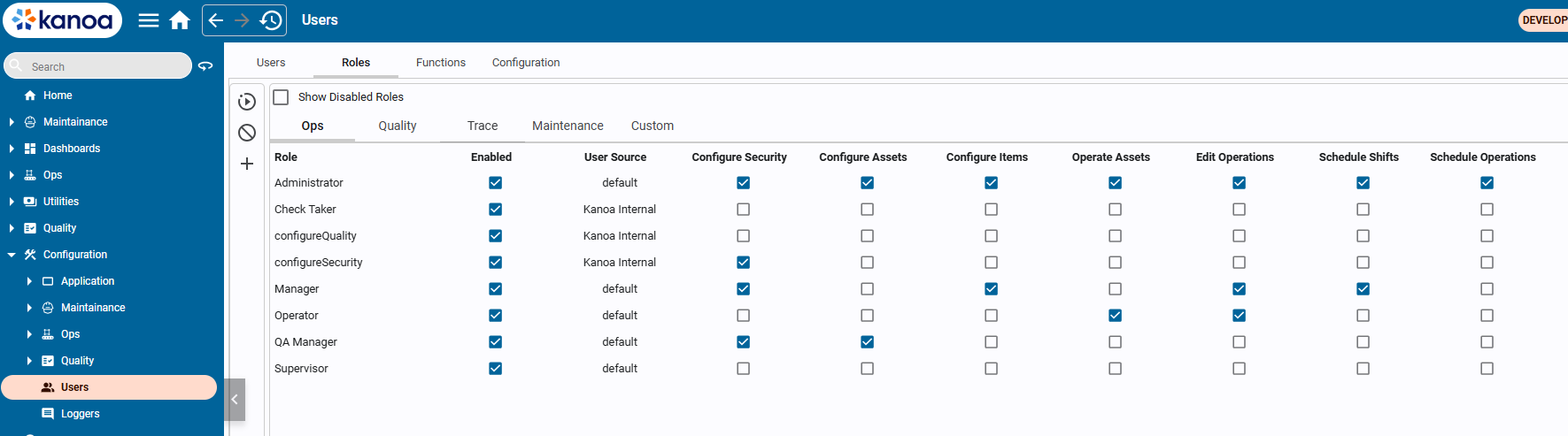
The following functions have been provided....
Configure Security | Configure Assets | Configure Items | Operate Assets | Edit Operations | Schedule Shifts | Schedule Operations | Configure Quality | Enter Checks | Approve Checks
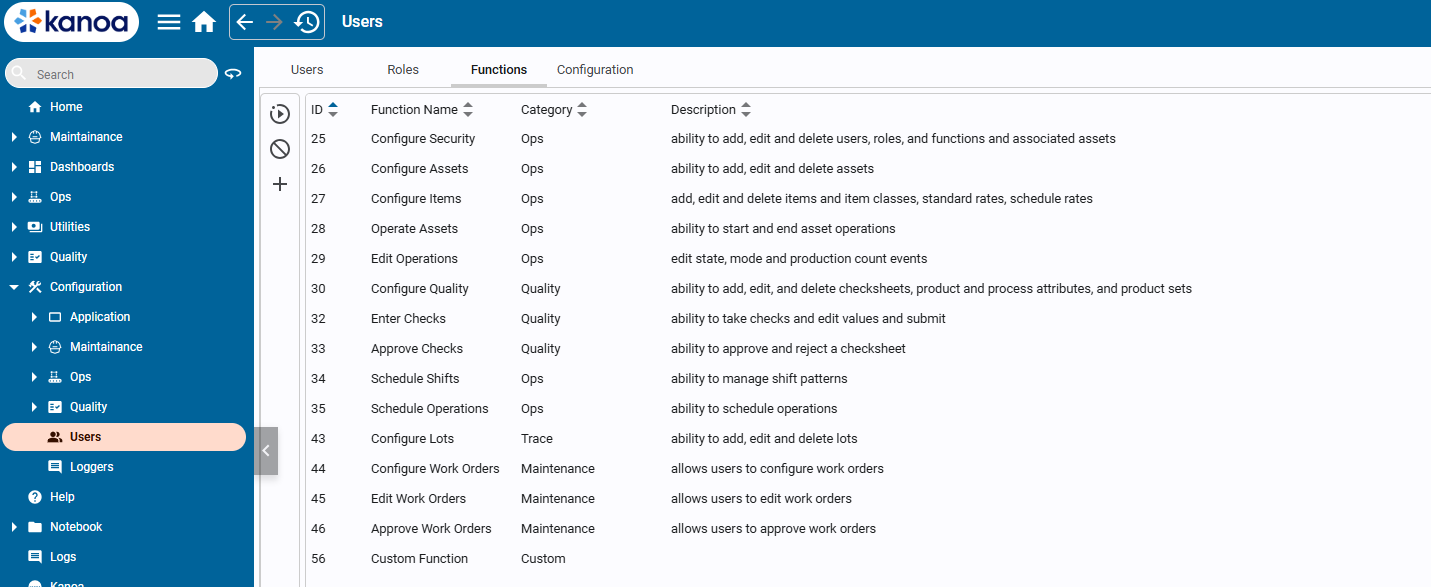
You can create custom roles and enable functions for each role through the role configuration interface.
For more information about how functions are used within the Kanoa MES, see Security Functions Overview
User Sources and User Management
Kanoa works with different Ignition user sources:
- Internal Ignition user source: users can be created, edited, and deleted through the Kanoa security table.
- Active Directory or an Identity Provider: authentication and user management must generally be handled externally; Kanoa manages the user's asset-role associations.
Kanoa also stores user data in parallel in its own database. A user record is initialized either when the user first logs in or when another user edits their information.
Security Checks in Screens
Kanoa screens use security checks to decide which controls or actions are available to the current user. Kanoa-provided screens already include this logic, but custom Perspective screens may need their own checks. Screen designers must intentionally apply the same security rules when building custom views. You'll revisit this during screen customization.
Configuration
The user security model has the following configuration parameters...
- Allow Guest: Allows guests not logged in to view all assets
- User Source: Specifies the name of the ignition user source that users will be stored and retrieved from
- User Source Options: Specifies the user sources that users queried against in the user table
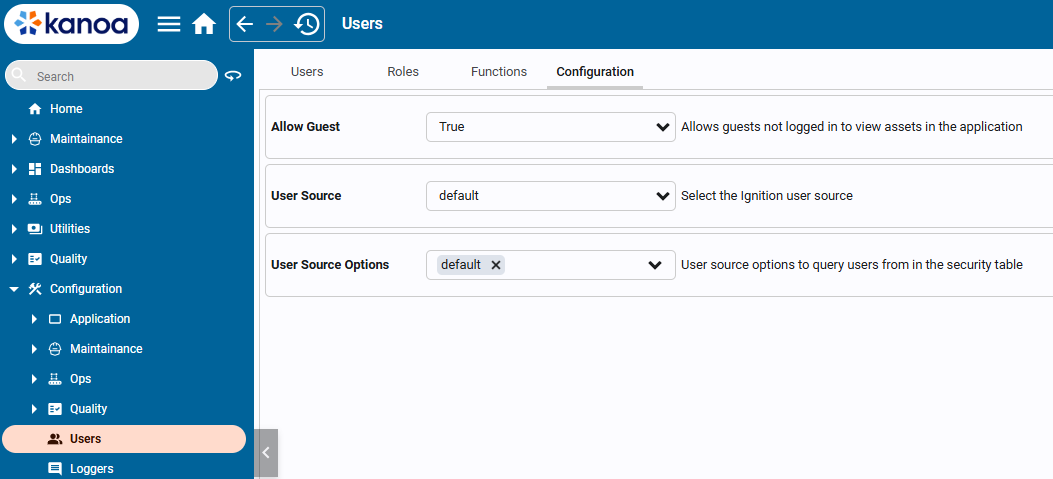
User Configuration
When the ignition user source is set to internal, users can be added and deleted via the User table. If the userSource is set to Active Directory, only a user's roles can be configured.
The User Sources drop down can be used to filter users by the user source.
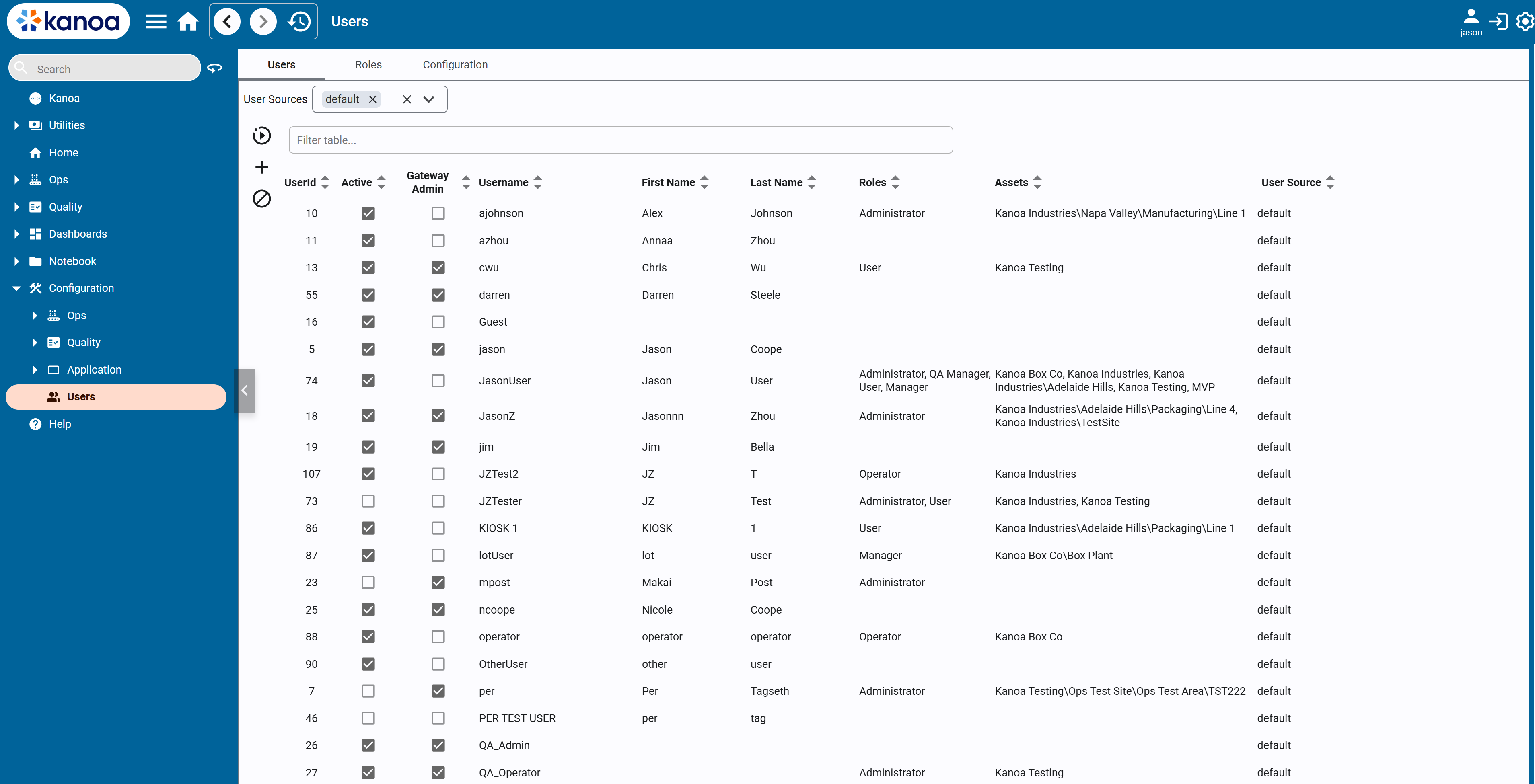
The 'active' field is set the first time a user logs into the MES application.
Creating and Editing Users
Click the + button to add a new user or select a user and click the  button.
A first and last name is required for a user. This allows us to filter out users that may have been setup for kiosk auto-login or Active Directory printers etc.
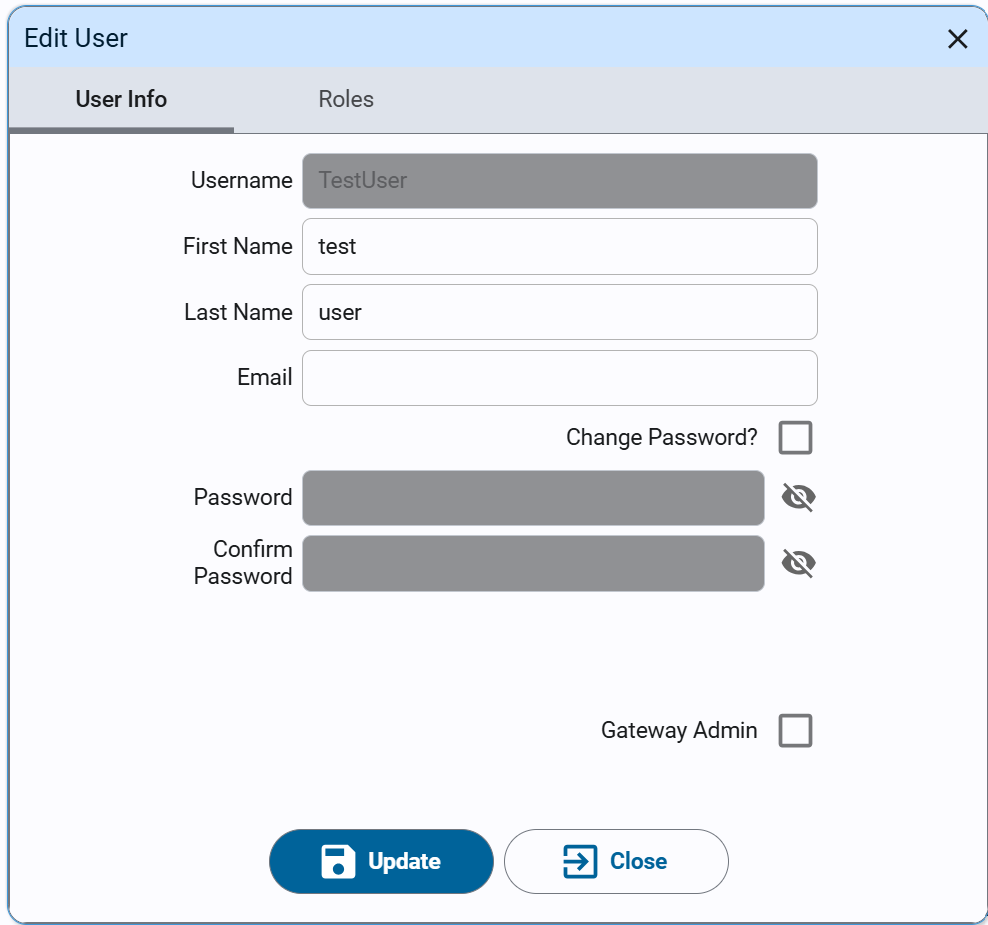
A user can be assigned a role along with a list of assets where that role is valid. This allows you to set a user to be an operator at say the mill, but not at the packaging line.
A user can given Gateway Admin permissions by enabling the Gateway Admin checkbox. There is no need to set specific roles to specific assets for a Gateway Admin as they automatically inherit all rights over all assets.
The first user to log into a freshly installed KanoaMES application will automatically be granted Gateway Admin rights. Only Gateway Admins can give Gateway Admin rights to other users.
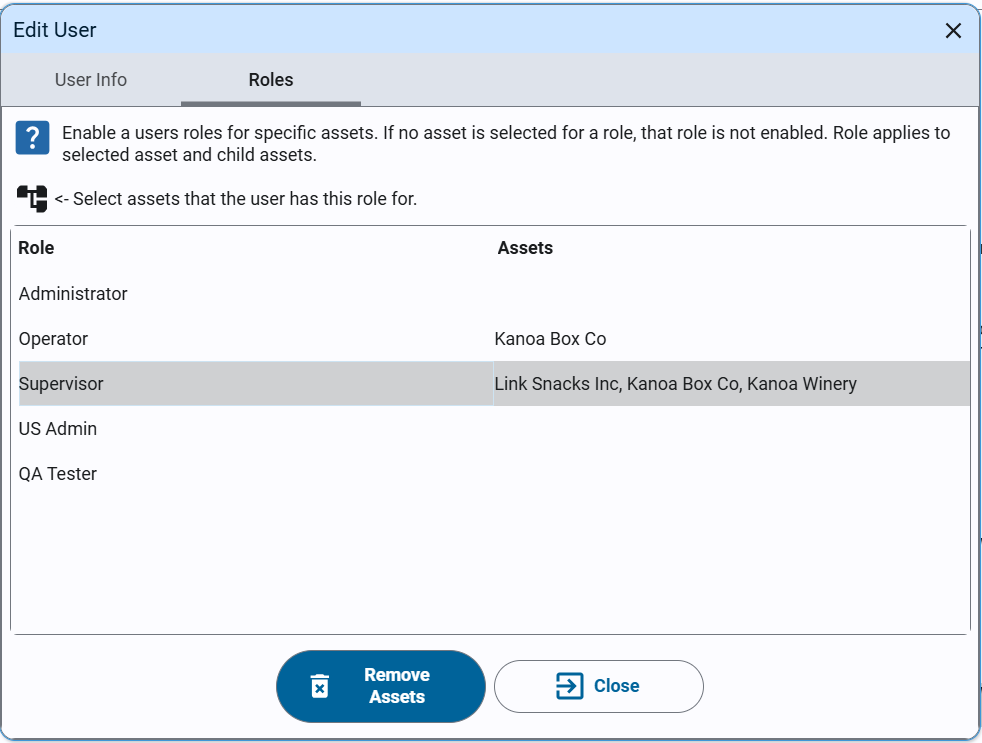
To add a role to a user, select the role you wish to assign to the user and then click on the  to select the assets.
To remove a user's roles, select the role you wish to remove from the user and then click the 'Remove assets' button.
- Navigate to Configuration → Users.
- On the Roles tab, create one custom role with Role Name
Scheduler.
- Grant each role the functions shown in the table.
| Role | Configure Security | Configure Assets | Configure Items | Operate Assets | Edit Operations | Schedule Shifts | Schedule Operations | Configure Lots | Configure Quality | Enter Checks | Approve Checks |
|---|---|---|---|---|---|---|---|---|---|---|---|
| Administrator | ✓ | ✓ | ✓ | ✓ | ✓ | ✓ | ✓ | ✓ | ✓ | ✓ | ✓ |
| Operator | ✓ | ✓ | ✓ | ||||||||
| Scheduler | ✓ | ✓ | ✓ | ✓ | ✓ | ✓ | |||||
| Supervisor | ✓ | ✓ | ✓ | ✓ | ✓ | ✓ | ✓ |
- On the Users tab, create the following users. A first and last name is required for each user.
| User | First Name | Last Name | Password |
|---|---|---|---|
| johnDoe | John | Doe | xxYYzz12345! |
| marcoDiaz | Marco | Diaz | xxYYzz12345! |
| hanaKim | Hana | Kim | xxYYzz12345! |
You don't have to use these passwords, just remember that Ignition 8.3 requires complex passwords. You'll want to make a note of your passwords.
For each assignment in the table below:
- Double-click the user in the table and select the role tab.
- Select the asset or assets where the role applies.
- Save the configuration.
| User | Role | Assets |
|---|---|---|
| johnDoe | Operator | Finishing |
| marcoDiaz | Operator | Philadelphia |
| hanaKim | Scheduler | Philadelphia |
Because role assignments are scoped to assets, John Doe can only operate Manual Pack 1, while Marco Diaz can operate every asset at the Philadelphia site.
Hana Kim can schedule across all assets at the Philadelphia site.
Copy this script into the Ignition Designer Script Console (Tools → Script Console) and run it. It checks that the Scheduler role exists, that each role has the functions in the table, that each user exists with the right name, and that each user has the right role on the right asset (and no wider). Each check prints PASS or FAIL with what to fix. It doesn't change anything.
Show the check script
# Kanoa Ops Training - check "Managing Users"
#
# Run in the Ignition Designer Script Console (Tools > Script Console), in the
# project that inherits KANOA_SCRIPTS. It only reads; it changes nothing.
# Every check prints PASS or FAIL with what to fix, then a summary.

FUNCTIONS = ['Configure Security', 'Configure Assets', 'Configure Items', 'Operate Assets', 'Edit Operations',
	'Schedule Shifts', 'Schedule Operations', 'Configure Lots', 'Configure Quality', 'Enter Checks', 'Approve Checks']
ROLES = {
	'Administrator': FUNCTIONS,
	'Operator':   ['Operate Assets', 'Edit Operations', 'Enter Checks'],
	'Scheduler':  ['Configure Assets', 'Configure Items', 'Operate Assets', 'Edit Operations', 'Schedule Shifts', 'Schedule Operations'],
	'Supervisor': ['Configure Security', 'Operate Assets', 'Edit Operations', 'Schedule Shifts', 'Schedule Operations', 'Enter Checks', 'Approve Checks'],
}
SITE = 'CoreForge\\Philadelphia'
USERS = [
	# user name, first name, last name, role, asset the role applies to
	('johnDoe',   'John',  'Doe',  'Operator',  SITE + '\\Finishing'),
	('marcoDiaz', 'Marco', 'Diaz', 'Operator',  SITE),
	('hanaKim',   'Hana',  'Kim',  'Scheduler', SITE),
]

results = []

def check(ok, what, fix=None):
	results.append(bool(ok))
	if ok:
		print 'PASS  %s' % what
	else:
		print 'FAIL  %s' % what
		if fix:
			print '      -> %s' % fix

def field(row, *names):
	for n in names:
		if n in row and row[n] is not None:
			return row[n]
	return None

def text(v):
	return '' if v is None else unicode(v).strip()

def key(v):
	# 'Configure Security', 'configureSecurity' and 'configure_security' all match
	return ''.join(ch for ch in text(v).lower() if ch.isalnum())

def norm(path):
	return text(path).replace('/', '\\').strip('\\')

def truthy(v):
	return str(v).lower() in ('true', '1', 'yes')

def rows(data):
	# Kanoa returns a dataset, a list of dictionaries, or None
	if data is None:
		return []
	if hasattr(data, 'getRowCount'):
		cols = list(data.getColumnNames())
		return [dict((c, data.getValueAt(i, c)) for c in cols) for i in range(data.getRowCount())]
	return [dict(r) for r in data]

def showColumns(label, data, *keys):
	if data and not any(k in data[0] for k in keys):
		print 'NOTE  %s has none of %s. Columns: %s' % (label, ', '.join(keys), ', '.join(sorted(data[0].keys())))

print '=' * 70
print 'Kanoa Ops Training - Managing Users check'
print '=' * 70

# 1. Roles and their functions
print '\n-- Roles and functions'
roleNames = dict((key(field(r, 'roleName')), text(field(r, 'roleName'))) for r in rows(system.kanoa.security.getRoles({})))
tracked = dict((key(f), f) for f in FUNCTIONS)
for role, expected in sorted(ROLES.items()):
	if key(role) not in roleNames:
		check(False, 'Role %s exists' % role, 'In Configuration > Users, on the Roles tab, add a role named %s.' % role)
		continue
	if role == 'Scheduler':
		check(roleNames[key(role)] == role, 'Role %s exists' % role,
			"Found '%s'. Rename it to %s." % (roleNames[key(role)], role))
	granted = rows(system.kanoa.security.getRoleFunctions({'roleName': roleNames[key(role)]}))
	showColumns('getRoleFunctions', granted, 'label', 'functionName')
	have = set()
	for r in granted:
		# some versions list every function with a flag; others list only granted ones
		flag = field(r, 'enabled', 'hasFunction', 'granted', 'selected')
		if flag is not None and not truthy(flag):
			continue
		for name in (field(r, 'label'), field(r, 'functionName')):
			if key(name) in tracked:
				have.add(tracked[key(name)])
	missing = [f for f in expected if f not in have]
	extra = [f for f in FUNCTIONS if f in have and f not in expected]
	check(not missing and not extra, '%s has the right functions' % role,
		'On the Roles tab, edit %s.%s%s' % (role,
			(' Add: %s.' % ', '.join(missing)) if missing else '',
			(' Remove: %s.' % ', '.join(extra)) if extra else ''))

# 2. Users and their role assignments
print '\n-- Users'
for userName, first, last, role, assetPath in USERS:
	found = rows(system.kanoa.security.getUsers({'userName': userName}))
	found = [u for u in found if key(field(u, 'userName')) in ('', key(userName))]
	if not found:
		check(False, 'User %s exists' % userName,
			'In Configuration > Users, on the Users tab, add %s (%s %s).' % (userName, first, last))
		continue
	user = found[0]
	check(True, 'User %s exists' % userName)
	gotName = (text(field(user, 'firstName')), text(field(user, 'lastName')))
	check(gotName == (first, last), '%s is named %s %s' % (userName, first, last),
		"It's '%s %s'. Edit the user and set the first and last name." % gotName)

	assignments = rows(system.kanoa.security.getUserAssetRoles({'userId': field(user, 'userId', 'id')}))
	showColumns('getUserAssetRoles', assignments, 'roleName')
	where = {}
	for a in assignments:
		if key(field(a, 'roleName')) == key(role):
			where[norm(field(a, 'assetPath', 'assetName'))] = True
	asset = assetPath.split('\\')[-1]
	ok = assetPath in where or any(p.split('\\')[-1] == asset for p in where)
	check(ok, '%s is %s on %s' % (userName, role, asset),
		'Double-click %s, open the Roles tab, select %s and give it the %s role.%s'
		% (userName, asset, role, (' It currently has %s on: %s.' % (role, ', '.join(sorted(where)))) if where else ''))
	wider = [p for p in where if p != assetPath and assetPath.startswith(p + '\\')]
	if wider:
		check(False, "%s's %s role isn't wider than %s" % (userName, role, asset),
			'It also has %s on %s, which covers more than %s. Remove that assignment.' % (role, ', '.join(sorted(wider)), asset))

passed = results.count(True)
print '\n' + '=' * 70
print 'Result: %d of %d checks passed' % (passed, len(results))
if passed == len(results):
	print 'All good. Your users and roles are set up.'
else:
	print 'Fix the FAIL items above, then run this again.'
print '=' * 70