Schedule Recurring PM
Preventive maintenance happens on a predictable interval, so it uses a Recurring template. Every work order it generates carries the Machine 1 Weekly PM procedure you wrote.
-
In Configuration → Maintenance → Work Orders, add a template:
Field Value Title Machine 1 - Weekly PMAsset CoreForge\Philadelphia\Machining\Machine 1Maintenance type Preventive Work type LubricationPriority Medium Procedure Machine 1 Weekly PMSchedule type Recurring -
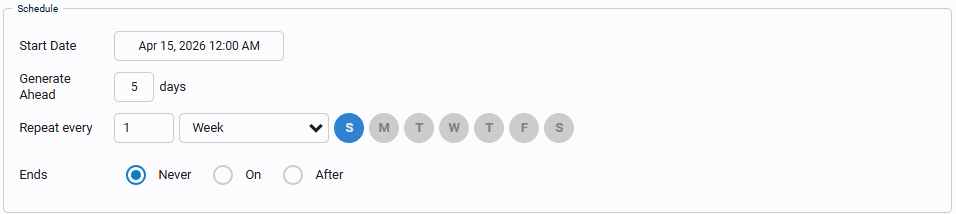
In the Schedule section, set Start Date to today, Generate Ahead to
7days, and Repeat every1Weekon today's day of the week. Leave Ends at Never. -
Save and release the template.
Generate Ahead controls how far in advance work orders are created. With 7 days, next week's PM appears in the work order list a week early, so planners can see the workload coming.
Reference Materials: Schedule Types
Schedule Types
A Work Order template includes a Schedule Type, which determines how work orders are generated. When a template is active i.e. 'Released', the system evaluates its schedule configuration. When the criteria are satisfied, an actual work order is created.
Kanoa Maintenance supports three primary schedule behaviors:
Use One Time when the template should generate a single work order.
This is useful for:
- one-off repairs
- installation work
- project tasks
- ad hoc maintenance requests
When a template is configured as One Time, the system generates one actual work order from that template.
Use Recurring when the template should continuously generate work orders on a defined schedule.
This is typically used for:
- preventive maintenance
- routine inspections
- repeating safety checks
- calendar-based maintenance programs
When a template is configured as Recurring, the system creates actual work orders according to the recurrence settings.
Recurring schedules are best used when maintenance should happen on a predictable interval, such as:
- every day
- every week
- every month
- every X days/hours depending on schedule configuration
Use Condition when the template should generate work orders only after a defined asset condition, counter, or threshold is met.
This is typically used for:
- runtime-based maintenance
- counter-based maintenance
- threshold-triggered inspections
- condition-based corrective or preventive work
When a template is configured as Condition, he maintenance order can be set to be triggered whenever the asset run hours or counter values reach a certain threshold. Condition scheduling is useful for maintenance strategies that should not be driven by calendar date alone.


- In Maintenance → Work Orders, open the first
Machine 1 - Weekly PMwork order, assign it totechnician, and start it. - Open the Procedure tab. Each step is a button that shows how many checks it has.
- Work through the checks. Mark
Coolant filter cleanas Not OK and add a comment. - Enter the time taken for each step, then complete the work order.
The time taken on each procedure step is reported as Procedure Step Hours, alongside the technician hours you logged in the last lesson.