Navigation Editor
The left-hand navigation menu you've used throughout the course is highly configurable. You can hide or remove screens that are not applicable to your business. You can add your own custom screens and you set security of who can see what screens based on their roles.
Reference Materials: Navigation - Learn how navigation works in Kanoa.
The navigation options available to a user can be modified through the application in the navigation configuration screen. This provides the ability to weave your custom screens in alongside the provided kanoa screens, to create a seamless application.
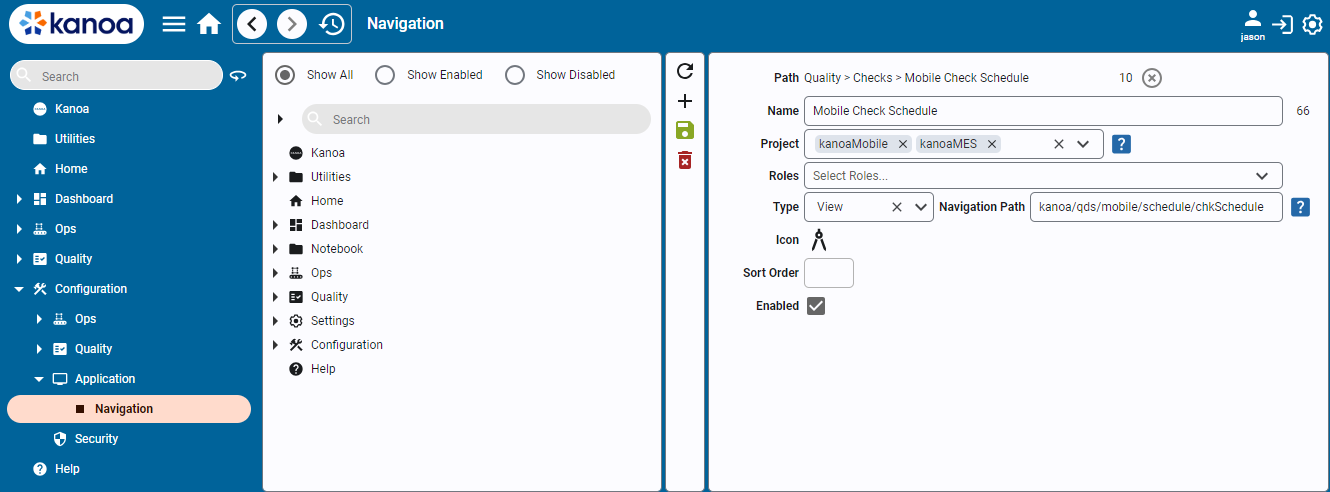
To create a new navigation item under an existing one, click anywhere in the navigation tree and select the  button.
To create a new item at the root level, simply click the
button.
To create a new item at the root level, simply click the  button without selecting a parent.
- Path: Informational. Displays the path and parentId. The parent can be cleared to place the navigation item at the root.
- Name: Add a name for the menu item that will be shown in the navigation tree.
- Project: Specify one or more runnable projects for which the item will appear. Leave blank to make it available to all projects.
- Roles: Add specific user roles required for the menu item to be visible.
- Type: Link the item to a view or page created in the Designer, or to a URL.
- Icon: Add a custom icon for this item.
- Sort Order: Define the order in which the item appears in the tree.
- Enabled: Enable or disable the item to show or hide it from the navigation.
Click the  to save your changes before doing any other edits.
Click the  to delete a navigation item.
Navigation items can be rearranged by dragging them to different positions in the tree.
- Add a new navigation item.
- Set Name to
Kanoa Web Site. - Set Type to URL.
- Set the URL to
https://kanoa.ai. - Choose the Kanoa icon.
- Set Sort Order to
1. - Save the navigation item.
- Open the navigation menu, click Kanoa Home Page, and confirm that it opens the Kanoa website.