Fill Out The Check Sheet
Reference Materials: Entering Checks
Check Sheets are automatically scheduled based on their triggers and activities on production lines, such as production runs, mode changes, and shift changes. See Creating Checks for information on how to set up check sheet triggers.
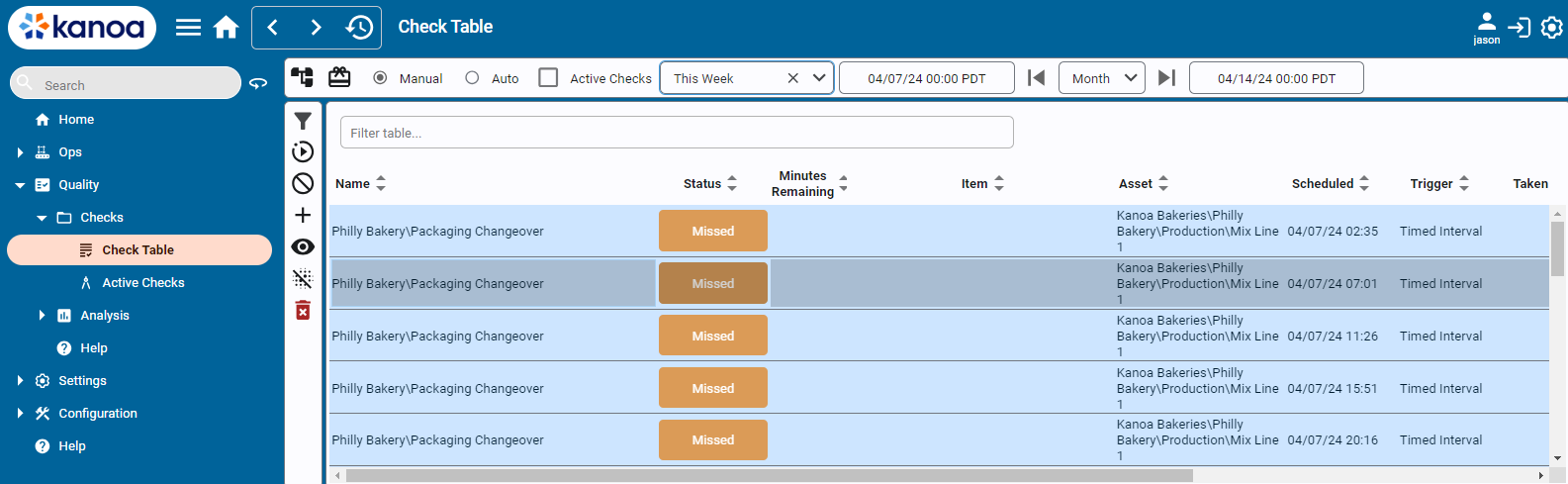
Scheduled check sheets can be opened from the 'Check Table' or the 'Active Check' screen. Double-click on a scheduled Check Sheet or select the Edit button to open it for entering check data.
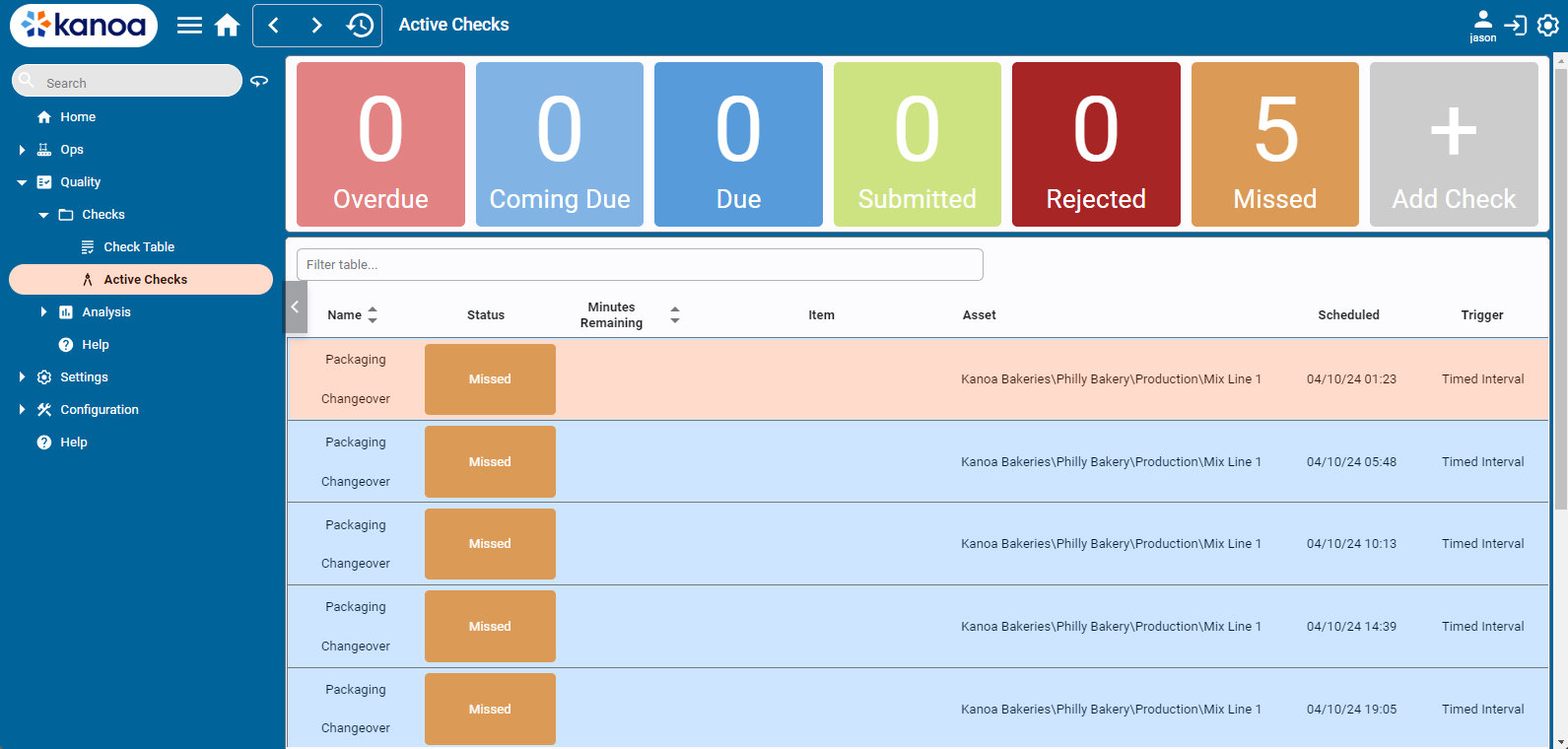
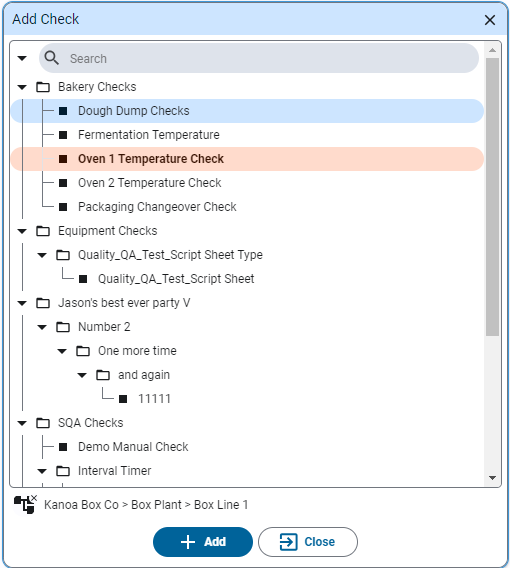
Check Sheets can also be created on the fly by clicking the 'Add Check' button. If the Check Sheet specifies an asset and an item in its configuration, you will be asked to select which asset and which item this check is being performed against.
The list only shows Released, enabled check sheets, and it leaves out Auto check sheets: their values are captured from tags, so they're normally scheduled by a trigger rather than added by hand. To add one anyway, tick Include Auto Checks below the list. The Auto check sheets are then listed with the others. An Auto check added this way still takes its values from its tags, but because someone added it by hand it's listed with the manual checks, on Active Checks and on the mobile check schedule. Auto checks a trigger schedules stay under the Auto filter.
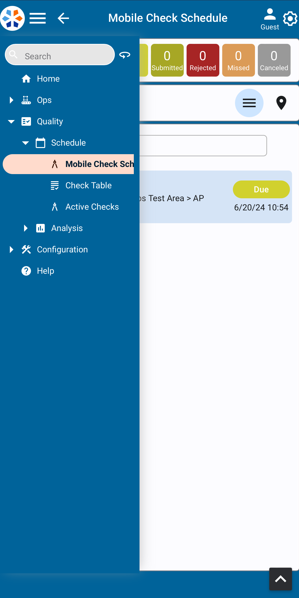
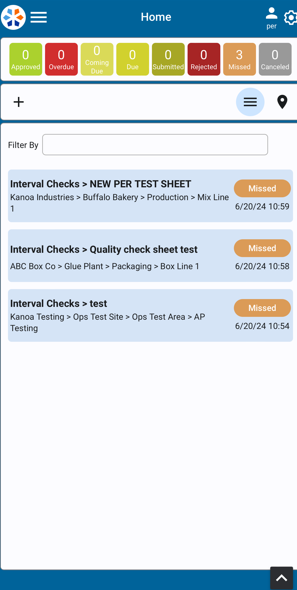
Checks can also be scheduled from your mobile device. From your mobile device, select the Mobile Check Schedule in the left menu to bring up the mobile checks page. Schedule a new check by clicking the add icon (+ sign) in the upper left on page. Select an asset and an item, then click the Add button to schedule the check. As on the desktop, Auto check sheets are only listed when Include Auto Checks is ticked.
Enter Check data
All check input fields will be displayed as defined by the check sheet. If Check Groups are used - they will display above the checks themselves. Check entry can be toggled between a Value Entry Popup window or keyboard input by clicking the
in the upper-right corner. There is also a selection for touch screen entry for devices with the ability.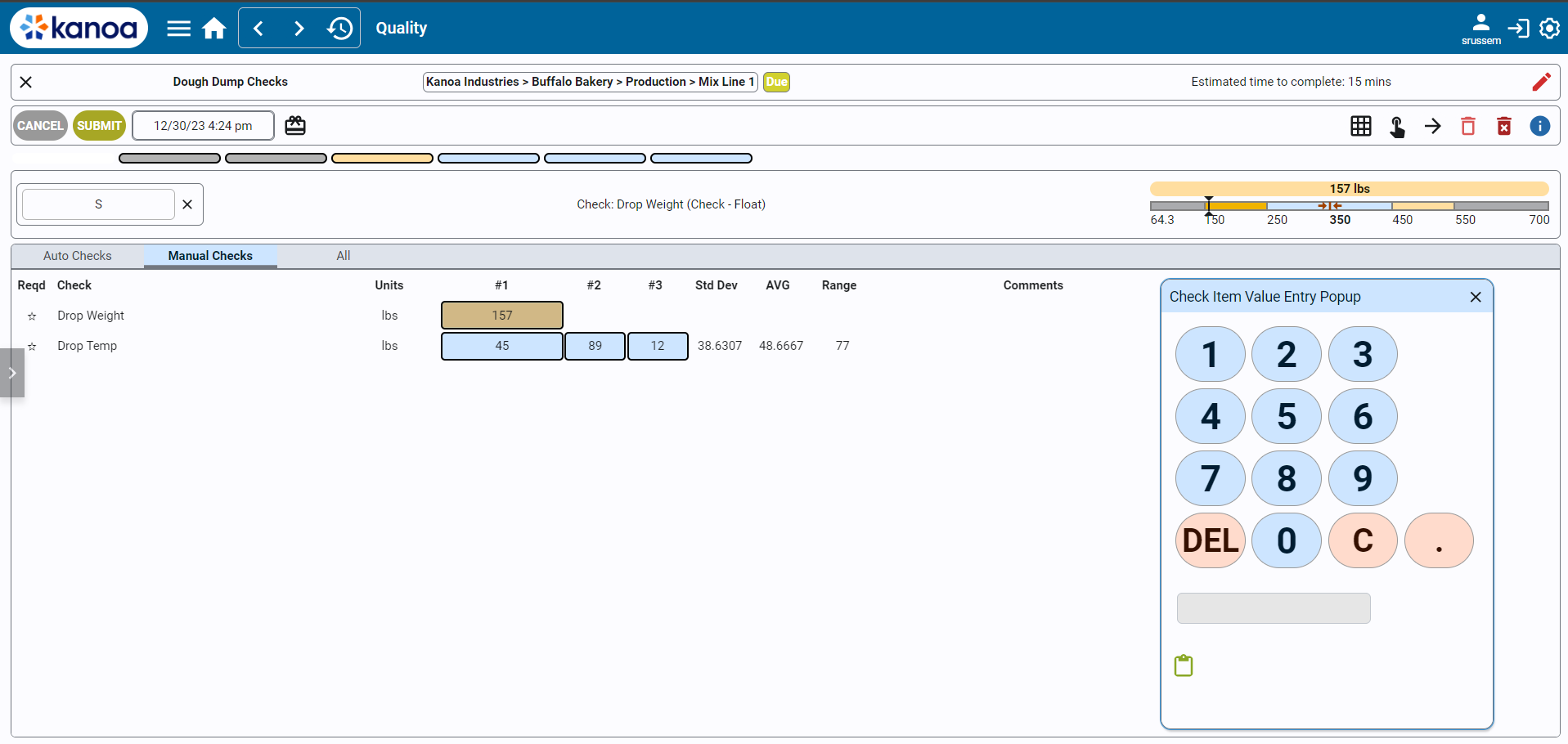
After a check has been entered, the next check is automatically selected; after the last check in a group, the selection stays on it rather than going back to the top. If there are multiple measurement counts, the direction in which the next check is selected can be changed by clicking the
icon . A check entry can be cleared by using the icon.If a pick list has been defined for a check item, pick list buttons are displayed for the user to enter the check value. If no picklist is defined for a numeric check, the numeric keypad is displayed. The numeric keypad can also be used instead of the picklist buttons by clicking .
A value outside a check's entry limits is refused with a message that gives the allowed range, and nothing is saved; enter a value within it. A value within the entry limits but outside the check's specification is saved and shown as failed.
Comments can be added for individual check items or a general comment for the check sheet can be added. If any check fails (as indicated by a red background), a comment will be required when the check sheet is submitted.
Above the Check Groups - to the right, the Spec Checks will be displayed with a graphical display of limits and actuals
A progress bar at the top tracks completion. Color coding indicates the status of each check (white/empty for incomplete, color-coded for complete with good/bad thresholds, gray for complete without thresholds).
Click the blue i icon and a dialog box will open with the information for each check as defined in the Check Sheet.
At any time during check entry, Check Sheet can be canceled. Once the checks are all entered, the check sheet can be submitted for approval and then accepted or rejected.
Checks can also be entered using your mobile device. On mobile, additional options include GPS tracking with a map view to record where checks were entered, as well as the ability to take photos or videos.
Controls
- Close Button: Located in the upper left, used to exit the check.
- Check Name: Displays the name of the check.
- Asset Information: Shows the assigned asset and current status of the check (e.g., due, coming due).
- Estimated Time to Complete: Indicates the time required to complete the check.
- Mode Indicator: Displays whether the check is in edit mode (for completing the check) or view mode (for reviewing entered data).
- Timestamp: Shows the current timestamp associated with the check.
- Edit Item Classes Button: For associating items to the check, if applicable.
- Toggle Keypad/Button Size: Switches between touchscreen and keyboard-friendly interfaces.
- Navigation Controls: Includes buttons for navigating between check entries and a clear button to reset check values.
- Information Button: Provides additional instructions for the check sheet.
The Cleanliness Check has no automatic trigger, so you start it yourself. Each time a check sheet is started, Kanoa creates a check event: one filled-in copy of the form.
- Navigate to Quality → Schedule → Active Checks
- Clear any selected asset. This check isn't tied to an asset, and a selected asset will filter the list of checks.
- Click Add Check, choose
Cleanliness Check, and click Add. - Double-click the new check to open it.
- Answer all four areas. Choose
Over-ClutteredorDirtyfor at least one area so you can see how a failure behaves, and enter a comment when asked. - Click Submit.
- Close the Check Sheet Event Editor

Each answer is saved the moment you select it. Submit doesn't save the answers; it completes the check and changes its status.
The Active Checks view shows all active checks (Due, Coming Due, Overdue, In Progress, Submitted) and inactive checks (Approved, Canceled, Rejected, Disabled) for the last 24 hours. For more filtering options, use the Quality → Schedule → Check Table view.
- Navigate to Quality → Schedule → Check Table.
- Clear any selected asset, leave Manual selected and the date range on
This Month. The table loads on its own. - Find the Cleanliness Check you submitted. Its Status is
Approved: the sheet doesn't need a sign-off, so submitting it approves it. - Look at the Check OK column: it counts the failed check items, so your check shows at least
1. Taken On and Taken By show when and by whom it was done.
You'll come back to this check in the Receiving Inspection chapter and correct it from the Check Table.
Copy this script into the Ignition Designer Script Console (Tools → Script Console) and run it. It checks that a Cleanliness Check has been submitted with all four areas answered, and that one has a failed area and is Approved. Each check prints PASS or FAIL with what to fix. It doesn't change anything.
Show the check script
# Kanoa Quality Training - check "Fill Out The Check Sheet" (Cleanliness Check, lesson 2)
#
# Run in the Ignition Designer Script Console (Tools > Script Console), in the
# project that inherits KANOA_SCRIPTS. It only reads; it changes nothing.
# Every check prints PASS or FAIL with what to fix, then a summary.

SHEET = 'Cleanliness Check'
ITEMS = ['Machining Area', 'Coating Area', 'Mixing Area', 'Finishing Area']
FAIL_RESPONSES = ['Over-Cluttered', 'Dirty']
DONE = ['Approved', 'Submitted']
# Revise and Correct (Receiving Inspection) corrects the failed check, so after that
# lesson an approved check with no failures is expected instead
LATER_SHEET = 'Receiving Inspection'

results = []

def check(ok, what, fix=None):
	results.append(bool(ok))
	if ok:
		print 'PASS  %s' % what
	else:
		print 'FAIL  %s' % what
		if fix:
			print '      -> %s' % fix

def note(what):
	print 'NOTE  %s' % what

def field(row, *names):
	for n in names:
		if n in row and row[n] is not None:
			return row[n]
	return None

def text(v):
	return '' if v is None else unicode(v).strip()

def key(v):
	return ' '.join(text(v).lower().split())

def num(v):
	try:
		return float(v)
	except:
		return None

def rows(data):
	# Kanoa returns a dataset, a list of dictionaries, or None
	if data is None:
		return []
	if hasattr(data, 'getRowCount'):
		cols = list(data.getColumnNames())
		return [dict((c, data.getValueAt(i, c)) for c in cols) for i in range(data.getRowCount())]
	return [dict(r) for r in data]

def findSheet(name):
	"""All versions of a check sheet, and the one to check: the Released version, or else the newest.
	A revision renames the archived version '<name> - N' and the open one '<name> - In Revision',
	so the other versions are found by their master sheet, not by name."""
	sheets = rows(system.kanoa.quality.sheet.getSheets({}))
	named = [s for s in sheets if text(field(s, 'chkShtName')) == name] or \
		[s for s in sheets if key(field(s, 'chkShtName')) == key(name)]
	if not named:
		return None, []
	masters = set(text(field(s, 'masterChkShtId', 'chkShtId')) for s in named)
	versions = [s for s in sheets if text(field(s, 'masterChkShtId', 'chkShtId')) in masters]
	versions.sort(key=lambda s: num(field(s, 'chkShtVersionNumber')) or 0)
	released = [s for s in versions if text(field(s, 'chkShtVersionStateName')) == 'Released']
	return (released or versions)[-1], versions

def millis(v):
	return v.getTime() if hasattr(v, 'getTime') else 0

def sheetEvents(versions):
	"""Every check event of any version of the sheet, newest first."""
	out = []
	for s in versions:
		out += rows(system.kanoa.quality.event.getChkShtEvents({'chkShtId': field(s, 'chkShtId')}))
	out.sort(key=lambda e: millis(field(e, 'scheduledDate', 'takenDate')), reverse=True)
	return out

def eventItems(event):
	"""The recorded values of a check event, by check item name."""
	byName = {}
	for r in rows(system.kanoa.quality.event.getChkShtEventItems({'chkShtEventId': field(event, 'chkShtEventId')})):
		byName.setdefault(text(field(r, 'chkItemName')), []).append(r)
	return byName

def values(itemRows):
	return [text(field(r, 'chkItemValue')) for r in itemRows or [] if text(field(r, 'chkItemValue'))]

def failed(event, byName):
	if (num(field(event, 'failedChecks')) or 0) > 0:
		return True
	return any(text(field(r, 'chkItemStateName')).upper() == 'FAIL' for rs in byName.values() for r in rs)

print '=' * 70
print 'Kanoa Quality Training - Complete a Cleanliness Check check'
print '=' * 70

sheet, versions = findSheet(SHEET)
if sheet is None:
	check(False, 'Check sheet %s exists' % SHEET, 'Build it in the previous lesson first.')
else:
	print '\n-- Completed checks'
	events = sheetEvents(versions)
	done = [e for e in events if text(field(e, 'chkShtStateName')) in DONE]
	if not done:
		states = ', '.join(sorted(set(text(field(e, 'chkShtStateName')) for e in events)))
		check(False, 'A Cleanliness Check has been submitted',
			'In Quality > Schedule > Active Checks, clear the asset, click Add Check, choose %s, answer all four areas and click Submit.%s'
			% (SHEET, (' Checks so far: %s.' % states) if states else ''))
	else:
		check(True, 'A Cleanliness Check has been submitted (%d so far)' % len(done))
		details = [(e, eventItems(e)) for e in done]

		# Every area answered
		complete = [(e, b) for e, b in details if all(values(b.get(n)) for n in ITEMS)]
		check(complete, 'A submitted check has an answer for all four areas',
			'Open a new check, answer Machining, Coating, Mixing and Finishing Area, then submit it.')

		# A failed answer, with a comment
		withFail = [(e, b) for e, b in complete if failed(e, b)]
		laterSheet, laterVersions = findSheet(LATER_SHEET)
		corrected = any((num(field(v, 'chkShtVersionNumber')) or 0) > 1 for v in laterVersions)
		if withFail:
			check(True, 'A submitted check has a failed area')
			e, b = withFail[0]
			failRows = [r for n in ITEMS for r in b.get(n, []) if text(field(r, 'chkItemValue')) in FAIL_RESPONSES]
			if failRows and not any(text(field(r, 'comment')) for r in failRows):
				note('The failed area has no comment. Kanoa asks for one when you choose a Fail response.')
			state = text(field(e, 'chkShtStateName'))
			check(state == 'Approved', 'The failed check is Approved (no sign-off is needed)',
				"It's %s. The Cleanliness Check doesn't need a sign-off, so a submitted check should be Approved." % state)
		elif corrected:
			check(True, 'A submitted check has a failed area (corrected since, in Revise and Correct)')
		else:
			check(False, 'A submitted check has a failed area',
				'Add another Cleanliness Check and choose Over-Cluttered or Dirty for at least one area. Revise and Correct needs a failed check to correct.')

passed = results.count(True)
print '\n' + '=' * 70
print 'Result: %d of %d checks passed' % (passed, len(results))
if passed == len(results):
	print 'All good. Your Cleanliness Check is complete.'
else:
	print 'Fix the FAIL items above, then run this again.'
print '=' * 70
You can import the check sheet here instead of building it by hand.
Downloadcheck-sheet-cleanliness-check.jsonImport it on the Check Sheet configuration screen (Configuration → Quality → Check Sheets) using the import/export button.