Mounting Tools
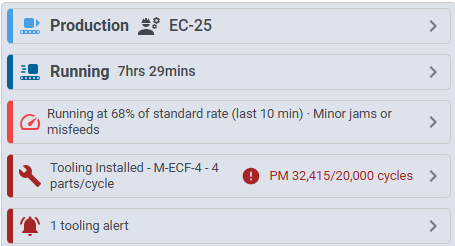
A tool is mounted on a machine from the Operator Station: the info panel's Tooling card shows the installed tool, and tapping it opens the Tooling popup. Its Mount / Unmount tab is the mount panel. A machine's PLC can also mount tools through its tags (see Tooling Tags).
For users with the Configure Assets security function, the popup also has a Tool Config tab with the installed tool's editor, or a Tools tab with the tools list when no tool is installed.
The Mount Panel
The mount panel lists the tools on the machine: where each is (on the machine, or in a pocket of another tool), when it was mounted, its status, lifetime cycles, whether it's fixed, and any alert.
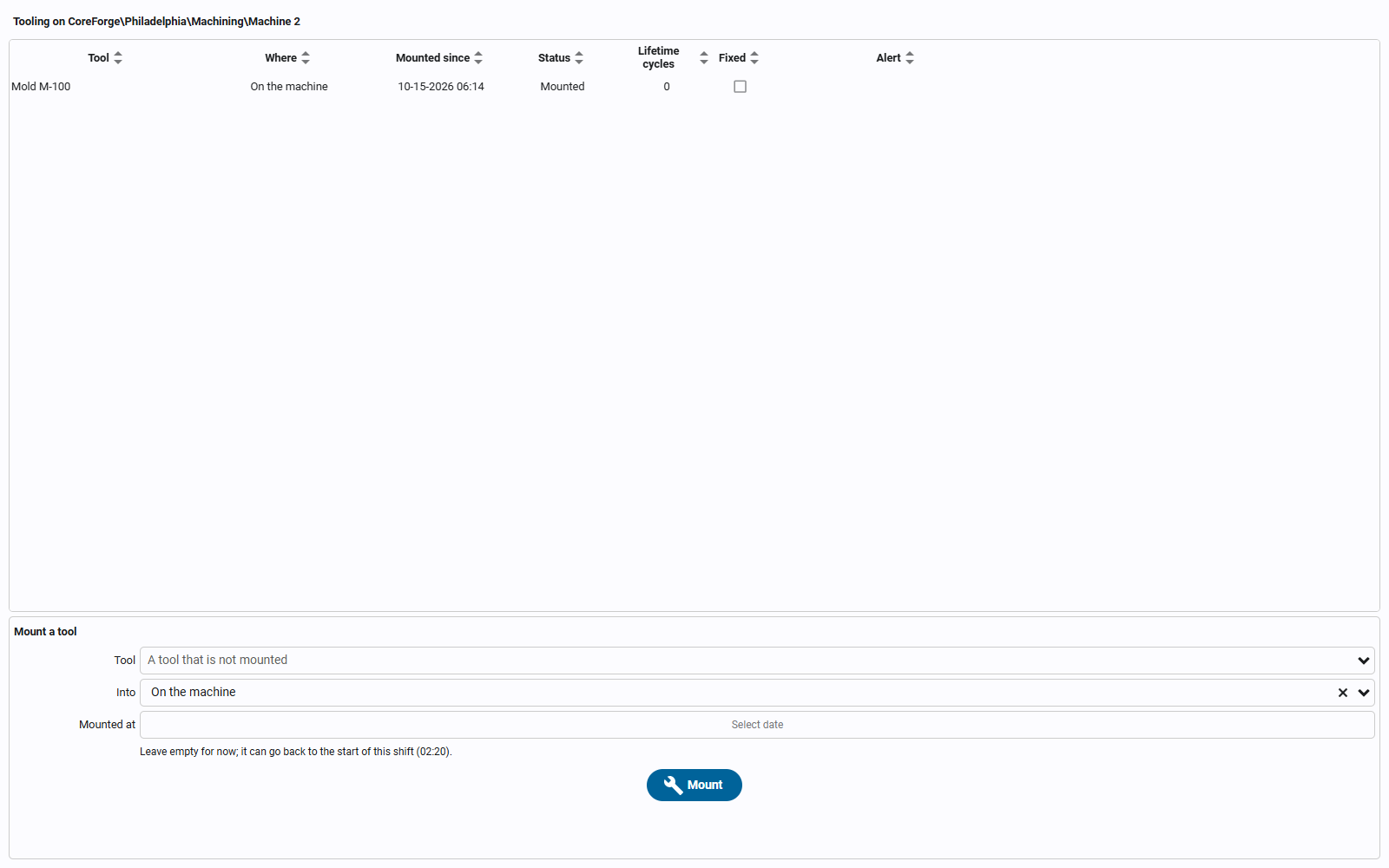
To mount a tool:
- Pick the Tool. Only the tools that can go on this machine are listed: those in its site that aren't mounted anywhere, and tools outside any site.
- Pick Into: On the machine, or a free pocket of a tool already mounted (to put an insert into a mold base).
- Leave Mounted at empty for now, or back-date it to when the tool really went on. It can go back to the start of the current shift.
- Click Mount.
Select a mounted tool to unmount it (with or without its inserts), to fix an insert in its pocket so it comes off with the base, or to block and unblock its positions.
The Tooling nav item on the Operator Station also opens the mount panel. It's off by default; turn it on in the asset operation navigation settings.
Rules
- A machine can have one tool with output positions at a time. A mold base's inserts count as part of it.
- A tool is mounted on one machine, or in one pocket, at a time. Unmount it first to move it.
- A tool is mounted only on the machines in its site (a tool outside any site can go anywhere).
- A tool with fit rules is mounted only where one of them allows (an insert in a mold base, only in a base its rules allow).
- A mount can't start in the future, or overlap the tool's earlier mounts.
- A tool that is In repair, Damaged or Retired can't be mounted.
Warnings
Mounting a tool that is over a limit shows a Mount warnings popup. OK mounts it anyway, and the accepted warnings are saved in the mount's note; Close mounts nothing.
A site can add its own mount check, a project script function named in the configuration values
toolingValidationProject and toolingValidationFunction. It's given the proposed mount, including the tool's positions,
and returns errors, which refuse the mount, and warnings, which need accepting. A check that fails or takes longer than
10 seconds becomes a warning, so it can't stop production.
Runs and History
- Mounting, unmounting or swapping a tool starts a new run at that moment when it changes the rate (see Cycle Rates and Item Rates). A swap from a tag unmounts and mounts at the same moment, so the run there gets the new tool's rate.
- A back-dated mount re-stamps the runs since then with the tool's rate and moves the cycles the machine ran since then onto the tool's life counts.
- A mount window can be corrected from the tool's History tab (a new start or end, with a reason). Runs are split at the corrected edges where the rate changes.