Lookups and Technicians
-
Navigate to Configuration → Maintenance → Work Orders. The tabs across the top are Work Orders, Version Status, Types, Priority and Status.
-
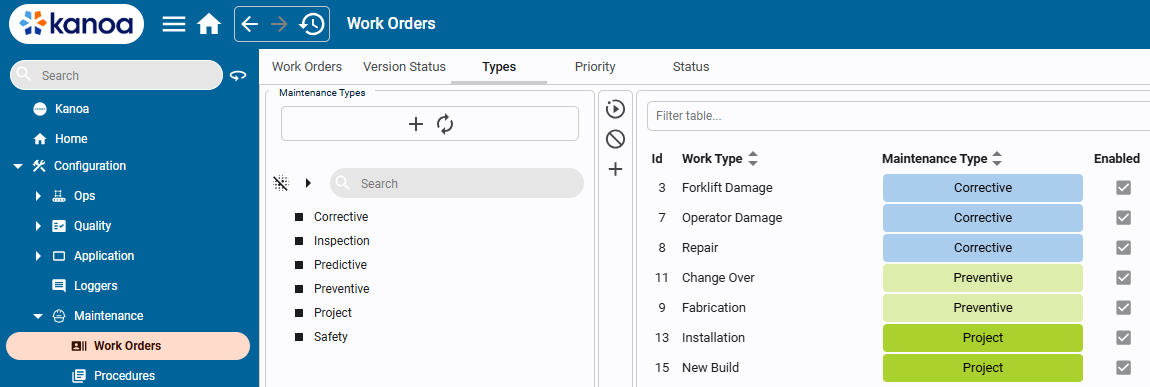
On the Types tab, review the maintenance types. Then add these work types:
Work type Maintenance type ToolingCorrective LubricationPreventive Spindle ServicePreventive -
On the Priority tab, review the priorities
Low,Medium,HighandUrgent. -
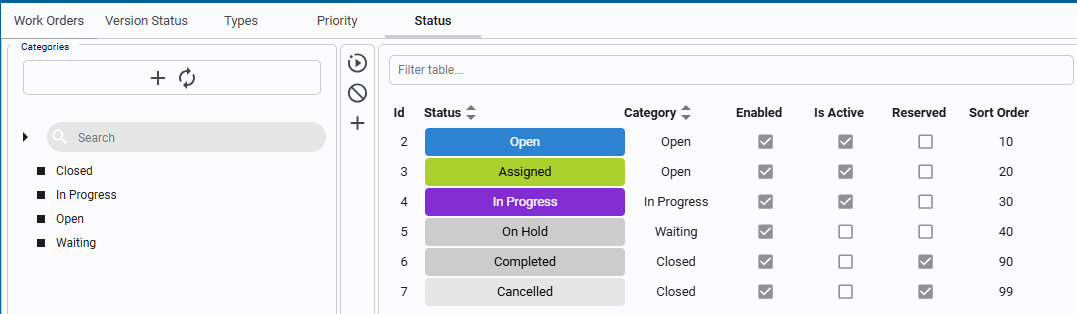
On the Status tab, review the statuses and the category each one belongs to.
Status categories let several statuses count as the same thing. For example, Completed and Cancelled can both count as closed, so the backlog and KPIs treat them alike. You can add your own statuses without breaking the analytics, as long as each one is in the right category.
Work types are separate from maintenance types on purpose. A Preventive work order might involve one technician logging Lubrication time and another logging Spindle Service time.
Reference Materials: Maintenance Types and Work Types
Maintenance Types
Work orders are categorized by maintenance type, such as Corrective, Inspection, Predictive, Preventive, Project, and custom maintenance types can be added. These categories are used for filtering, KPI segmentation and Backlog analysis. Under Maintenance types, 'Work Types' can be added for a technician to select such as Corrective\Forklift Damage or Project\Installation.
Reference Materials: Work Flow Status
Work Flow Status
As Work orders are created, assigned etc., they move through a workflow. These states are used for filtering, KPI segmentation and Backlog analysis. Default status types are Open, Assigned, In Progress, On Hold, Completed and Cancelled. Custom states can also be added.
Workorder statuses fall under categories. This allows multiple states to be considered 'Closed' or 'Waiting'.
- Navigate to Configuration → Users and add a user named
technician, with a first and last name. - Give the user the Operator role, so they can log in and see Machine 1, as you did in Managing Users.