Schedule Operations
In this section we'll start scheduling activities on our assets.
Reference Materials: Operations Scheduling. Learn how Kanoa manages production schedules.
Watch Scheduling Operations Tutorial
The operations schedule provides everyone in your organization with a clear view of current and planned activities. To truly gain deep insight into how your assets are being used, schedule information is crucial, and we strongly recommend that while you may have a different solution for scheduling and planning, whether that is done in ERP or Excel, that information needs to be shared with MES. Why? Because analyzing the performance of your manufacturing data is only useful when contextualized. Keeping scheduling information separate from production data limits your ability to answer the question: 'How well are we scheduling?' In fact, poor scheduling of resources in terms of asset, material, and personnel may well be your number one cause of inefficiency. Whether you use our built-in scheduling solution or a third party, integrating production scheduling information into the MES application is an important step in driving continuous improvement.
Operations scheduling places planned activity onto an asset calendar. A schedule block answers:
- Which asset should do the work?
- What mode should it be in?
- What item/order is involved, if any?
- When should it start, and how long should it run?
Scheduling creates planned context. When executed, that context can become production or mode events.
You can schedule both production and non-production modes — a production run, engineering time, cleaning, maintenance, or an audit. If the mode and asset are configured for auto-scheduling, Kanoa transitions the asset when the scheduled block starts (see Modes).

Features
Site Time Zone Support
KanoaOPS provides support for enterprises with sites in different time zones. When a site is selected, the calendar will show scheduled event times in the site's time zone.
You can set a sites time zone in the asset configuration screen. A time zone selector drop-down is displayed for assets of type 'site'. Time zone is stored as a custom asset attribute called 'tz'.
Recurring Events
We use the dateutil rrule object which offers a complete and fast implementation of the recurrence rules documented in the iCalendar RFC.
This makes the scheduling of repeating operations and shifts very simple and nearly identical to how it is done in Google Calendar, iCalendar, and Microsoft Outlook.

Auto Scheduling
When enabled, an asset is constantly checking for scheduled events. Whenever an operation ends, if any event such as maintenance or changeover has been scheduled, the asset is automatically set to the scheduled event mode. When the scheduled event ends, the asset will be set to an idle mode. The source of the mode, whether it was set by the PLC, an operator or the schedule, is stored along with the mode event. This information is what drives insights into asset utilization in that actual non-production events are captured rather than just seeing the asset in a production or idle mode.
The auto-schedule will only set the asset mode from the schedule when the current mode has not been set by the PLC or by an operator.
Auto-scheduling configuration is set in the Asset Mode Link. Additionally the tag [Kanoa]kanoa/mes/config/schedule/endScheduledRuns determines whether a scheduled Production run should be ended automatically or by the PLC or operator.
Shift Adherence
Shift adherence is a setting that dictates whether scheduled operations will be adjusted to conform with the asset's shift schedule. This setting is changed via the settings popup on the top right with a gear icon. When shift adherence is disabled, events can be scheduled at any time. Shift times are indicated on the calendar by the white sections.
If shift adherence is enabled, any operation that is scheduled will be forced to fit within the shift times.

If an operation is scheduled to start before the start of a shift, its start time will be adjusted to start at the earliest possible time.

If an operation is scheduled for longer than can be done in one event, the operation will be split into multiple events that are scheduled at their earliest possible time.

Order Status Color Configuration
When we schedule production orders on the calendar, our application allows for color coding the events by order status, for better recognition at a glance.
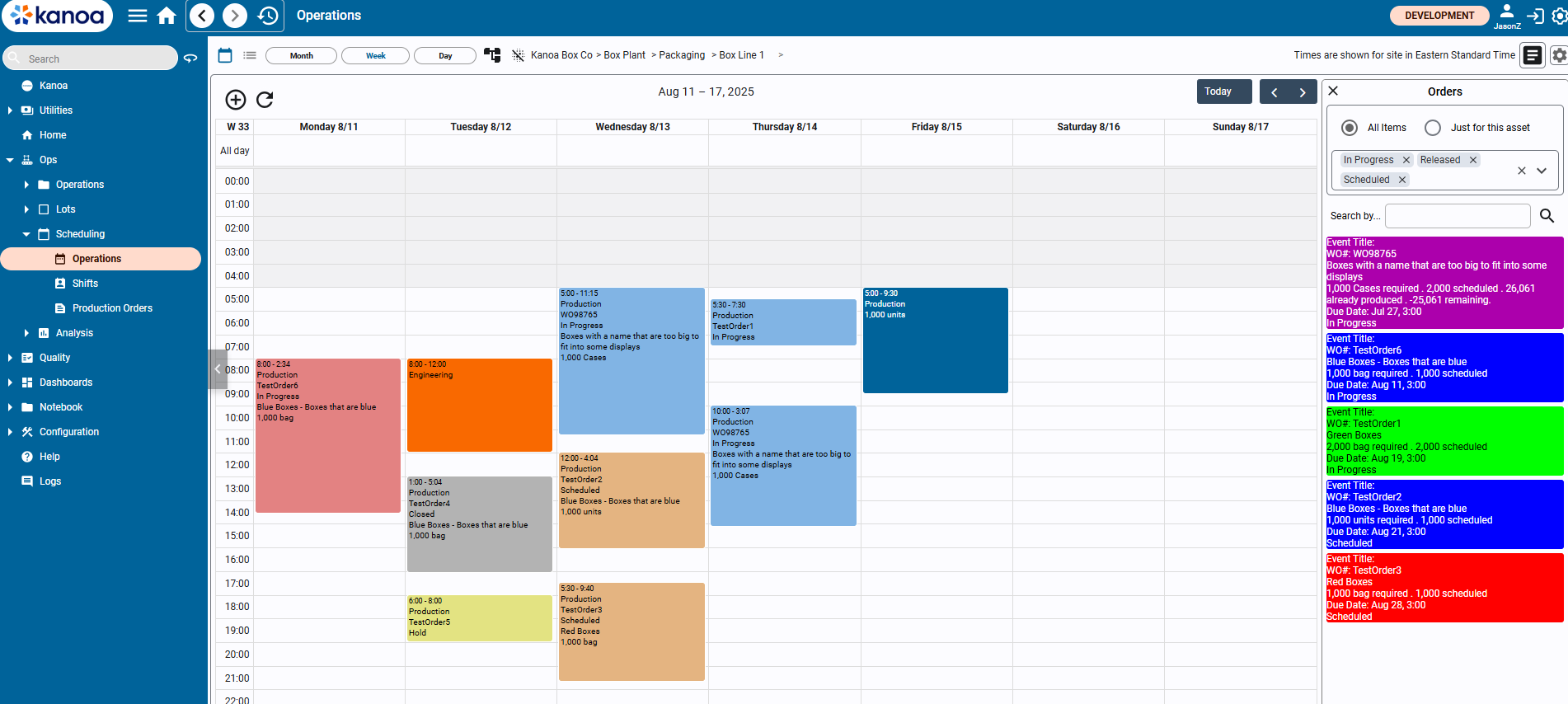
Here for example, we can see that orders that are “In Progress” are colored light blue, the orders that are ‘Scheduled’ are sand-colored, an order that is ‘Closed’ is grey, and so on. These colors will override how the orders would’ve been otherwise colored.
In order to configure this, we go to the application settings and look at the setting called ‘colorScheduleEventsByOrderStatus’.
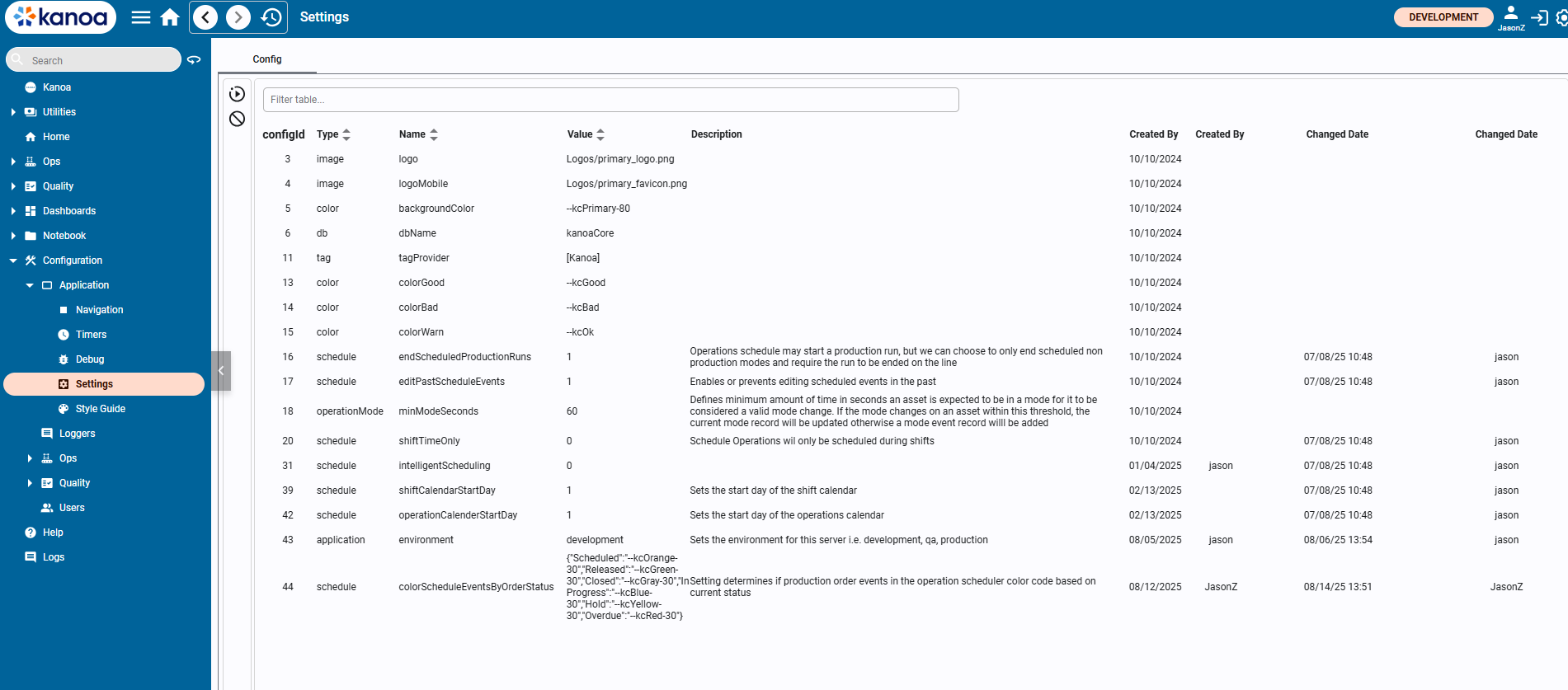
In the value, we have a dictionary string, that represents a mapping of order statuses to colors. We have Scheduled, Released, Closed, In Progress, and Hold as our order statuses. Overdue is a special order status that isn’t directly stored in the database, but is determined by certain factors. In order to update the value of the dictionary correctly, make sure that the order status name and value are correctly enclosed in double string quotes, like: “Scheduled”:”--kcOrange30”. Valid values for colors are hex colors like #eb4034 or our Kanoa color variables.
As mentioned, Overdue is a special order status that is determined based on the order. If an order’s status is In Progress, Released, or Scheduled, its produced quantity is still lower than the scheduled quantity, and the current date is past the order’s due date, then the order is considered Overdue.
Intelligent Scheduling
Intelligent scheduling allows a user to decide what to do when an operation they are trying to schedule overlaps with existing scheduled events. When the user attempts to schedule an operation that overlaps, or would overlap with an existing event after shift adherence is applied, they are presented with a popup with options on how they'd like to handle it.
Here, an event that overlaps with a maintenance event is attempted to be scheduled, prompting the schedule options popup to appear.

If shift adherence is enabled, then scheduling this event would cause the resultant start and end times to overlap with the maintenance event on Monday, which also triggers the popup.

Schedule Options
- Default - This operation will be scheduled as is, with no changes to itself, or any existing events that it overlaps with.
- Fixed - This operation will be scheduled as is and any scheduled events that overlap will have their times adjusted, in order to accommodate.
- Override - This operation will be scheduled as is and any scheduled events that overlap will be deleted.
- Wrap - This operation will wrap around any existing scheduled events. This may cause the operation to be split into several operations.
Filters
- Asset Selector: Click on the asset selector
 to select which assets the scheduled events are shown for.
 - Display mode: Scheduled events can be shown on a calendar or as a list.
- Period: Calendar or list can be shown for a month, week or day.
Adding Events
- In the calendar view, select the time you wish to schedule the event for.
- Click
 button.
 - Select the asset and type of event. If the event is 'Production' you can select a work order to be run or an item to produce or leave it just blank.
- Name the event, set start and end times, and add any relevant notes.
- For recurring events, click on the 'Does Not Repeat' link to edit recurrence options. Note events that have a work order associated with them cannot be recurring.
Orders
Orders can also be scheduled by clicking on the  button in the top bar.

Set 'Item Enabled' to show production orders that can be produced on this asset. Setting 'Asset Specific' will ensure only orders that call out to be produced on this asset will be shown. Note: This primarily affects orders received from an ERP system where the asset has been specified.
Orders can be filtered by their status.
When an order is dragged onto the schedule, the total duration will be determined by the schedule rate (or standard rate if no schedule rate has been set) for this asset-item combo. The schedule and standard rate are set in the Materials Configuration page.
Note
Dragging an order may result in multiple events being scheduled at the same time. It is up to you to ensure that only one event exists at any time for an asset
for auto-scheduling to work correctly. The auto-schedule will only look at the first event scheduled when multiple events exist for an asset.
Editing Events
- In the calendar view, select the event you wish to edit and click
 button.
Deleting Events
- In the calendar view, select the event you wish to delete and click
 button. You can also use the 'Delete' key on your keyboard.
-
Navigate to Ops → Scheduling → Operations.
-
Select the
Machine 1asset. -
Schedule a non-production event such as:
Mode: EngineeringAsset: Machine 1Time Window: Choose a short training window -
You can make it recurring if you'd like.
Generic production scheduling is useful when no formal work order exists yet, when a customer wants to schedule by item only, or when the schedule is an operational plan rather than an ERP order plan.
- Select the time window on the calendar and click the add button to create a new schedule block.
- Select
Spray Line 1and the Production mode, and the itemSC-2024-STD. Leave the work order blank. - Set the start and end times and save the schedule.
- Select
Machine 1and click the order selector button in the top bar to show the production orders that can run on this asset. - Drag production order
260526-001onto the schedule. - Kanoa uses the item-asset scheduled rate (or the standard rate, if no scheduled rate is set) to estimate the duration.
- Save the schedule.
Events that have a production order associated with them can't be recurring.
Enforcing Shift Schedules
By default, operations can be scheduled at any time. If you want to ensure that production schedules are only scheduled during active shifts, you can configure the asset model to use
Shift Time Only. When enabled, scheduled operations are forced to fit within the asset's shift times, which are shown as the white sections of the calendar.
- Navigate to Configuration → Ops → Assets.
- Select
Philadelphiaand enable 'Shift Time Only'.
By setting Shift time Only at the site level, all assets beneath the site will inherit this setting. If you have a particular area or line that doesn't need to adhere to shifts,
you can set their Shift Time Only setting to False. The concept of inheritance is to set what is most common for your plant and then place overrides on just the exceptions.
- Navigate to Ops → Scheduling → Operations.
- Select the
Machine 1asset. - Delete the currently scheduled production order
260526-001. - Drag production order
260526-001ontoMachine 1again, starting just before the end of the Evening Shift. - Notice that the operation is split into multiple events, each scheduled at the earliest available shift time.
Copy this script into the Ignition Designer Script Console (Tools → Script Console) and run it. It lists what's scheduled on Machine 1, Spray Line 1 and Manual Pack 1 (in the site's time zone), then ticks off each scheduling step from this lesson that it can see. It doesn't change anything.
Show the check script
# Kanoa Ops Training - check "Schedule Operations" (Scheduling, lesson 3)
#
# Run in the Ignition Designer Script Console (Tools > Script Console), in the
# project that inherits KANOA_SCRIPTS. It only reads; it changes nothing.
# Lists what is scheduled on each line, then notes which of the lesson's
# schedule entries it can see.

from java.text import SimpleDateFormat
from java.util import TimeZone, Date

SITE = 'CoreForge\\Philadelphia'
LINES = [
	SITE + '\\Machining\\Machine 1',
	SITE + '\\Coating\\Spray Line 1',
	SITE + '\\Finishing\\Manual Pack 1',
]
WINDOWS_TZ = {
	'eastern standard time': 'America/New_York', 'central standard time': 'America/Chicago',
	'mountain standard time': 'America/Denver', 'pacific standard time': 'America/Los_Angeles',
}

def field(row, *names):
	for n in names:
		if n in row and row[n] is not None:
			return row[n]
	return None

def text(v):
	return '' if v is None else unicode(v).strip()

def rows(fn, params):
	# Kanoa returns a dataset, a list, or None when there's nothing to return
	data = fn(params)
	if data is None:
		return []
	if hasattr(data, 'getRowCount'):
		cols = list(data.getColumnNames())
		return [dict((c, data.getValueAt(i, c)) for c in cols) for i in range(data.getRowCount())]
	return [dict(r) for r in data]

site = rows(system.kanoa.asset.getAssets, {'assetPath': SITE})
tzName = text(field(site[0], 'timeZone')) if site else ''
tz = TimeZone.getTimeZone(WINDOWS_TZ.get(tzName.lower(), tzName)) if tzName else TimeZone.getDefault()
fmt = SimpleDateFormat('EEE yyyy-MM-dd HH:mm')
fmt.setTimeZone(tz)

def when(v):
	if v is None:
		return '-'
	if hasattr(v, 'getTime'):
		return fmt.format(Date(v.getTime()))
	return text(v)

def repeat(rule):
	# 'FREQ=WEEKLY;INTERVAL=1;BYWEEKDAY=MO,TU' -> 'weekly MO,TU'
	rule = text(rule)
	if not rule:
		return ''
	parts = dict(kv.split('=', 1) for kv in rule.split(';') if '=' in kv)
	days = parts.get('BYWEEKDAY', parts.get('BYDAY', ''))
	out = parts.get('FREQ', 'repeats').lower()
	if days:
		out += ' ' + days
	if parts.get('UNTIL'):
		out += ' until ' + parts['UNTIL'][:8]
	return out

print '=' * 78
print 'Kanoa Ops Training - Schedule Operations check'
print '=' * 78
print 'Times are shown in %s (%s).' % (tzName or "this computer's time zone", tz.getID())

allBlocks = []
for path in LINES:
	line = path.split('\\')[-1]
	blocks = rows(system.kanoa.schedule.getScheduleBlocks, {'assetPath': path})
	blocks.sort(key=lambda r: field(r, 'startDate').getTime() if hasattr(field(r, 'startDate'), 'getTime') else 0)
	print '\n-- %s: %d scheduled' % (line, len(blocks))
	for r in blocks:
		mode = text(field(r, 'modeName')) or '?'
		item = text(field(r, 'itemName'))
		order = text(field(r, 'workOrderName'))
		what = mode
		if item:
			what += ', item ' + item
		if order:
			what += ', order ' + order
		qty = field(r, 'scheduledQty')
		if qty is not None:
			what += ', qty %s' % qty
		rule = repeat(field(r, 'rruleStr'))
		start, end = when(field(r, 'startDate')), when(field(r, 'endDate'))
		if start[:14] == end[:14]:
			end = end[15:]  # same day: just the time
		msg = '   %s -> %s  %s' % (start, end, what)
		print msg + (('  [' + rule + ']') if rule else '')
		allBlocks.append((line, mode, item, order, r))

# What the lesson asked for (informational)
print '\n-- Lesson steps'
def found(label, test):
	hits = [b for b in allBlocks if test(*b[:4])]
	print '   %s  %s%s' % ('[x]' if hits else '[ ]', label, (' (%d)' % len(hits)) if len(hits) > 1 else '')

found('Non-production event on Machine 1 (e.g. Engineering)',
	lambda l, m, i, o: l == 'Machine 1' and m and m.lower() != 'production' and not o)
found('Generic production on Spray Line 1: Production, item SC-2024-STD, no order',
	lambda l, m, i, o: l == 'Spray Line 1' and m == 'Production' and i == 'SC-2024-STD' and not o)
found('Production order 260526-001 on Machine 1',
	lambda l, m, i, o: l == 'Machine 1' and o == '260526-001')
split = [b for b in allBlocks if b[0] == 'Machine 1' and b[3] == '260526-001']
print '   %s  260526-001 split across shifts after enabling Shift Time Only' % ('[x]' if len(split) > 1 else '[ ]')
shiftOnly = field(site[0], 'shiftTimeOnly', 'scheduleShiftTimeOnly') if site else None
if shiftOnly is not None:
	print '   %s  Shift Time Only enabled on Philadelphia' % ('[x]' if str(shiftOnly).lower() in ('true', '1') else '[ ]')
print '=' * 78