Configure Modes
Modes define the intended operation of an asset, whereas state indicates what actually happened. For example, an asset is scheduled to be in production (mode) for 10 hours. During that time it was running (state) for 9 hours and down (state) for 1 hour.
Reference Materials: Modes - Understand what modes are, how production and non-production modes differ, and which options control how modes behave.
A mode defines the intended operation of an asset. The mode is typically set by the schedule or manually set by the operator, but can also be set via a mode tag when the asset is configured as 'OEE_Enabled'. Modes are used for scheduling assets using the Operations Scheduler in Kanoa Ops. This tool allows for the planned assignment of modes to various assets, ensuring that each piece of equipment is in the correct mode for its intended operation at any given time. In addition to being scheduled, Modes can also be manually controlled via the Line Operation screen. This feature enables operators or supervisors to dynamically adjust the mode of an asset based on real-time operational needs or changes in the production environment.
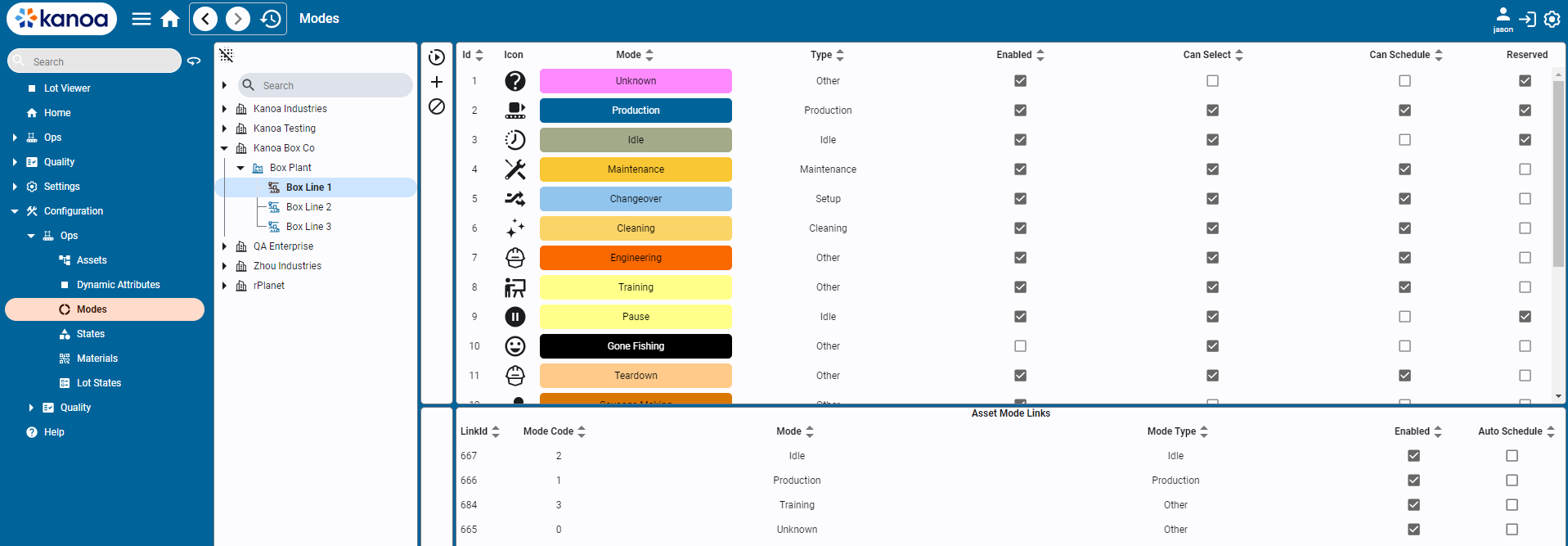
Modes
There are reserved modes predefined by the system such as 'Unknown', 'Idle', 'Production', 'Changeover', 'Maintenance'.
- Unknown: Serves as a catch-all state for uncertain scenarios or unclassified states of the asset.
- Production: The primary mode where assets are actively producing products. This mode indicates readiness for production and active engagement in the manufacturing process.
- Idle: The default state for an asset when it is not actively working but is available to produce. It represents a standby or waiting condition.
- Changeover: Used during the transition between different production runs. It covers setup activities, cleaning, and other preparatory tasks needed to switch products or start production.
- Production Delay: Used purely by analysis to determine how much time an asset has been delayed when scheduled to be in production. It is determined by the asset being set to a production mode, but no workorder or product has been selected.
New modes can also be created and associated with an asset. This is where you can customize the application to suit your manufacturing process. The mode indicates the production context of an asset and is an important aspect of how utilization and production performance analytics are determined.
Mode Types
Mode types are used to categorize modes. Mode types cannot be modified and are pre-defined by the system. The important mode type is 'Production' as only asset count and state events that occur during modes of type 'production' are included in production anaylsis. Mode types however are used along with modes to provide insight into asset utilization, in terms of 'how much time do my assets spend idle available for additional capacity compared to changeover, or setup, or CIP or maintenance.
Mode Types consist of....
- Cleaning
- Idle
- Maintenance
- Other
- Production
- Setup
Configuring Modes
Adding & Editing Modes

- Name: Name of the mode. Mode names must be unique.
- Type: Select the mode type for this new mode.
- Enabled: Indicates if the mode is active and usable within the system.
- Can Select: Determines if an operator can set an asset to this mode from the asset operation screen.
- Can Schedule: Determines if an asset can be scheduled to be in this mode.
Linking Modes to Assets
Once created, modes are linked to assets. Each mode is assigned a unique mode code. While the value used for a mode code is not important, it must be unique for the asset modes. If the mode for an asset is to be set via a plc tag, then the mode code defined should match between the PLC and MES.
- Select asset or assets from the asset tree.
- A list of modes assigned to the selected assets will appear in the bottom pane showing the mode link id and mode code.
- To link a mode to an asset, select one or more modes and click the 'Link' button. The mode will appear in the bottom pane.
- Assign a numeric mode code for the asset mode.
Auto-Schedule
💡 **Note: **New feature in kanoaOPS 1.3.5
By default, a mode will have the 'auto-schedule' bit set, which allows the scheduler to set the asset to this mode when scheduled and the asset is currently in
an 'idle mode. To clear the auto-schedule bit, simply double-click in the 'Auto Schedule' column and set to false.
Unlinking Modes from Assets
Modes can be unlinked from assets using the unlink option available on the screen. If event history exists for a mode, the system will not allow you to remove the link. It will instead be disabled.
- Navigate to Configuration → Ops → Assets.
- On the Modes tab, click the + button to add a new mode.
- Configure the mode as follows:
- Name: Audit
- Enabled: True
- Type: Other
- Can Schedule: True
- Can Select: False (not manually selectable) This allows Audit to be scheduled, but an operator cannot set the mode of the line to Audit.
- Select
Spray Line 1and select all modes. Click the Link button to link these modes to this asset. - Select
Machine 1and select all modes except Audit. Click the Link button to link these modes to this asset. - Select
Manual Pack 1and select all modes except Audit. Click the Link button to link these modes to this asset.
Copy this script into the Ignition Designer Script Console (Tools → Script Console) and run it. It checks the Audit mode's settings, that Spray Line 1 has every mode linked, and that Machine 1 and Manual Pack 1 have every mode except Audit. Each check prints PASS or FAIL with what to fix. It doesn't change anything.
Show the check script
# Kanoa Ops Training - check "Configure Modes" (Base Configuration, lesson 5)
#
# Run in the Ignition Designer Script Console (Tools > Script Console), in the
# project that inherits KANOA_SCRIPTS. It only reads; it changes nothing.
# Every check prints PASS or FAIL with what to fix, then a summary.

AUDIT = 'Audit'
LINES = [
	# asset path, should Audit be linked?
	('CoreForge\\Philadelphia\\Coating\\Spray Line 1',    True),
	('CoreForge\\Philadelphia\\Machining\\Machine 1',     False),
	('CoreForge\\Philadelphia\\Finishing\\Manual Pack 1', False),
]

results = []

def check(ok, what, fix=None):
	results.append(bool(ok))
	if ok:
		print 'PASS  %s' % what
	else:
		print 'FAIL  %s' % what
		if fix:
			print '      -> %s' % fix

def field(row, *names):
	for n in names:
		if n in row and row[n] is not None:
			return row[n]
	return None

def truthy(v):
	return str(v).lower() in ('true', '1', 'yes')

def text(v):
	return '' if v is None else unicode(v).strip()

def rows(fn, params):
	return system.kanoa.utilities.convertDatasetToJSON(fn(params))

print '=' * 70
print 'Kanoa Ops Training - Configure Modes check'
print '=' * 70

modes = rows(system.kanoa.asset.getModes, {})
byName = dict((text(field(m, 'modeName')), m) for m in modes)
enabledModes = sorted(n for n, m in byName.items() if n and truthy(field(m, 'enabled')))

# 1. The Audit mode
print '\n-- The Audit mode'
audit = byName.get(AUDIT)
if audit is None:
	near = [n for n in byName if n.lower() == AUDIT.lower()]
	if near:
		fix = "Found '%s'. Rename it to 'Audit' (names are case-sensitive)." % near[0]
	else:
		fix = "On the Modes tab of Configuration > Ops > Assets, click + and add a mode named Audit."
	check(False, 'A mode named Audit exists', fix)
else:
	check(True, 'A mode named Audit exists')
	check(truthy(field(audit, 'enabled')), 'Audit is enabled', 'Edit Audit and set Enabled to True.')
	modeType = text(field(audit, 'modeTypeName'))
	check(modeType.lower() == 'other', 'Audit type is Other',
		"It's '%s'. Edit Audit and set Type to Other." % (modeType or 'blank'))
	check(truthy(field(audit, 'canSchedule')), 'Audit can be scheduled (Can Schedule = True)',
		'Edit Audit and set Can Schedule to True.')
	check(not truthy(field(audit, 'canSelect')), 'Audit cannot be selected by operators (Can Select = False)',
		'Edit Audit and set Can Select to False, so Audit can be scheduled but not chosen by an operator.')

# 2. Mode links on the line assets
for assetPath, wantAudit in LINES:
	asset = assetPath.split('\\')[-1]
	print '\n-- Modes linked to %s' % asset
	links = rows(system.kanoa.asset.getAssetModes, {'assetPath': assetPath})
	linked = set(text(field(r, 'modeName')) for r in links
		if text(field(r, 'assetPath')) in ('', assetPath)
		and (field(r, 'linkEnabled') is None or truthy(field(r, 'linkEnabled'))))
	expected = [m for m in enabledModes if m != AUDIT or wantAudit]
	missing = [m for m in expected if m not in linked]
	check(not missing, '%s has every mode%s linked' % (asset, '' if wantAudit else ' except Audit'),
		'Select %s, select %s, and click Link.' % (asset, ', '.join(missing)))
	if wantAudit:
		check(AUDIT in linked, 'Audit is linked to %s' % asset,
			'Select %s, select Audit, and click Link.' % asset)
	else:
		check(AUDIT not in linked, 'Audit is NOT linked to %s' % asset,
			'Audit is only for Spray Line 1. Select %s, select Audit, and unlink it.' % asset)

passed = sum(1 for r in results if r)
print '\n' + '=' * 70
if passed == len(results):
	print 'All %d checks passed. Configure Modes is complete.' % len(results)
else:
	print '%d of %d checks passed. Fix the FAIL items above and run this again.' % (passed, len(results))
print '=' * 70
If you want to check your work, or skip ahead, you can import the updated asset hierarchy with the new modes instead of building it by hand.
Downloadcoreforge-asset-model-modes-export-3Import it on the asset configuration screen (Configuration → Ops → Assets). See Creating Assets.