Build the FAI Check Sheet
Kanoa only watches assets for quality triggers when you ask it to, so it doesn't spend effort on assets that never need checks.
- Navigate to Configuration → Ops → Assets and select
CoreForge\Philadelphia\Machining\Machine 1. - Select Enable Quality Triggers and save. The option is only available on OEE-enabled assets.
- Repeat for
Machine 2throughMachine 8.
Reference Materials: Asset settings, including Enable Quality Triggers
Creating Assets
Assets are configured by navigating to Configuration > Ops > Assets.
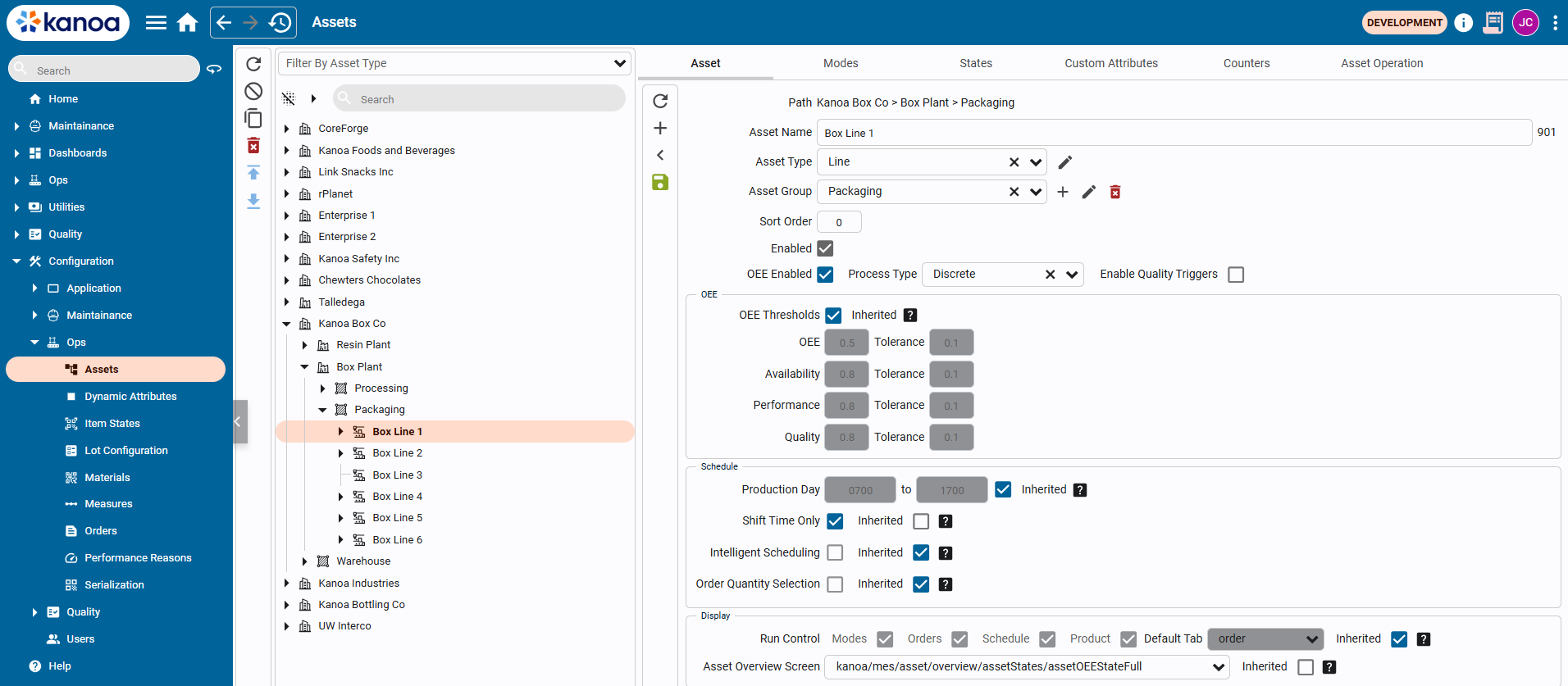
Once an asset has been created, it can be duplicated or exported. All configuration information such as mode links, state links, item links are duplicated / exported along with the asset. Exported assets can then be transferred between gateways such as from dev to prod.
| Field | Description |
|---|---|
| Asset Name | The name of the asset. Asset names must be unique within the parent. |
| Asset Type | Used for defining the type of an asset, akin to the ISA-95 hierarchy (e.g. enterprise, site, region). To configure asset types, use the edit button next to the right of the asset group dropdown. |
| Asset Group | An asset can be associated with a group such as 'shredders'. Grouping allows for analysis of assets that may not be in the same hierarchical area but need to be reported similarly. For instance, assets like 'box formers' across different lines can be grouped under a single asset group for consolidated reporting. To add an asset to a group, simply select the group from the dropdown. If the group doesn't exist, start typing the name of the group into the dropdown and select 'create'. |
| Sort Order | Determines the asset's position relative to others. |
| Enabled | Enable or disable this asset |
| OEE Enabled | One of the primary uses of an asset in Kanoa Ops is enabling it for OEE tracking. An OEE_Enabled Asset refers to any physical piece of equipment such as a production line, vessel reactor or process cell where operational data such as counts and equipment can be obtained and needs to be monitored. If an asset is OEE_Enabled, targets can be set for performance, availability, quality, and overall threshold that are used in visual indicators while an asset is in production. An instance of our assetOEE tag UDT is also created in the [Kanoa] tag provider that provides a mechanism for connecting the physical machine to our MES. See the [Configuring Tags] section below. |
| Process Type | When asset is 'OEE Enabled', asset process type can be configured as 'discrete, continuous or batch. Assets of type batch are configured differently for OEE performance calculation |
| Enable Quality Triggers | When asset is 'OEE Enabled', enabling this setting will cause changes to this asset mode or shift to check if a quality check should be scheduled. |
The FAI needs both an asset, to know which machine and operator it belongs to, and an item, to know which tolerance applies.
- In Configuration → Quality → Check Sheets, add
Machining - First Article Inspectionin theCoreForge\Operationsfolder. - On the Info tab, enter:
- Description:
First article inspection for machined parts at the start of a production run or after changeover. - Procedure:
Machining FAI Procedure - Document:
https://44110182.fs1.hubspotusercontent-na1.net/hubfs/44110182/Demo/workInstructionSample260120.pdf - Instructions:
Measure the first part produced after starting the run. Enter all required dimensional measurements and complete the visual defect check before continuing production.
- Description:
- On the Settings tab, select Asset Required with the
CoreForge\Philadelphia\Machiningarea, and Item Required with theCoreForge\WIP\Machinedclass.
Use Instructions for short guidance in the form, and Document to link to a controlled procedure or work instruction.
All three are Type Check, Enabled and Required.
| Check item | Data type | Measurements | Aggregation | Units | Specification |
|---|---|---|---|---|---|
Diameter | Float | 3 | Average | mm | Attribute CoreForge\Machining\FAI Diameter, Attribute Tolerance, Dynamic cleared |
Length | Float | 2 | Max | mm | Range, min 100, max 200 |
Visual Defect Check | String | 1 | Text: No visible defects (Pass), Minor cosmetic defect (Warning), Burrs present, Surface damage, Incorrect finish (Fail) |
With more than one measurement, Kanoa keeps every reading and evaluates the aggregate. Length readings of 150 and 205 give a Max of 205, which fails.
Diameter uses the attribute because its spec changes with the part family. Length uses a fixed range on the check item because it's the same for every part.
Reference Materials: Check Item Settings - Data Properties
Check Item Settings - Data Properties

- Number of Measurements: Set the # of measurements to be taken for this check. Allows for within-subgroup variance analysis.
- Assign Attribute: Attributes are used to associate a check with a tolerance spec and a data source tag path.
- Dynamic: When enabled, this check item will only be shown when a valid tolerance can be found for the associated attribute. Usage is to prevent displaying checks that may not be valid for certain items (products/materials).
- Units: Define engineering units for data display.
- Format: Enter a format string for data presentation following the custom numeric string format i.e. #,##0.##
- Persistent: When enabled, persistence will copy over the value entered the last time this check was taken. If asset and/or item is required, it will use previous value for that asset/item combination.
Specification
- Tolerance: Only shown if check datatype is a String or Number. Number choices are: 'Attribute Tolerance' (if check item is associated with an attribute), 'Tolerance', 'Set Point' and 'Range'. String choices are: 'Regex'.