Languages
Kanoa MES can be shown in any language installed on the gateway. Each user picks their own, and an admin chooses which languages are installed. This lesson shows both, and how to check the translations your users see.
Switch Your Display Language
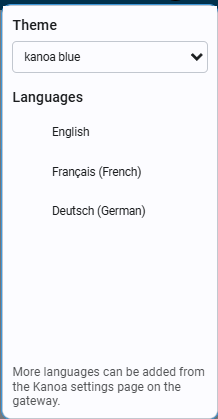
- Click the options icon (three dots) at the top right of the header.
- Under Languages, click a language.
The change applies to your session straight away, and only for you.
Choose the Installed Languages
You do this on the gateway config page, not in the Kanoa screens.
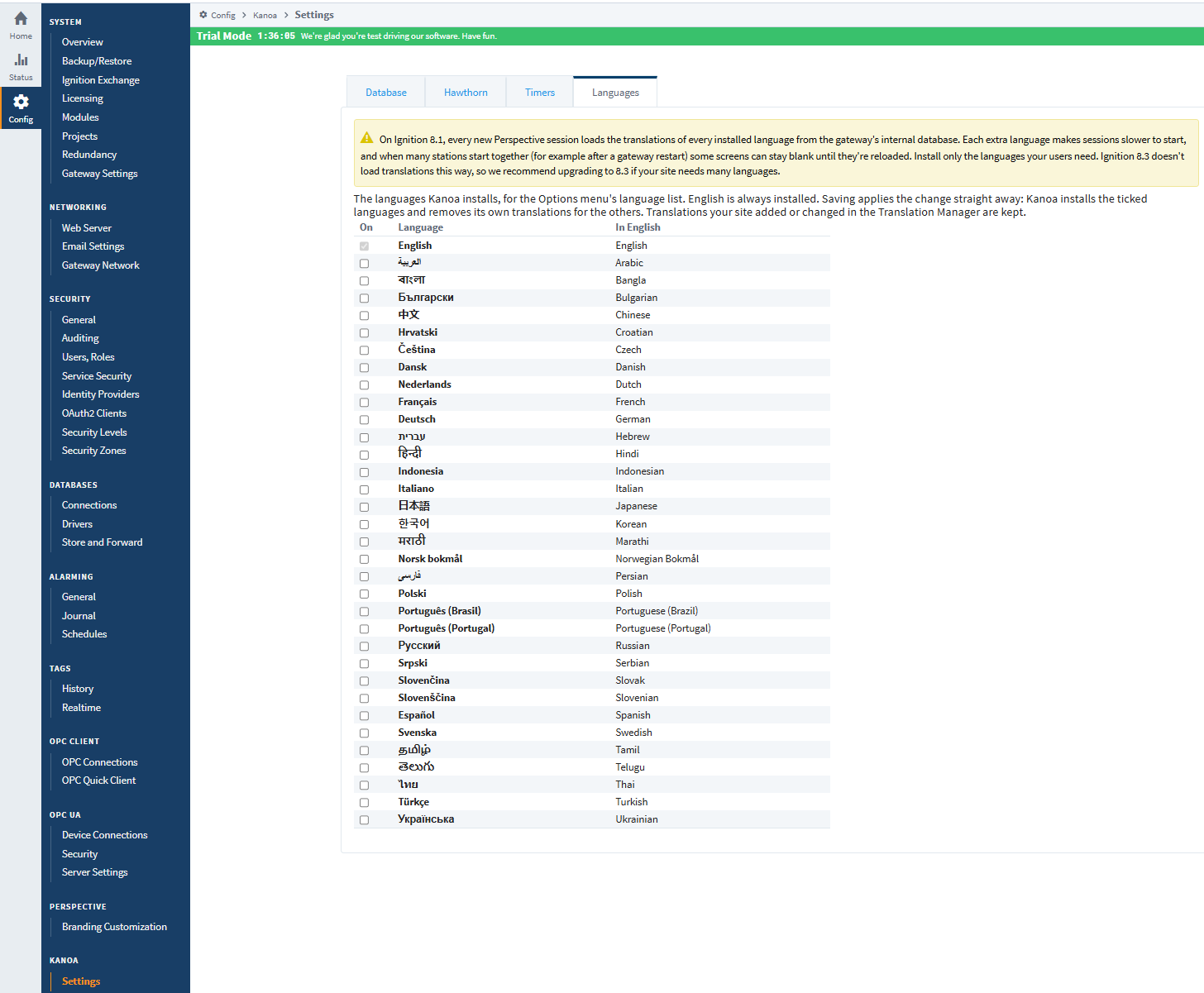
- Open the Kanoa gateway config page, Kanoa > Settings, and go to the Languages tab.
- Tick the languages your users need.
- Click Save Languages.
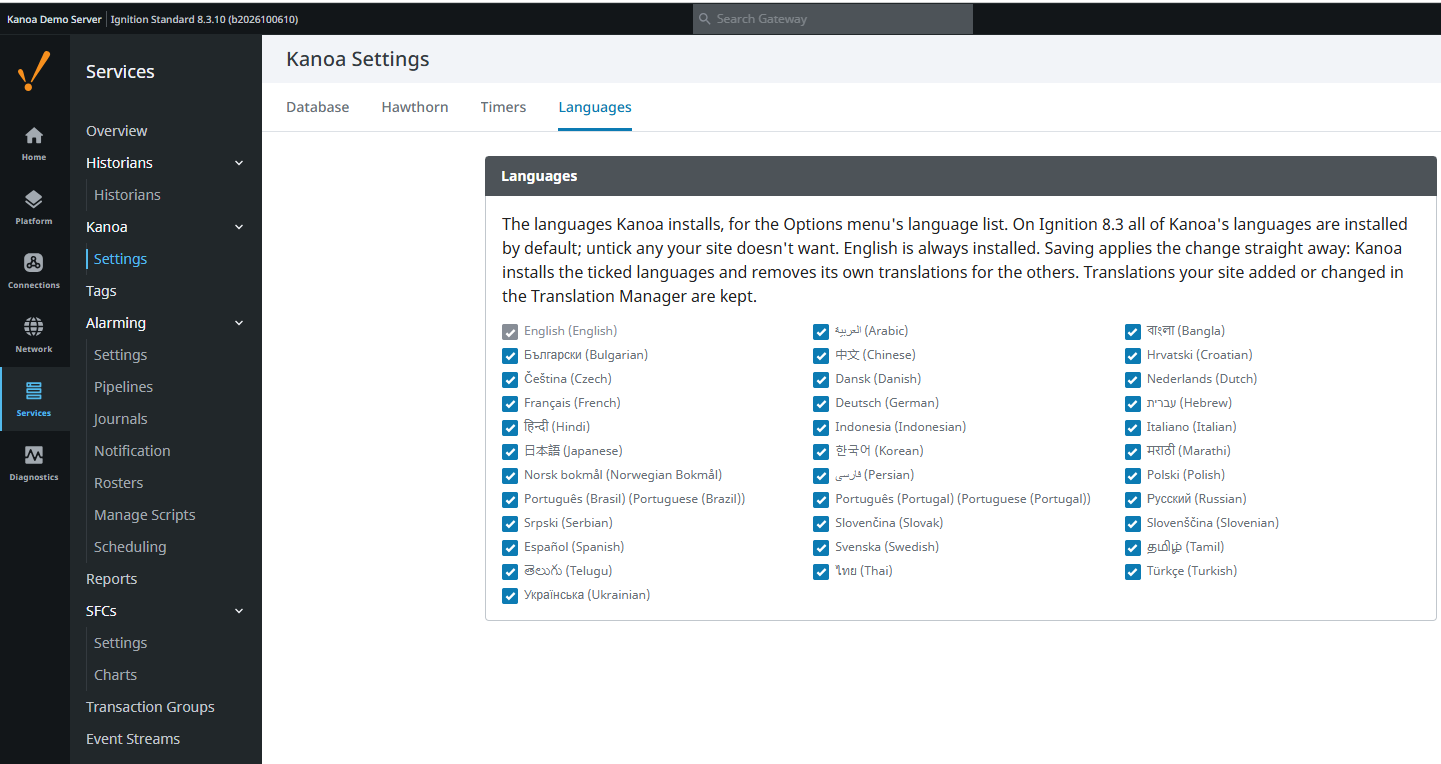
Saving applies the change at once. English is always installed. English, Spanish and Chinese are installed by default.
Every installed language makes each session slower to start, most of all when many stations start together, such as after a gateway restart. Tick only the languages your users need.
Unticking a language removes Kanoa's translations for it, including any terms you changed. Your own terms stay installed.
Reference Materials: Choosing the installed languages - The 34 languages and the settings that affect them.
Choosing the installed languages
Kanoa carries translations for 34 languages: Arabic, Bangla, Bulgarian, Chinese, Croatian, Czech, Danish, Dutch, English, French, German, Hebrew, Hindi, Indonesian, Italian, Japanese, Korean, Marathi, Norwegian Bokmål, Persian, Polish, Portuguese (Brazil), Portuguese (Portugal), Russian, Serbian, Slovak, Slovenian, Spanish, Swedish, Tamil, Telugu, Thai, Turkish and Ukrainian.
A gateway admin chooses which of them are installed on the Languages tab of the Kanoa gateway config page (Kanoa > Settings). Tick the languages your users need and click Save Languages. Saving applies the change straight away: Kanoa installs the ticked languages and removes its own translations for the others. English is always installed.
English, Spanish and Chinese are installed by default, on Ignition 8.1 and 8.3 alike. On the first start of Kanoa MES 1.16, any other installed language is removed, unless your site has added its own translations to it: such a language is kept and shown ticked.
Every installed language adds to the work of starting each Perspective session, as the session loads the translations of every installed language. On Ignition 8.1 they're read from the gateway's internal database, which allows one connection at a time, so each extra language makes sessions slower to start, most of all when many stations start together, such as after a gateway restart. Ignition 8.3 doesn't read them from the database but still builds them for each new session. Tick only the languages your users need. If your site needs many languages, we recommend Ignition 8.3.
Check the Translations
Kanoa's translations were generated with AI, so a term may not read naturally in every context. To check them:
- Switch to each language your users need.
- Open the screens your users use most, and read the labels, menus and reason names.
- Note any term that is wrong or unclear for your plant.
Your own text, such as asset, reason and item names, isn't translated unless someone adds translations for it. Changing a translation is done in the Ignition Designer, so give your list of terms to your developer. That work is part of Developer Training.
Check Your Understanding
- Where do you choose which languages are installed?
- You switch your language. Who else sees the change?
- Why should you install only the languages you need?
Answers
- On the Languages tab of Kanoa > Settings on the gateway config page.
- No one. It applies to your session only.
- Each installed language makes every session slower to start.