Your Work Queue
Every job you do starts as a work order. The Work Orders screen lists them, so you can see what's waiting, how urgent it is and when it's due. This lesson shows you how to find your own.
Open the Work Orders Screen
- Open Maintenance → Work Orders from the navigation menu.
The list of work orders is on the left. The selected work order's details are on the right.
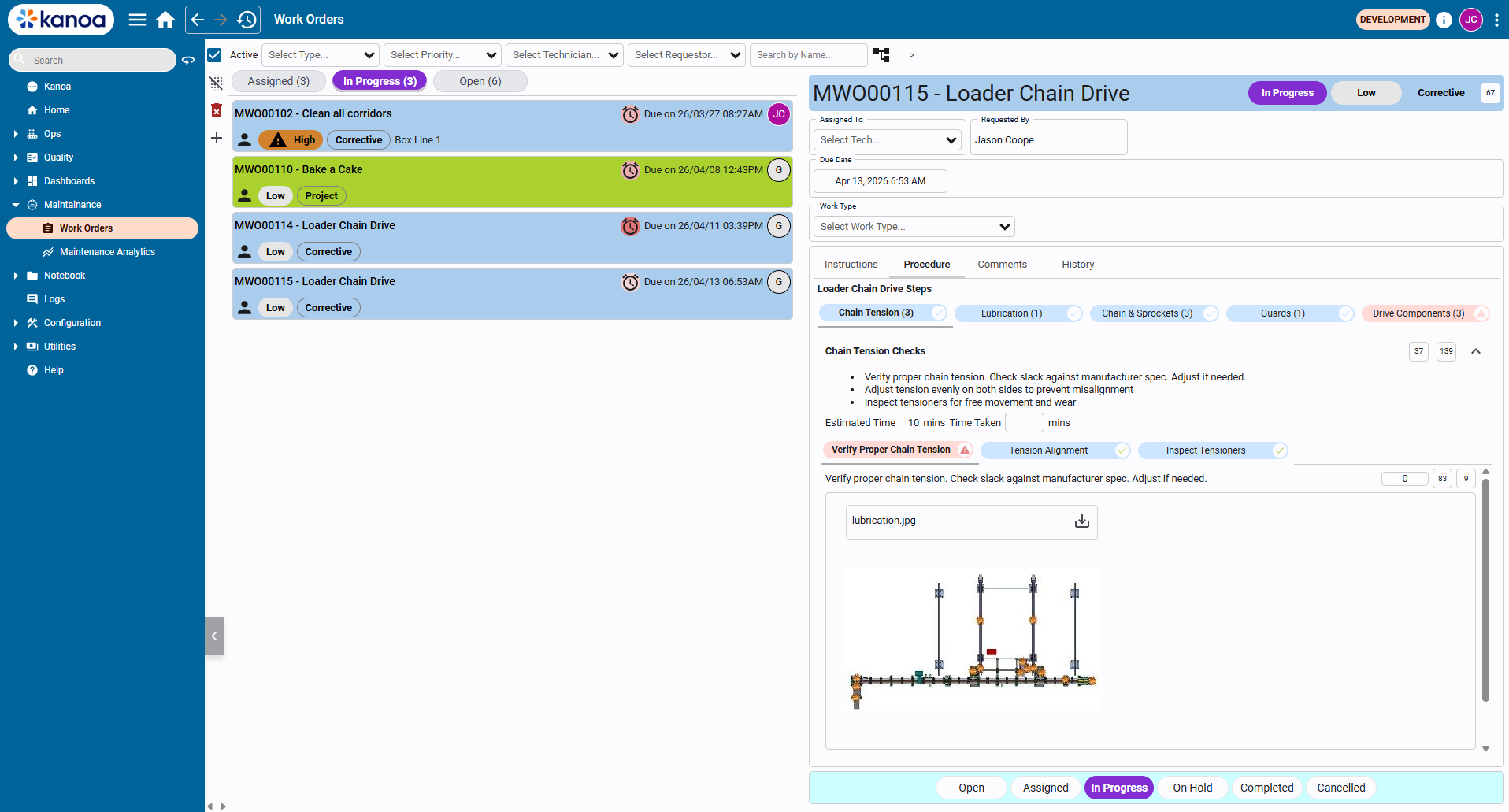
Each work order has a name that starts with MWO, such as MWO00115, followed by its title. Kanoa makes the name when it
creates the work order.
Find Your Work Orders
The work orders are grouped under tabs at the top of the list, such as Assigned, In Progress and Open. Each tab shows how many work orders it holds. Open means nobody has picked the work up yet.
To narrow the list, use the filters above it:
- Open Select Technician... and pick your name to see the work assigned to you.
- Use Select Type... to show one kind of maintenance, such as Corrective or Preventive.
- Use Select Priority... to show one priority.
- Type part of a title in Search by Name... to find a work order you know.
Check the Assigned tab at the start of every shift. A work order moves there when someone assigns it to a technician.
Read Priority and Due Date
Each work order card shows what you need to plan your day:
| On the card | What it tells you |
|---|---|
| Priority | How urgent the job is. Out of the box the priorities are Low, Medium, High and Urgent. |
| Maintenance type | The kind of job, such as Corrective, Preventive or Project. |
| Due on | The date and time the work is due. |
Open a work order to see more. The panel on the right shows who it's Assigned To, who it was Requested By and its Due Date. It also has Instructions, Procedure, Comments and History tabs, which you'll use in the next lesson.
Start with the highest priority and the earliest due date. Work orders can be a mix of one-off repairs, preventive maintenance and work raised by a machine's run hours or tool life. They all appear in the same list.
Reference Materials: Priority - How work orders are given an urgency.
Priority
Work orders can be set a priority. Out of the box you get 'Low', 'Medium', 'High', Urgent'. You can modify these or add new priorities as you see fit.

Reference Materials: Work Flow Status - The statuses a work order moves through.
Work Flow Status
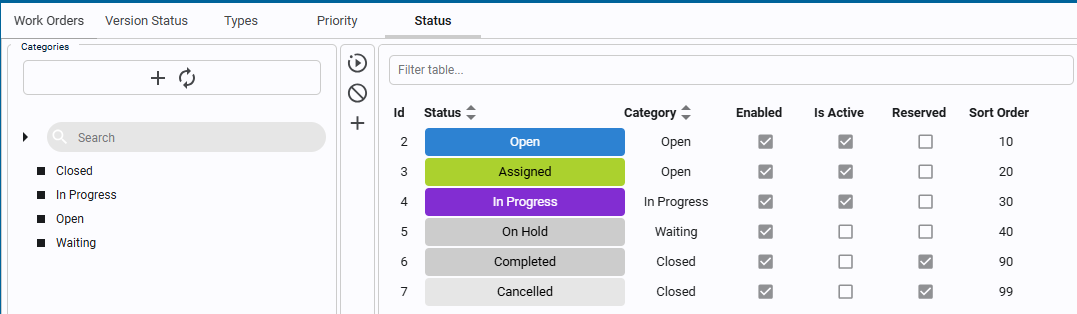
As Work orders are created, assigned etc., they move through a workflow. These states are used for filtering, KPI segmentation and Backlog analysis. Default status types are Open, Assigned, In Progress, On Hold, Completed and Cancelled. Custom states can also be added.
Workorder statuses fall under categories. This allows multiple states to be considered 'Closed' or 'Waiting'.
Check Your Understanding
- Where do you open the list of work orders?
- How do you show only the work orders assigned to you?
- Which two things on a work order card help you decide what to do first?
Answers
- Maintenance → Work Orders in the navigation menu.
- Pick your name in the Select Technician... filter above the list.
- The priority and the due date.