Configure Counters
Counters are where production counts enter Kanoa. Every count event (infeed, outfeed, waste, or anything else you want to count) is stored against a counter on an asset. In this section you'll look at the counters Kanoa created for the CoreForge lines, then add one of your own.
Reference Materials: Counters - The counters on an asset and how to add more.
Counters are the entry point for bringing production counts into Kanoa MES. By default, an infeed, outfeed and waste counter are automatically generated when an asset is 'OEE Enabled'. See Data Interface Tag
Creating Counters
Additional counters can be added via the 'Counters' tab on the Asset Configuration screen (Configuration > Ops > Assets).
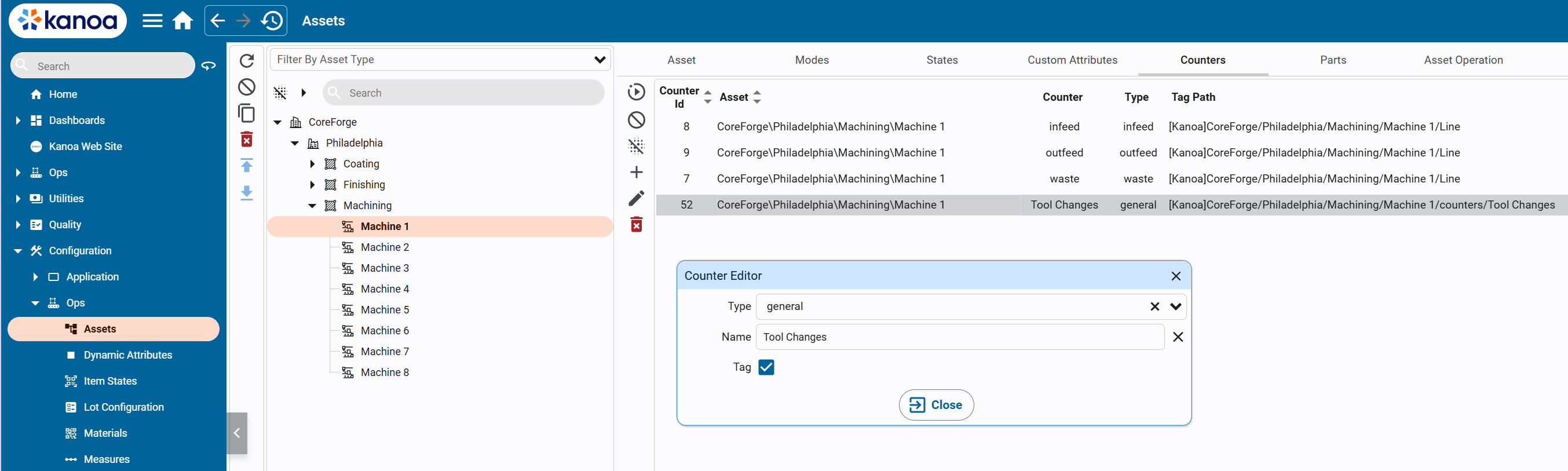
This provides a mechanism for adding additional infeed, outfeed and waste counters or general counters. General counters can be used to capture counts such a bottle tops that do not affect the OEE of an asset.
By selecting 'Tag', an instance of the counter UDT is created under the asset in the 'counters' folder. This can then be connected to a plc data source. Counters do not need to be wired to a data source, they can be created and counts captured via the system.kanoa.event.addCounterEvent() function
When you checked OEE Enabled on Machine 1, Spray Line 1 and Manual Pack 1 in Configure Assets, Kanoa created an assetOEE tag for each one. As that tag starts up it creates three counters on the asset:
| Counter | What it counts | Used for |
|---|---|---|
infeed | Parts going into the asset | Performance, and quality when compared with outfeed |
outfeed | Good parts coming out | Performance and quality |
waste | Parts scrapped on the asset | Quality, and waste by reason (next lesson) |
The counter IDs are stored in the assetOEE tag's Configuration folder (infeedCounterId, outfeedCounterId, wasteCounterId). The Infeed Count, Outfeed Count and Waste Count tags in its Inputs folder, which you connected to the simulator in Connect To Your Tags, record their counts against these three counters. You don't need to create or connect anything else for OEE.
- Open Configuration → Ops → Assets and select
Machine 1in the asset tree. - Open the Counters tab.
- Confirm
Machine 1has aninfeed, anoutfeedand awastecounter, and note each one's Counter Id. - In Ignition Designer, open
Machine 1's assetOEE tag in theKanoatag provider, expand its Configuration folder, and check thatinfeedCounterId,outfeedCounterIdandwasteCounterIdmatch the IDs on the Counters tab.
Adding Counters
You can also add counters from the Counters tab. Use an extra infeed, outfeed or waste counter when an asset has more than one count source of that kind. Use a general counter for anything worth counting that isn't part of OEE: tool changes, label rolls, bottle caps, rejects from an inspection station. General counts are stored and reported like any other count, but they never change the asset's OEE.
When you add a counter with Tag ticked, Kanoa creates a counter tag for it in a counters folder under the asset's tags, ready to connect to a PLC or other source. A counter doesn't need a tag, though: counts can also be recorded with system.kanoa.event.addCounterEvent(), from an operator screen, a gateway script or a web service.
- On the Counters tab for
Machine 1, click + (Add a new counter). - In the Counter Editor, set Type to
generaland Name toTool Changes. - Tick Tag, then click Save.
- Confirm
Tool Changesappears in the list with typegeneraland a tag path ending in/counters/Tool Changes. - In Ignition Designer, find the new tag in the
countersfolder underMachine 1's tags.
Run this in the Ignition Designer Script Console (Tools → Script Console) to record one tool change against the new counter, without using its tag.
Show the recordToolChange script
# Record a count against the Tool Changes counter on Machine 1.
# Counters don't need a tag: anything that can run a script can record a count.
# Running this again records another count.

ASSET = 'CoreForge\\Philadelphia\\Machining\\Machine 1'
COUNTER = 'Tool Changes'
COUNT = 1.0

userId = system.kanoa.security.getIDPUserId({'userName': 'SYSTEM'})
counterId = system.kanoa.utilities.getFieldValue('counterId',
	system.kanoa.asset.getCounter({'assetPath': ASSET, 'counterName': COUNTER}))

if counterId is None:
	print 'No %s counter found on %s. Add it on the Counters tab first.' % (COUNTER, ASSET)
else:
	print 'Recording %g against %s (counterId %s)...' % (COUNT, COUNTER, counterId)
	eventId, msg = system.kanoa.event.addCounterEvent({
		'counterId': counterId,
		'deltaValue': COUNT,
		'itemId': None,
		'itemStateId': None,
		'workOrderId': None,
		'tStamp': system.date.now(),
	}, userId)
	if msg:
		print 'Failed: %s' % msg
	else:
		print 'Done. Counter event %s recorded.' % eventId
Copy this script into the Ignition Designer Script Console (Tools → Script Console) and run it. It checks that each line has its infeed, outfeed and waste counters, that Machine 1 has a general Tool Changes counter with a tag, and that a count has been recorded against it in the last 7 days. Each check prints PASS or FAIL with what to fix. It doesn't change anything.
Show the check script
# Kanoa Ops Training - check "Configure Counters" (Base Configuration, lesson 8)
#
# Run in the Ignition Designer Script Console (Tools > Script Console), in the
# project that inherits KANOA_SCRIPTS. It only reads; it changes nothing.
# Every check prints PASS or FAIL with what to fix, then a summary.

LINES = [
	'CoreForge\\Philadelphia\\Machining\\Machine 1',
	'CoreForge\\Philadelphia\\Coating\\Spray Line 1',
	'CoreForge\\Philadelphia\\Finishing\\Manual Pack 1',
]
OEE_COUNTERS = ['infeed', 'outfeed', 'waste']
GENERAL_ASSET = 'CoreForge\\Philadelphia\\Machining\\Machine 1'
GENERAL_NAME = 'Tool Changes'
LOOKBACK_DAYS = 7

results = []

def check(ok, what, fix=None):
	results.append(bool(ok))
	if ok:
		print 'PASS  %s' % what
	else:
		print 'FAIL  %s' % what
		if fix:
			print '      -> %s' % fix

def note(what):
	print 'NOTE  %s' % what

def field(row, *names):
	for n in names:
		if n in row and row[n] is not None:
			return row[n]
	return None

def text(v):
	return '' if v is None else unicode(v).strip()

def key(v):
	return ' '.join(text(v).lower().split())

def rows(data):
	# Kanoa returns a dataset, a list of dictionaries, or None
	if data is None:
		return []
	if hasattr(data, 'getRowCount'):
		cols = list(data.getColumnNames())
		return [dict((c, data.getValueAt(i, c)) for c in cols) for i in range(data.getRowCount())]
	return [dict(r) for r in data]

def counters(assetPath):
	try:
		return rows(system.kanoa.asset.getCounter({'assetPath': assetPath}))
	except:
		return []

def counterType(c):
	return key(field(c, 'counterTypeName', 'counterType', 'type'))

def tagExists(path):
	try:
		return bool(path) and system.tag.exists(path)
	except:
		return False

print '=' * 70
print 'Kanoa Ops Training - Configure Counters check'
print '=' * 70

# 1. Infeed, outfeed and waste were created when each line was OEE Enabled
print '\n-- OEE counters on each line'
for assetPath in LINES:
	name = assetPath.split('\\')[-1]
	found = counters(assetPath)
	types = set(counterType(c) for c in found)
	missing = [t for t in OEE_COUNTERS if t not in types]
	check(not missing, '%s has infeed, outfeed and waste counters' % name,
		'Missing: %s. Open %s in Configuration > Ops > Assets, make sure OEE Enabled is ticked and save. '
		'The counters are created when its assetOEE tag starts up.' % (', '.join(missing), name))

# 2. The general counter on Machine 1
gname = GENERAL_ASSET.split('\\')[-1]
print '\n-- %s general counter on %s' % (GENERAL_NAME, gname)
found = counters(GENERAL_ASSET)
exact = [c for c in found if text(field(c, 'counterName')) == GENERAL_NAME]
close = [c for c in found if key(field(c, 'counterName')) == key(GENERAL_NAME)]
counter = (exact or close or [None])[0]
if counter is None:
	check(False, '%s counter exists on %s' % (GENERAL_NAME, gname),
		'On the Counters tab for %s, click + and add a general counter named %s with Tag ticked.' % (gname, GENERAL_NAME))
else:
	actual = text(field(counter, 'counterName'))
	check(actual == GENERAL_NAME, '%s counter exists on %s' % (GENERAL_NAME, gname),
		"Found '%s'. Edit it and rename it to %s." % (actual, GENERAL_NAME))
	ctype = counterType(counter)
	check(ctype == 'general', '%s is a general counter' % GENERAL_NAME,
		"It's '%s'. A general counter doesn't affect OEE; edit it and set Type to general." % (ctype or 'blank'))

	tagPath = text(field(counter, 'tagPath', 'counterTagPath'))
	if not tagPath:
		try:
			tagPath = text(system.kanoa.asset.getAssetTagPath({'assetPath': GENERAL_ASSET})) + '/counters/' + actual
		except:
			tagPath = ''
	check(tagExists(tagPath), '%s has a counter tag' % GENERAL_NAME,
		"No tag at '%s'. Edit the counter, tick Tag and save." % (tagPath or 'unknown path'))

	# 3. A count recorded against it
	print '\n-- Count recorded on %s' % GENERAL_NAME
	end = system.date.now()
	start = system.date.addDays(end, -LOOKBACK_DAYS)
	try:
		events = rows(system.kanoa.event.getCounterEvents({'counterId': field(counter, 'counterId'),
			'hasValue': True, 'startDate': start, 'endDate': end}))
	except:
		events = []
	total = 0.0
	for e in events:
		try:
			total += float(field(e, 'counterValue', 'deltaValue', 'value') or 0)
		except:
			pass
	check(events, '%s has a count recorded' % GENERAL_NAME,
		"Run the 'Record a count from a script' script in this lesson. (Checked the last %d days.)" % LOOKBACK_DAYS)
	if events:
		note('%d count event(s) on %s in the last %d days, total %g' % (len(events), GENERAL_NAME, LOOKBACK_DAYS, total))

passed = results.count(True)
print '\n' + '=' * 70
print 'Result: %d of %d checks passed' % (passed, len(results))
if passed == len(results):
	print 'All good. Your counters are set up.'
else:
	print 'Fix the FAIL items above, then run this again.'
print '=' * 70