Run and Change Over
A mold's rate only applies while it's mounted. In this lesson you'll mount M-EC25-4 from the Operator Station's info panel, run
EC-25 caps, check the rate the run is measured against, and then change Injection Press 1 over to the other mold and
cap.
Reference Materials: Mounting Tools - The mount panel, mount rules and warnings.
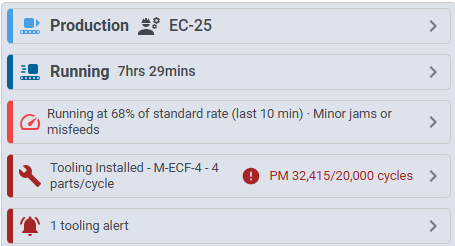
A tool is mounted on a machine from the Operator Station: the info panel's Tooling card shows the installed tool, and tapping it opens the Tooling popup. Its Mount / Unmount tab is the mount panel. A machine's PLC can also mount tools through its tags (see Tooling Tags).
For users with the Configure Assets security function, the popup also has a Tool Config tab with the installed tool's editor, or a Tools tab with the tools list when no tool is installed.
The Mount Panel
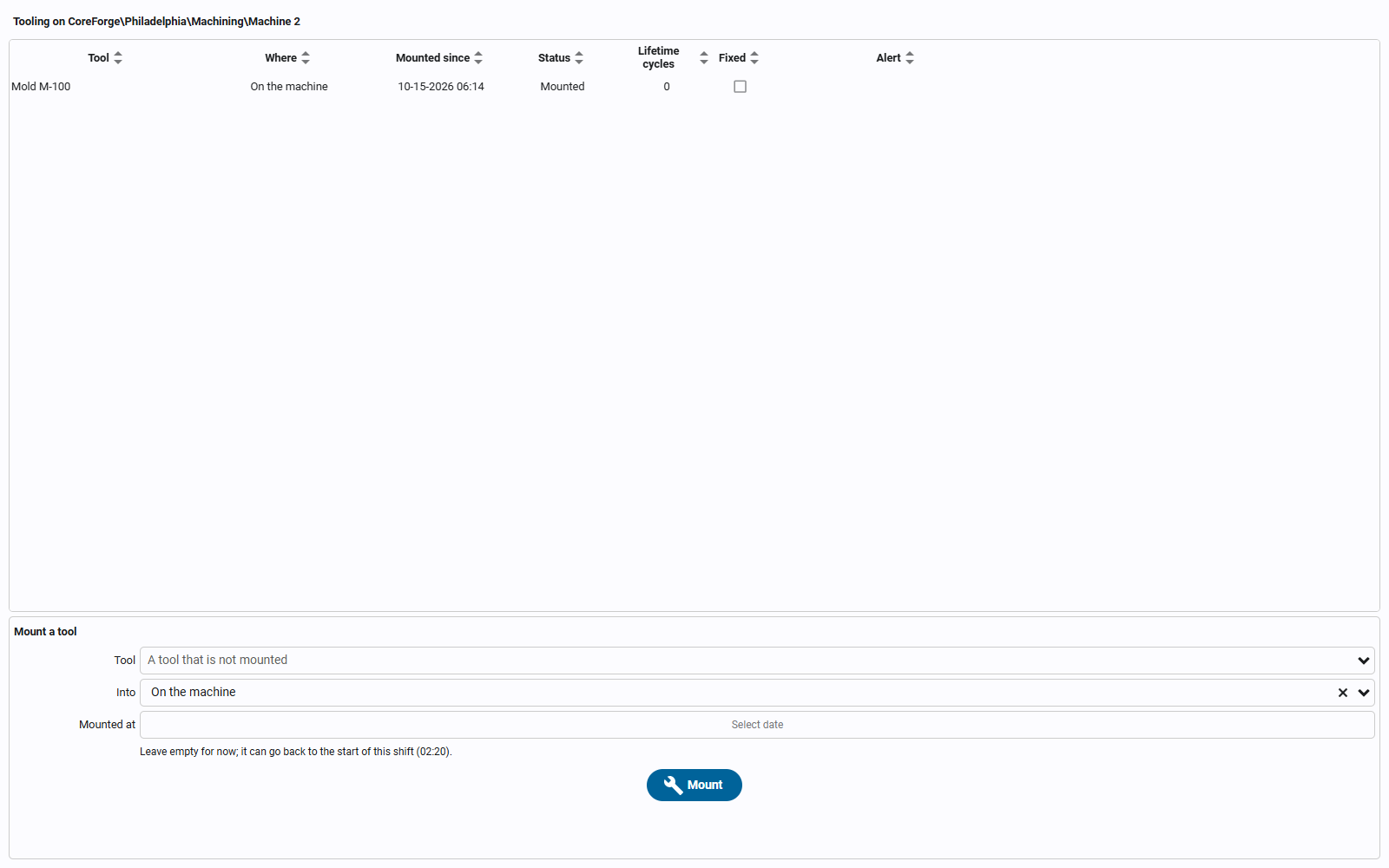
The mount panel lists the tools on the machine: where each is (on the machine, or in a pocket of another tool), when it was mounted, its status, lifetime cycles, whether it's fixed, and any alert.
To mount a tool:
- Pick the Tool. Only the tools that can go on this machine are listed: those in its site that aren't mounted anywhere, and tools outside any site.
- Pick Into: On the machine, or a free pocket of a tool already mounted (to put an insert into a mold base).
- Leave Mounted at empty for now, or back-date it to when the tool really went on. It can go back to the start of the current shift.
- Click Mount.
Select a mounted tool to unmount it (with or without its inserts), to fix an insert in its pocket so it comes off with the base, or to block and unblock its positions.
The Tooling nav item on the Operator Station also opens the mount panel. It's off by default; turn it on in the asset operation navigation settings.
Rules
- A machine can have one tool with output positions at a time. A mold base's inserts count as part of it.
- A tool is mounted on one machine, or in one pocket, at a time. Unmount it first to move it.
- A tool is mounted only on the machines in its site (a tool outside any site can go anywhere).
- A tool with fit rules is mounted only where one of them allows (an insert in a mold base, only in a base its rules allow).
- A mount can't start in the future, or overlap the tool's earlier mounts.
- A tool that is In repair, Damaged or Retired can't be mounted.
Warnings
Mounting a tool that is over a limit shows a Mount warnings popup. OK mounts it anyway, and the accepted warnings are saved in the mount's note; Close mounts nothing.
A site can add its own mount check, a project script function named in the configuration values
toolingValidationProject and toolingValidationFunction. It's given the proposed mount, including the tool's positions,
and returns errors, which refuse the mount, and warnings, which need accepting. A check that fails or takes longer than
10 seconds becomes a warning, so it can't stop production.
Runs and History
- Mounting, unmounting or swapping a tool starts a new run at that moment when it changes the rate (see Cycle Rates and Item Rates). A swap from a tag unmounts and mounts at the same moment, so the run there gets the new tool's rate.
- A back-dated mount re-stamps the runs since then with the tool's rate and moves the cycles the machine ran since then onto the tool's life counts.
- A mount window can be corrected from the tool's History tab (a new start or end, with a reason). Runs are split at the corrected edges where the rate changes.
Mount the 4-Cavity Mold
- Click Home, then
Injection Press 1on the Asset Overview dashboard to open its Asset Operation screen. - The info panel's Tooling card says No tooling installed. Tap it to open the Tooling popup, on its Mount / Unmount tab.
- Under Mount a tool, pick
M-EC25-4as the Tool and leave it On the machine. - Leave Mounted at empty, so the mold is mounted now, and click Mount.
- Kanoa asks whether to put Injection Press 1 into Changeover first. Click Changeover: setting a mold is changeover time, not production.
- Close the popup. The Tooling card now shows Tooling Installed - M-EC25-4 - 4 parts/cycle, and how far the mold is through its PM interval: PM 0/20,000 cycles. Its stripe is green: the mold is within its limits.
Mounted at can be back-dated to the start of the current shift, for a mold that went on before anyone recorded it.
The Operator Station also has a Tooling nav item that opens the same mount panel. It's off by default; turn it on in the asset operation navigation settings, as in Asset Operations Screen, if operators change molds often.
Run EC-25
- Tap the mode card (it says Changeover) to open Run Control, and select the Product tab.
- Select
EC-25and click Start Run, then close Run Control. - Within a minute, Injection Press 1's state changes to Running, and its outfeed count starts climbing every few seconds, by about 24 caps a minute.
Check the Run's Rate
Without a mold, Injection Press 1's standard rate for EC-25 would be 20 a minute, from its own rate. With M-EC25-4
mounted, the run is measured against the mold instead.
Run this in the Script Console:
asset = system.kanoa.asset.getAssets({'assetPath': 'CoreForge\\Philadelphia\\Molding\\Injection Press 1'})
item = system.kanoa.item.getItems({'itemName': 'EC-25'})
rate = system.kanoa.tooling.getStandardRate({
    'assetId': asset.getValueAt(0, 'assetId'),
    'itemId': item.getValueAt(0, 'itemId'),
})
rateList = system.kanoa.utilities.convertDatasetToJSON(rate)
for row in rateList:
    for k,v in row.items():
        print k,v
Confirm rateSource is cycle, toolingName is M-EC25-4, cycleRate is 6, partsPerCycle is 4 and standardRate
is 24.
rateSource says where the rate came from, first match wins:
| rateSource | Meaning |
|---|---|
tool | The item has its own rate for the mounted tool, in Production Rates. |
cycle | The tool's cycle rate × the item's parts per cycle (× the package count of the machine's rate for the item, 1 here). |
asset | The machine's own rate for the item: no tool is mounted, or it has no cycle rate on this machine. |
The run started after the mold was mounted, so it took the mold's rate from the start. Mounting or unmounting a mold during a run that changes the rate ends that run and starts a new one at the new rate. Earlier runs keep the rate they started with.
Change Over to EC-32
The EC-25 order is done, and the next order is for EC-32. The setter takes M-EC25-4 off the press and puts
M-EC32-2 on, then starts the new run.
- Tap the Tooling card, select
M-EC25-4and click Unmount. - When Kanoa asks whether to put Injection Press 1 into Changeover first, click Changeover. The
EC-25run ends, Injection Press 1 stops shooting, and the mold comes off. - Under Mount a tool, pick
M-EC32-2and click Mount. The press is already in Changeover, so Kanoa doesn't ask again. Close the popup. - Tap the mode card, and on Run Control's Product tab select
EC-32and click Start Run. - Run the script from Read the standard rate again with
'itemName': 'EC-32'.toolingNameisM-EC32-2,partsPerCycleis 2 andstandardRateis 10.
Changing molds in Changeover mode keeps the swap out of production: the changeover time is recorded as changeover,
not as a production run measured against whichever rate applied halfway through the swap. That's why the mount panel
asks before every mount and unmount, unless the machine is already in Changeover. Had you clicked Unmount only and
swapped the molds during the EC-25 run, it would have been split into a run at Injection Press 1's own 20 a minute (no
mold) and another at M-EC32-2's 10 a minute, because a mold with no items on its cavities makes whatever item is
running.
- Navigate to Ops → Operations → Run Review, select
Injection Press 1, and click Get data (the refresh button). - Find the runs from this lesson:
EC-25at 24 a minute, then the changeover, thenEC-32at 10 a minute. Run Review doesn't show the mold, but the rates tell you which one ran: 24 a minute isM-EC25-4, 10 a minute isM-EC32-2.
Copy this script into the Ignition Designer Script Console (Tools → Script Console) and run it. It checks that
M-EC32-2 is mounted on Injection Press 1 and M-EC25-4 isn't, that M-EC25-4 has shots counted from its run, that
Injection Press 1 is running EC-32, and that EC-32's standard rate comes from M-EC32-2's cycle rate at 10 a
minute. Each check prints PASS or FAIL with what to fix. It doesn't change anything.
Show the check script
# Kanoa Ops Training - check "Run and Change Over" (Tooling, lesson 3)
#
# Run in the Ignition Designer Script Console (Tools > Script Console). It only
# reads; it changes nothing. Every check prints PASS or FAIL with what to fix.

PRESS = 'CoreForge\\Philadelphia\\Molding\\Injection Press 1'
MOLDING = 'CoreForge\\Philadelphia\\Molding'
tl = system.kanoa.tooling

results = []

def check(ok, what, fix=None):
	results.append(bool(ok))
	if ok:
		print 'PASS  %s' % what
	else:
		print 'FAIL  %s' % what
		if fix:
			print '      -> %s' % fix

def text(v):
	return '' if v is None else unicode(v).strip()

def key(v):
	return ' '.join(text(v).lower().split())

def truthy(v):
	return str(v).lower() in ('true', '1')

def num(v):
	try:
		return float(v)
	except (TypeError, ValueError):
		return None

def near(v, target):
	v = num(v)
	return v is not None and abs(v - target) < 0.001

def rows(data):
	return system.kanoa.utilities.convertDatasetToJSON(data) if data is not None else []

def findTool(name):
	for t in rows(tl.getTools({})):
		if key(t.get('assetName')) == key(name):
			return t
	return None

def positionsOf(tool):
	byNumber = {}
	if tool is not None:
		for p in rows(tl.getPositions({'toolingAssetId': tool['toolingAssetId']})):
			byNumber[int(num(p.get('positionNumber')) or 0)] = p
	return byNumber

def itemId(name):
	items = rows(system.kanoa.item.getItems({'itemName': name}))
	return items[0].get('itemId') if items else None

def standardRate(assetId, itemName):
	item = itemId(itemName)
	if assetId is None or item is None:
		return None
	rate = rows(tl.getStandardRate({'assetId': assetId, 'itemId': item}))
	return rate[0] if rate else None

def mountedNames(assetId):
	return [key(m.get('toolingName')) for m in rows(tl.getMounted({'assetId': assetId}))] if assetId is not None else []

print '=' * 70
print 'Kanoa Ops Training - Run and Change Over check'
print '=' * 70

assets = rows(system.kanoa.asset.getAssets({'assetPath': PRESS}))
pressId = assets[0].get('assetId') if assets else None
check(pressId is not None, 'Injection Press 1 exists', 'Import coreforge-press-1-asset-model.json, as in A New Press.')

print '\n-- Molds on Injection Press 1'
names = mountedNames(pressId)
check(key('M-EC32-2') in names, 'M-EC32-2 is mounted on Injection Press 1', 'Open the mount panel from the Tooling button on the Operator Station and mount M-EC32-2.')
check(key('M-EC25-4') not in names, 'M-EC25-4 is off Injection Press 1', 'Unmount M-EC25-4 in the mount panel.')
first = findTool('M-EC25-4')
check(first is not None and (num(first.get('lifetimeCycles')) or 0) > 0, 'M-EC25-4 has shots counted from its run',
	"Run EC-25 with M-EC25-4 mounted for a few minutes, and check Injection Press 1's Tooling MQTT path (A New Press).")

print '\n-- The running item'
if pressId is not None:
	base = system.kanoa.asset.getAssetTagPath({'assetId': pressId})
	running = system.tag.readBlocking([base + '/Line/OEE/itemId'])[0].value
	check(running is not None and running == itemId('EC-32'), 'Injection Press 1 is running EC-32',
		'On the Run Control widget, select EC-32 on the Product tab and click Start Run.')

r = standardRate(pressId, 'EC-32')
if r is None:
	check(False, 'EC-32 has a standard rate on Injection Press 1', 'Re-import coreforge-press-1-asset-model.json.')
else:
	check(key(r.get('rateSource')) == 'cycle', "EC-32's rate comes from a mold's cycle rate",
		"rateSource is '%s'. Mount M-EC32-2 and check its cycle rate on Injection Press 1." % text(r.get('rateSource')))
	check(key(r.get('toolingName')) == key('M-EC32-2'), "EC-32's rate comes from M-EC32-2", "It comes from '%s'." % text(r.get('toolingName')))
	check(near(r.get('partsPerCycle'), 2), "EC-32's parts per cycle is 2", "It's %s." % text(r.get('partsPerCycle')))
	check(near(r.get('standardRate'), 10), "EC-32's standard rate is 10 a minute", "It's %s." % text(r.get('standardRate')))

passed = results.count(True)
print '\n' + '=' * 70
print 'Result: %d of %d checks passed' % (passed, len(results))
if passed == len(results):
	print "All good. Injection Press 1 is running EC-32 on M-EC32-2."
else:
	print 'Fix the FAIL items above, then run this again.'
print '=' * 70